

Calendar
The calendar shows your appointments, meetings and events. You can plan meetings with colleagues, book meeting rooms, see when others are available and look at shared calendars side by side.
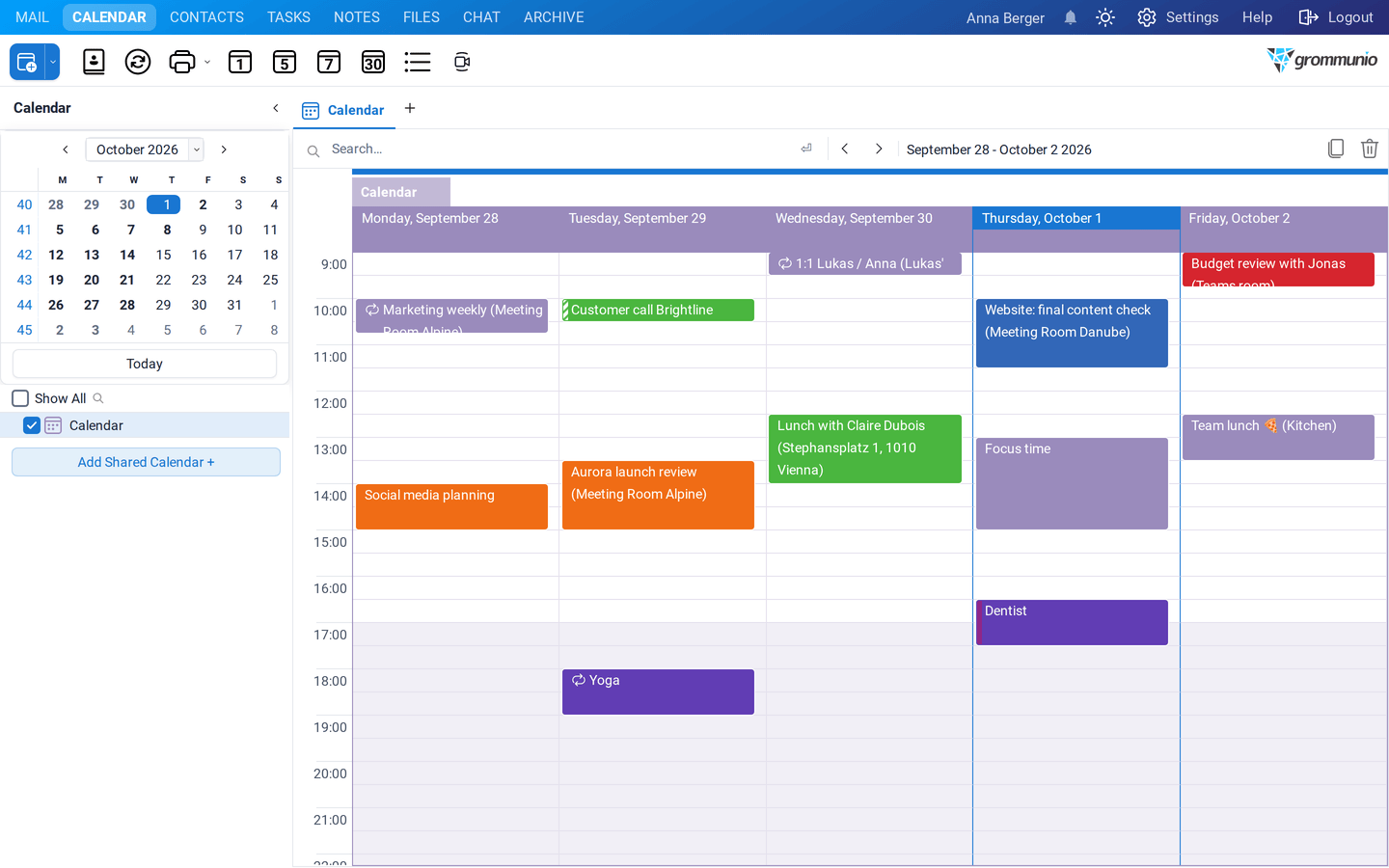
The calendar window
Section titled “The calendar window”On the left, a date picker shows the current month. Click a day to jump to it, or Today to come back. Days with appointments are shown in bold. Below the date picker you find your calendars and those that others share with you; tick a calendar to show it.
The toolbar switches between the views:

| View | Shows |
|---|---|
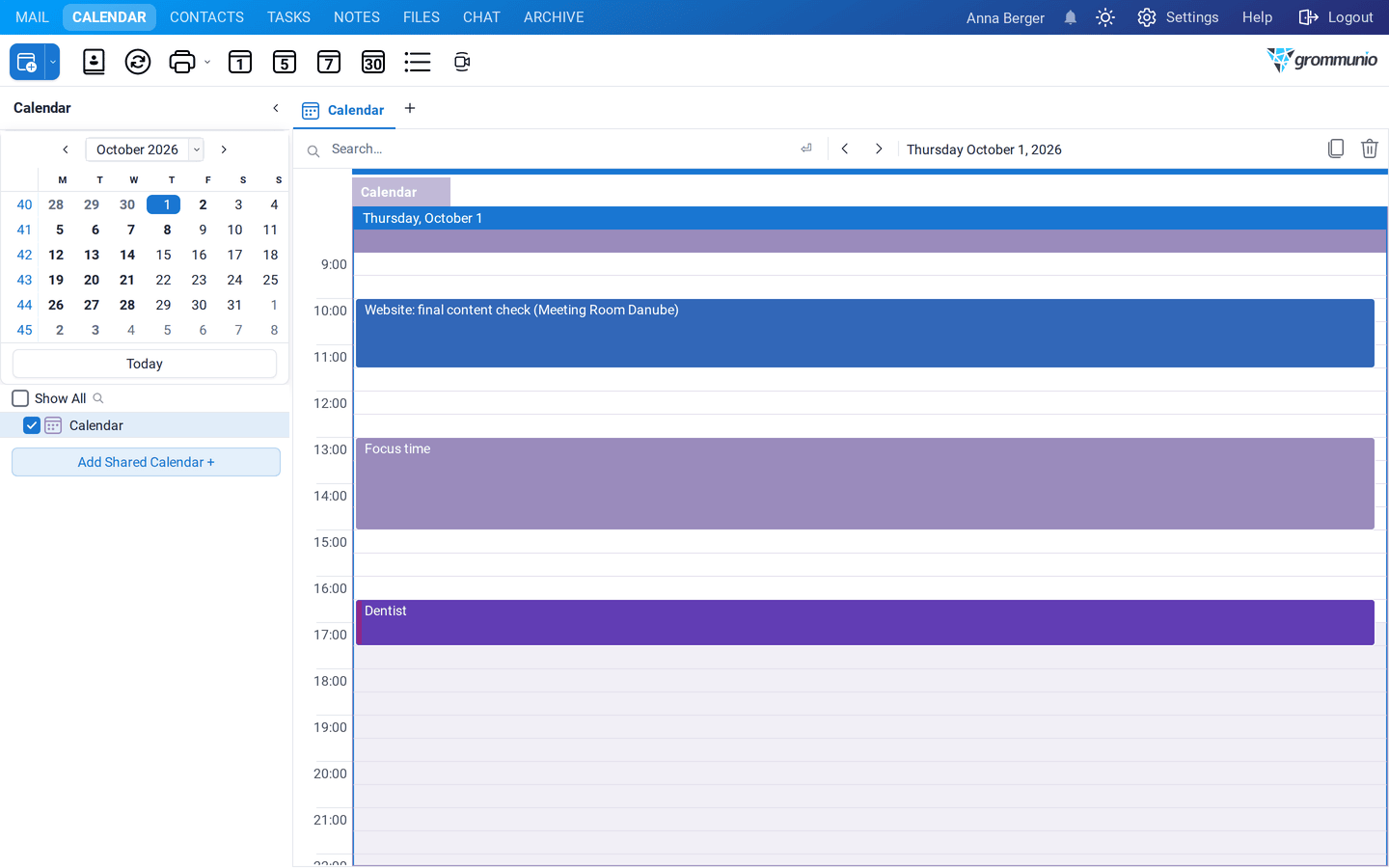
| Day | one day, hour by hour |
| Workweek | your working days (Monday to Friday by default) |
| Week | the whole week |
| Month | a whole month at a glance |
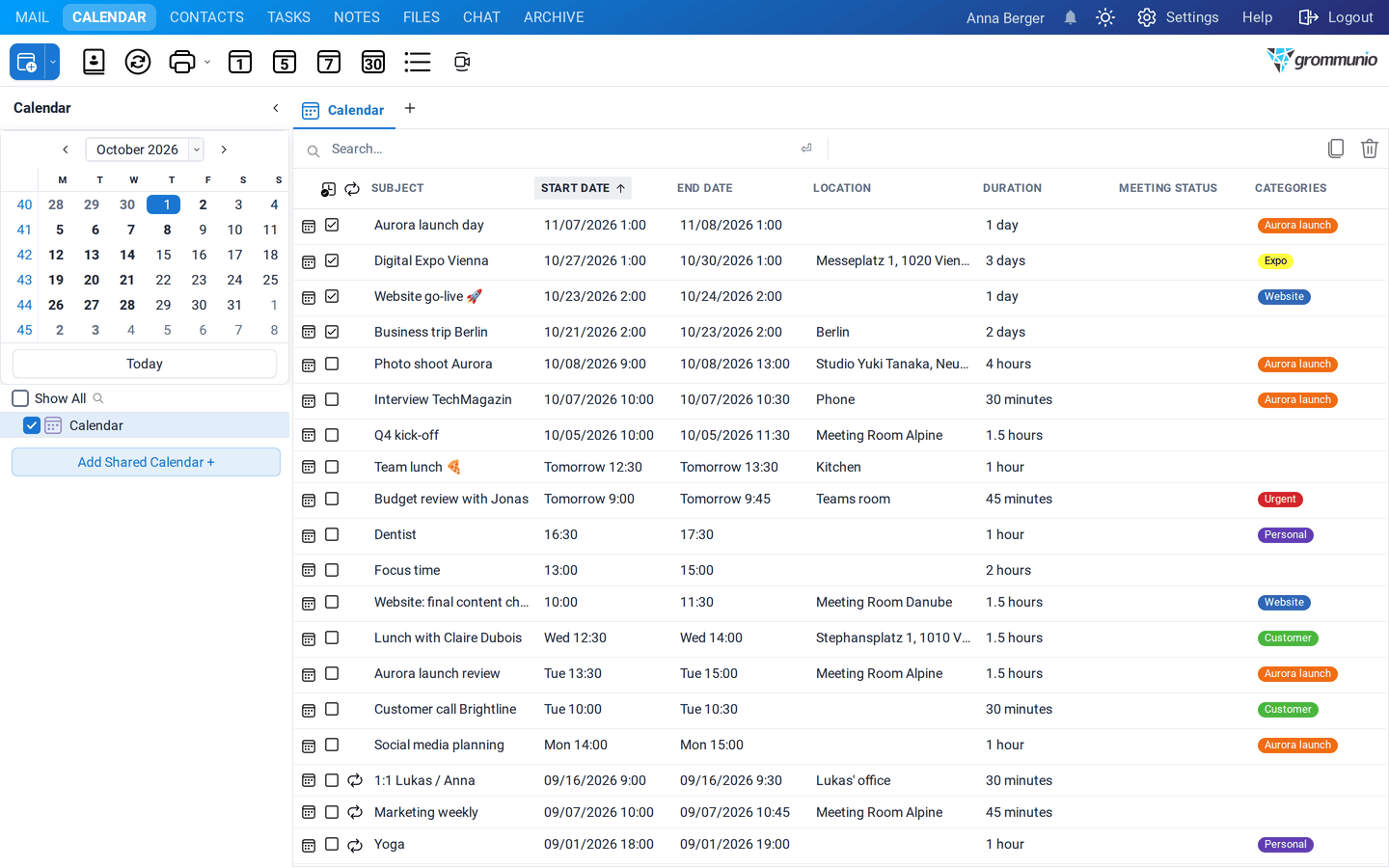
| List | all appointments of the selected period as a list |
Use the arrows next to the date range above the calendar to move back and forward. The red line marks the current time; your working hours have a lighter background.
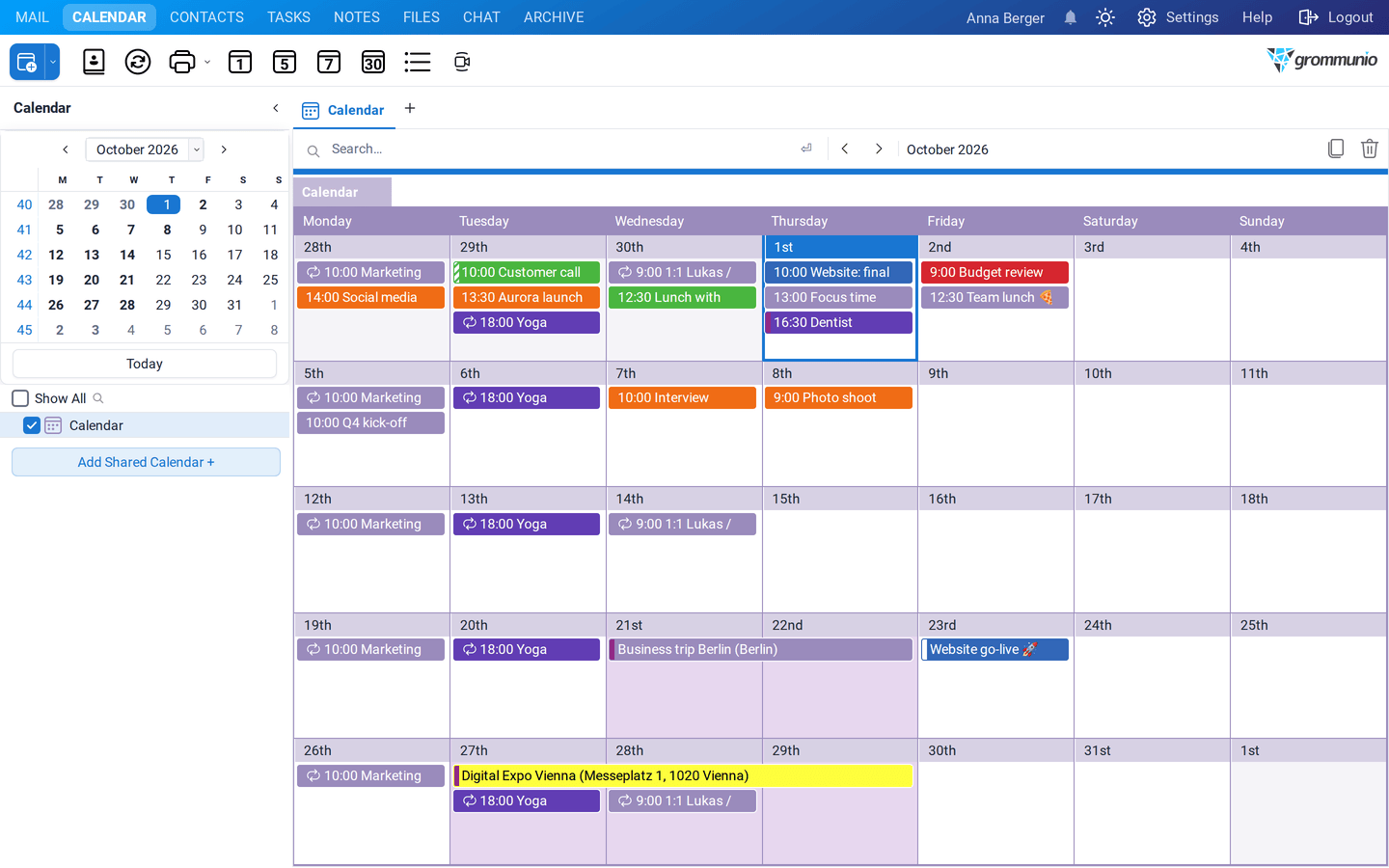
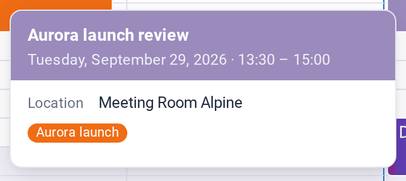
Appointments are shown in the color of their category, or in the color of the calendar. A circular arrow marks a recurring appointment. Hover over an appointment to see the details:
Appointments
Section titled “Appointments”Creating an appointment
Section titled “Creating an appointment”- double-click a time slot in the calendar,
- select a time range with the mouse and double-click it, or
- click New in the toolbar.
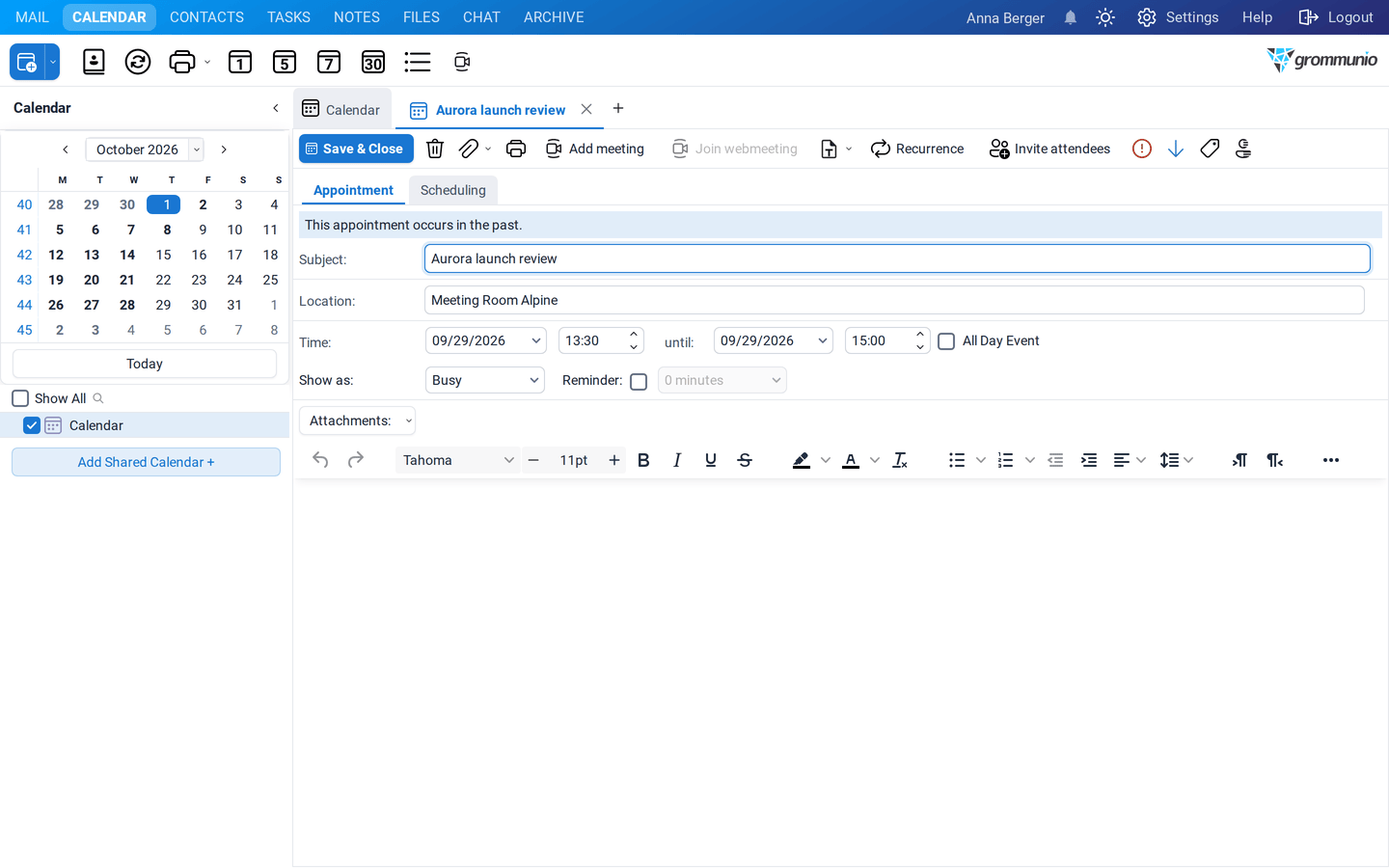
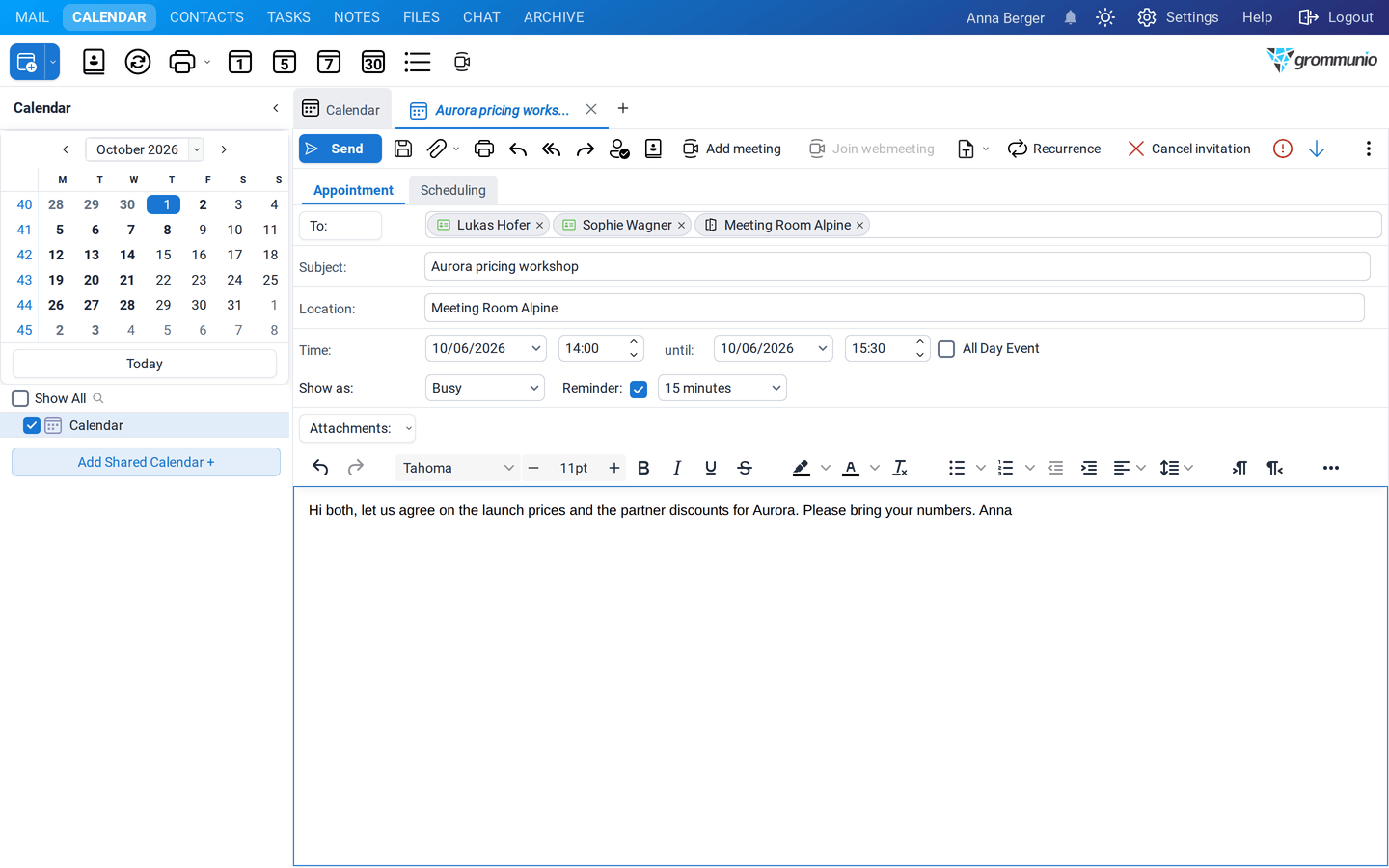
The appointment opens in its own tab:
| Field | Purpose |
|---|---|
| Subject | The title of the appointment. |
| Location | Where it takes place, for example a room or an address. A web address in this field can be opened with one click. |
| Time / until | Start and end. Tick All Day Event for events without a time, such as holidays or trade fairs. |
| Show as | How the time appears to others: Free, Tentative, Busy, Out of Office or Working Elsewhere. |
| Reminder | Whether and how long before the start you are reminded. |
| Create in | The calendar the appointment is saved in, shown in its color (if you have more than one). |
| Notes | Any text, pictures or links. |
| Attachments | Files belonging to the appointment. |
The toolbar of the appointment offers Save & Close, Delete, Add attachment, Print, Recurrence, Invite attendees, High/Low priority, Categories and Private. A private appointment shows only as busy to others, even if they may see your calendar.
Changing and moving appointments
Section titled “Changing and moving appointments”- Drag an appointment to another time or day to move it. Drag its lower edge to change its length.
- Hold Ctrl while dragging to copy the appointment.
- Double-click an appointment to open and edit it.
- Right-click an appointment for more options:
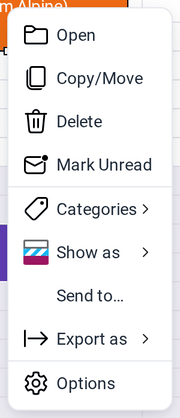
Appointments that are new to you, for example invitations you have not looked at, are shown in bold. Right-click and choose Mark Read or Mark Unread to change this.
Recurring appointments
Section titled “Recurring appointments”Click Recurrence in the toolbar of an appointment to repeat it:
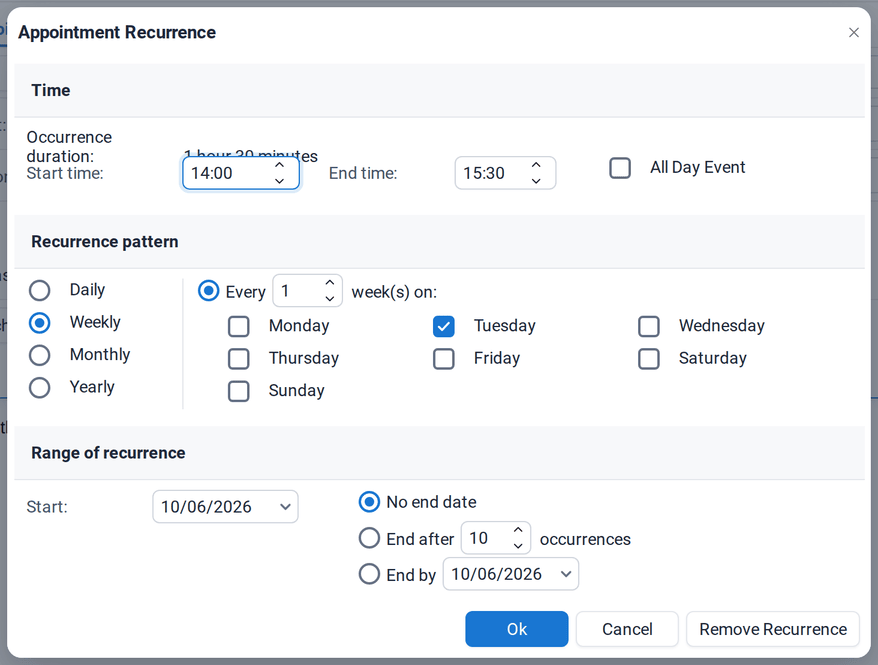
- Set the start and end time of each occurrence.
- Choose the pattern: Daily, Weekly, Monthly or Yearly, with the details, for example every 2 weeks on Wednesday.
- Choose when the series ends: never, after a number of occurrences or on a date.
When you open or delete a recurring appointment, grommunio Web asks whether you mean this occurrence only or the whole series.
Meetings
Section titled “Meetings”A meeting is an appointment with other people. They receive an invitation they can accept or decline, and you see their answers.
Inviting people
Section titled “Inviting people”- Create an appointment and click Invite attendees, or choose New › Meeting request.
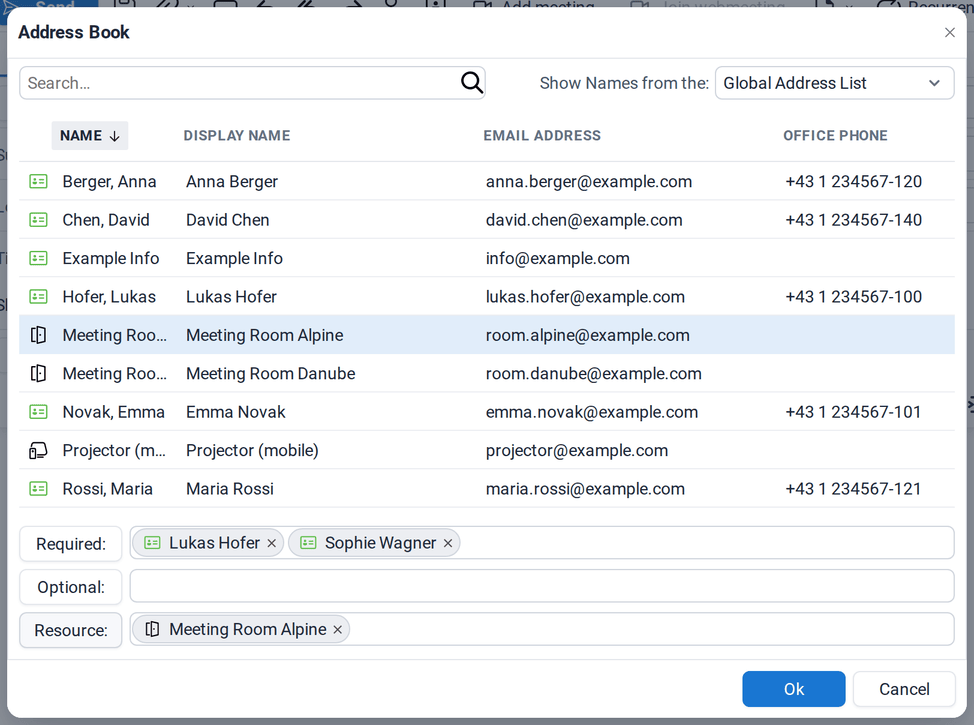
- Enter the attendees in To, or click To: to pick them from the address book.
- Fill in the subject, location and time.
- Click Send.
In the address book, attendees can be added as Required, Optional or Resource (rooms and equipment):
Finding a time that suits everyone
Section titled “Finding a time that suits everyone”Open the Scheduling tab to see the availability of all attendees, side by side:
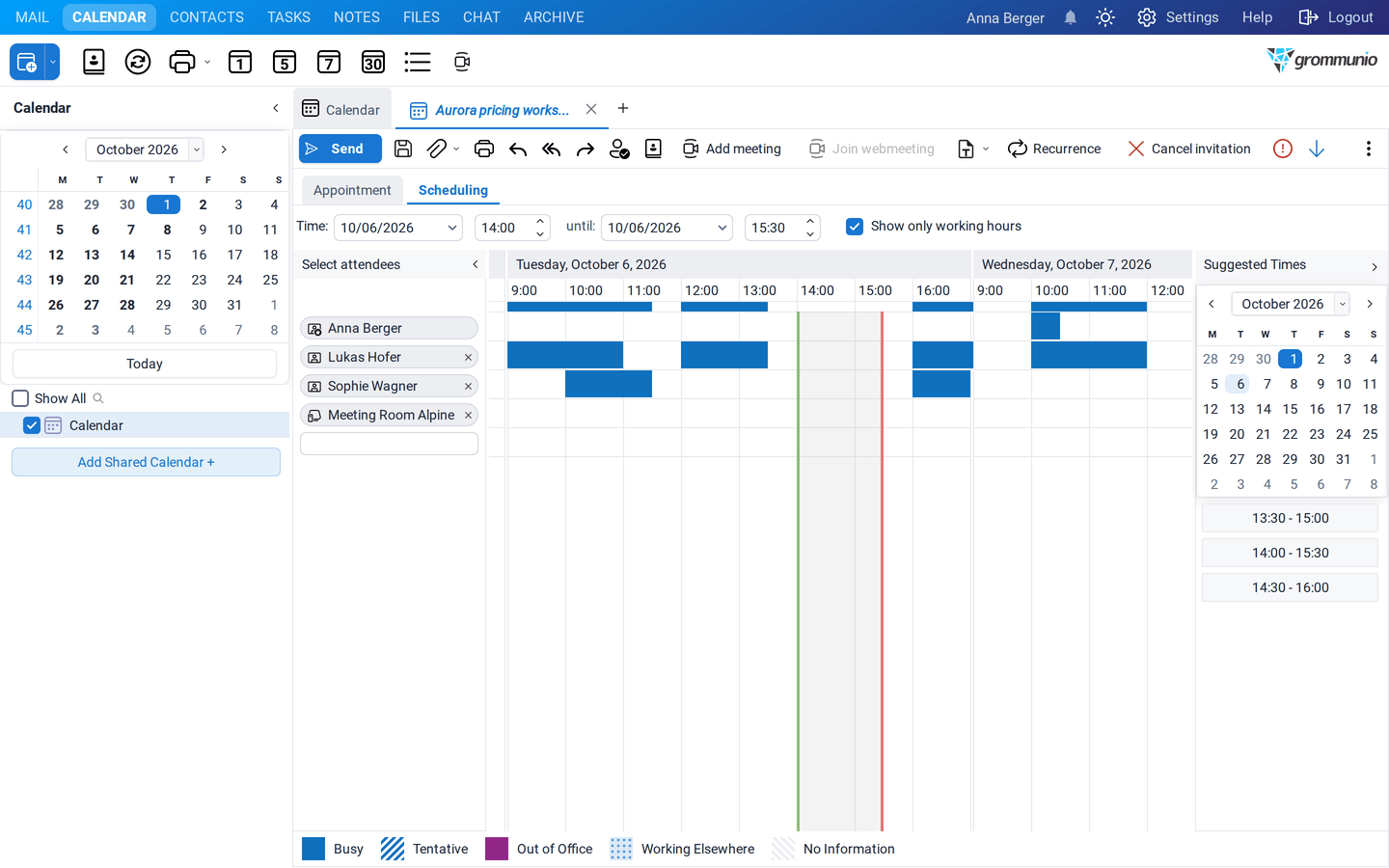
- Colored bars show when someone is busy, tentative, out of office or working elsewhere.
- The green and red lines mark the start and end of your meeting. Drag them, or change the time at the top.
- Suggested Times on the right lists times when everybody is free. Click one to take it.
- Show only working hours hides the night.
- Add more attendees in the field below the list. Right-click an attendee to make them required, optional or a resource.
Booking a meeting room
Section titled “Booking a meeting room”Rooms and equipment such as projectors are listed in the address book like people, with their own icon. Add a room as a Resource to your meeting:
- in the address book, select the room and click Resource:, or
- in the Scheduling tab, add the room and right-click it › Set as resource.
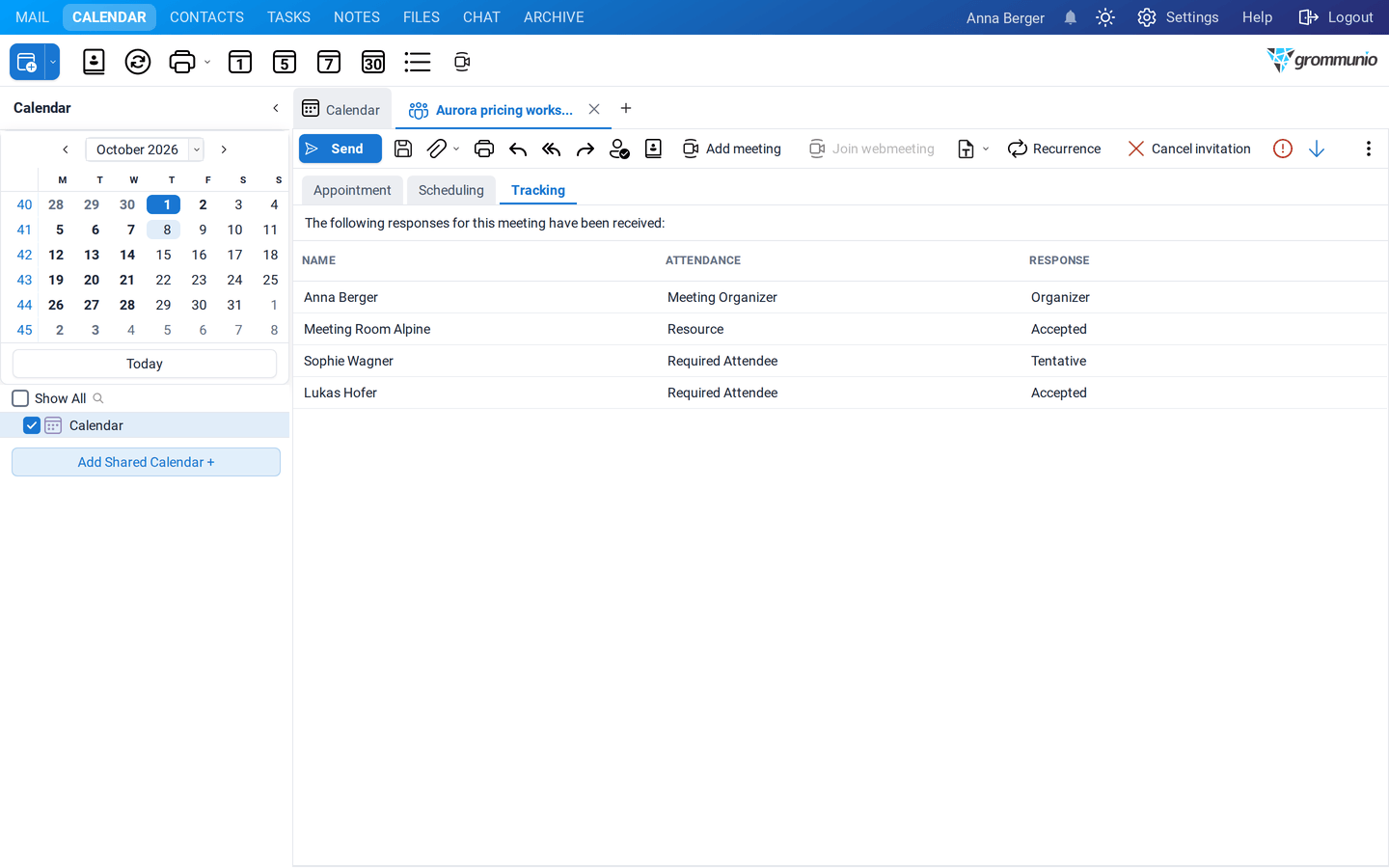
grommunio Web enters the room in the Location field. When you send the meeting, the room is booked. If the room is set up to accept invitations automatically, it accepts free times and declines conflicting ones. You see its answer in the tracking.
Answering an invitation
Section titled “Answering an invitation”Invitations arrive in your Inbox. The reading pane shows the date, time and location and the buttons to answer:
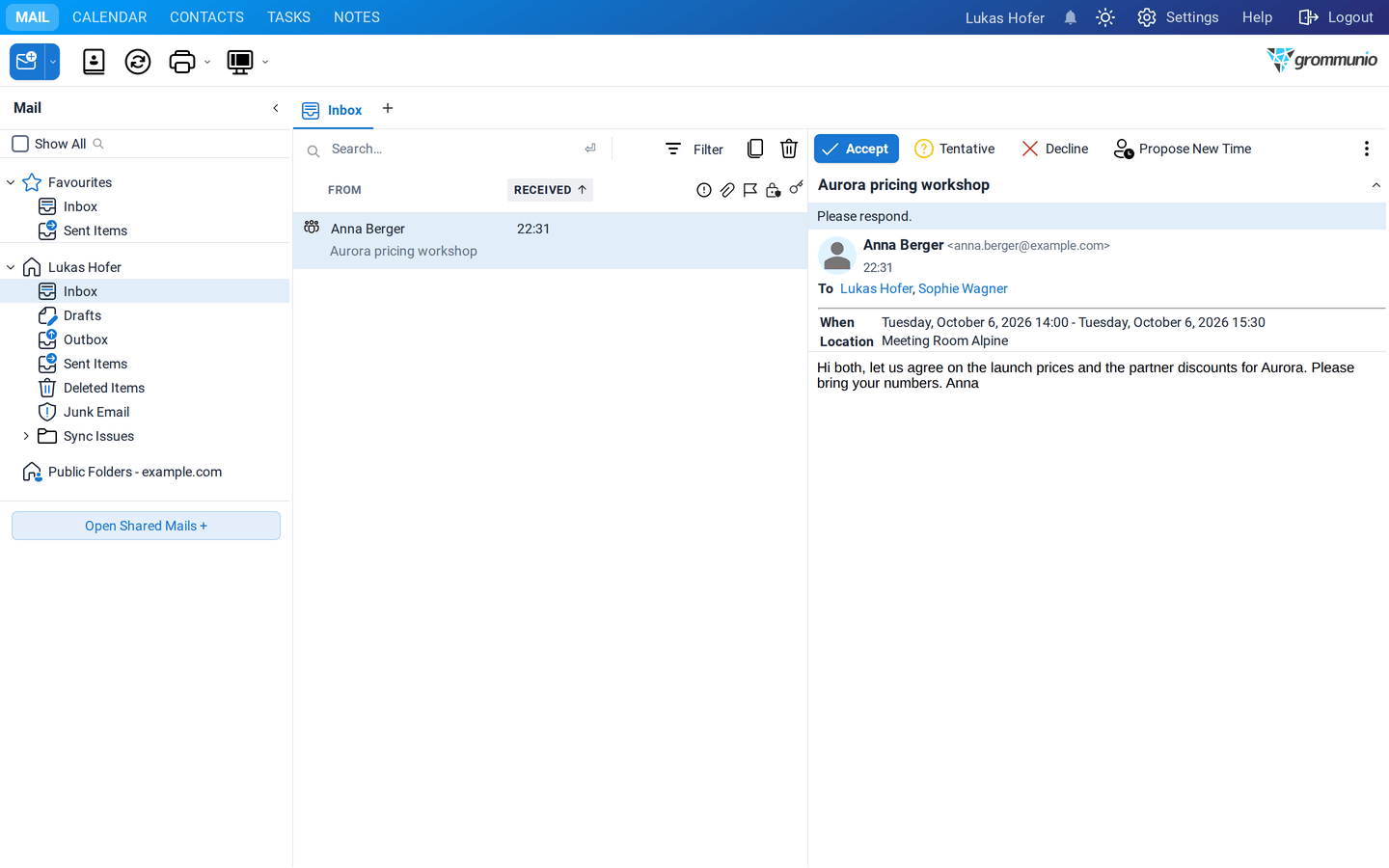
- Accept, Tentative or Decline: grommunio Web asks whether you want to edit the response before sending, send it right away, or not send a response at all.
- Propose New Time suggests another time to the organiser.
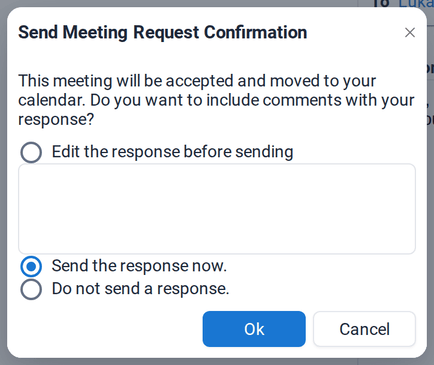
Accepted and tentative meetings are added to your calendar. You can also answer from the calendar itself; under Settings › Calendar you can choose to delete the invitation from your Inbox when you do.
Tracking responses
Section titled “Tracking responses”The answers of your attendees arrive as mails in your Inbox, for example Accepted: Aurora pricing workshop:
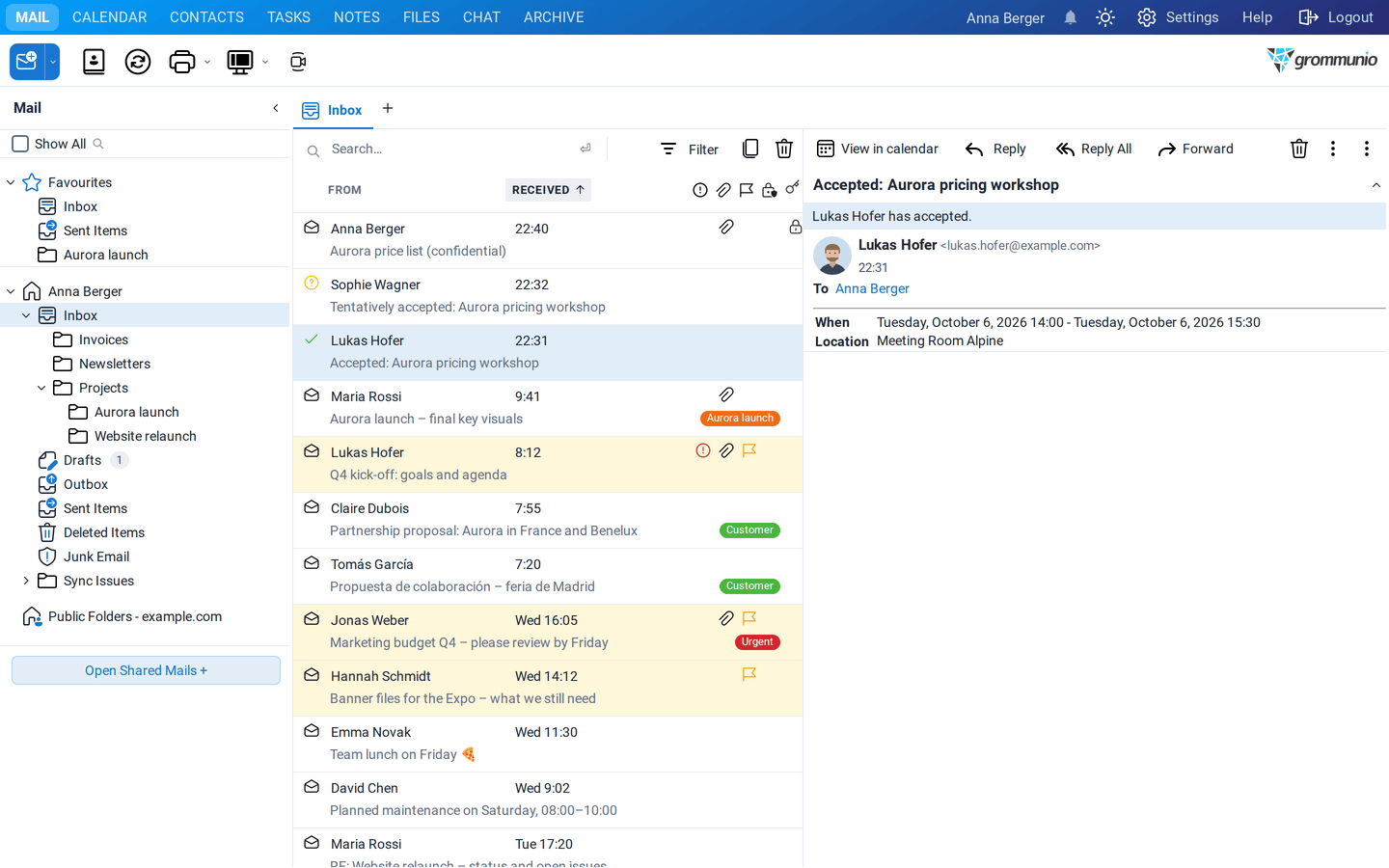
Open the meeting in your calendar and click the Tracking tab to see everybody's answer in one place:
Changing or canceling a meeting
Section titled “Changing or canceling a meeting”Open the meeting, make your changes and click Send to send the update to all attendees. To cancel a meeting, open it and click Cancel invitation, or delete it from your calendar. grommunio Web asks whether to send a cancellation to the attendees. They see the cancellation in their Inbox and can remove the meeting from their calendar with one click.
Shared calendars
Section titled “Shared calendars”You can look at calendars of colleagues who have shared them with you, for example your manager's or a team calendar.
- Click Add Shared Calendar + below the calendar list.
- Enter the name of the colleague and press Enter.
- Click Open.
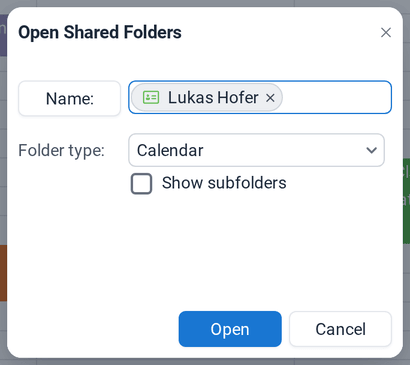
The shared calendar appears in your list. Tick or untick it to show or hide it. With several calendars visible, grommunio Web shows them side by side:
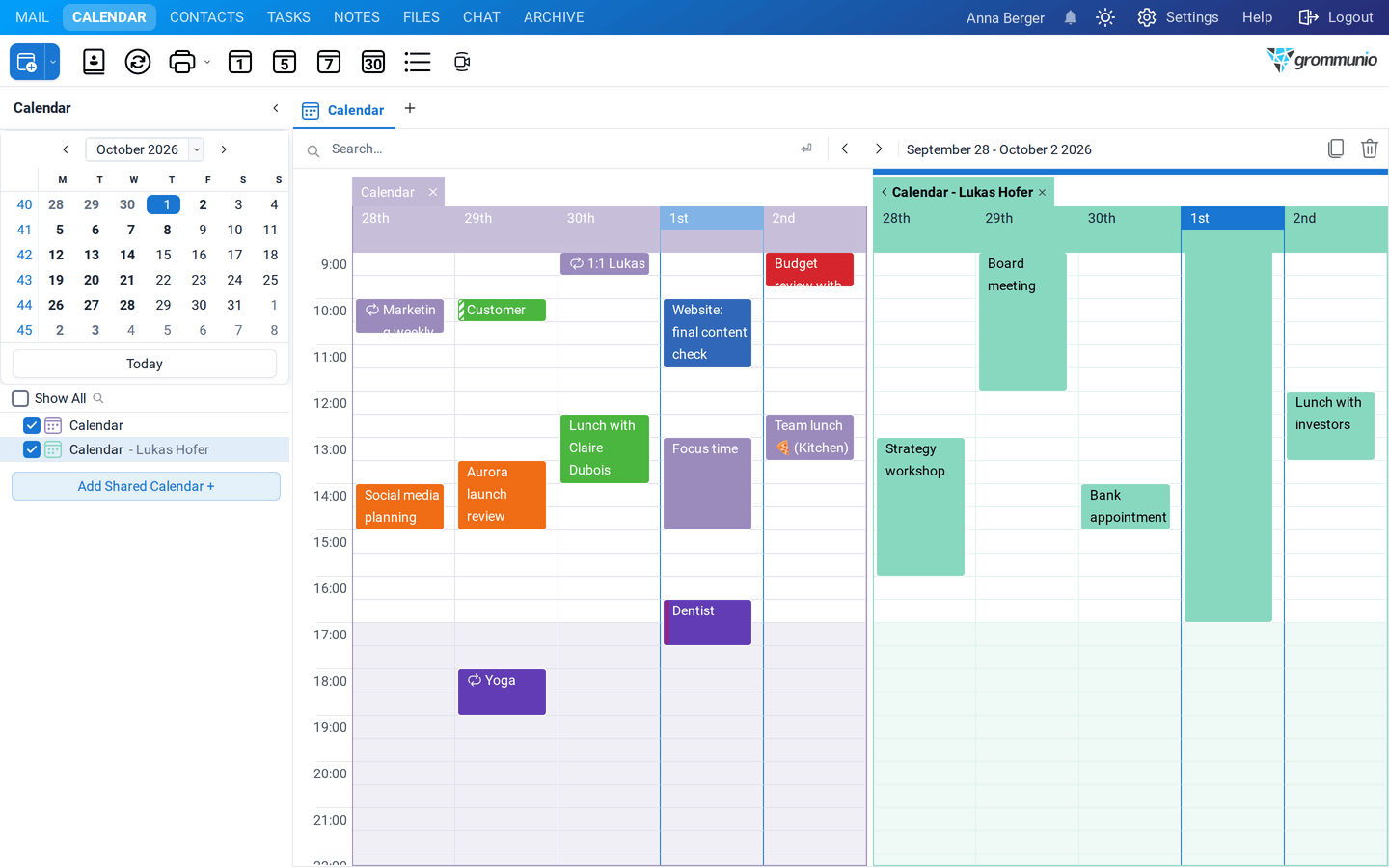
Click the arrow on the tab of a calendar to overlay it onto the others. Both calendars are then shown in one column, each in its color:
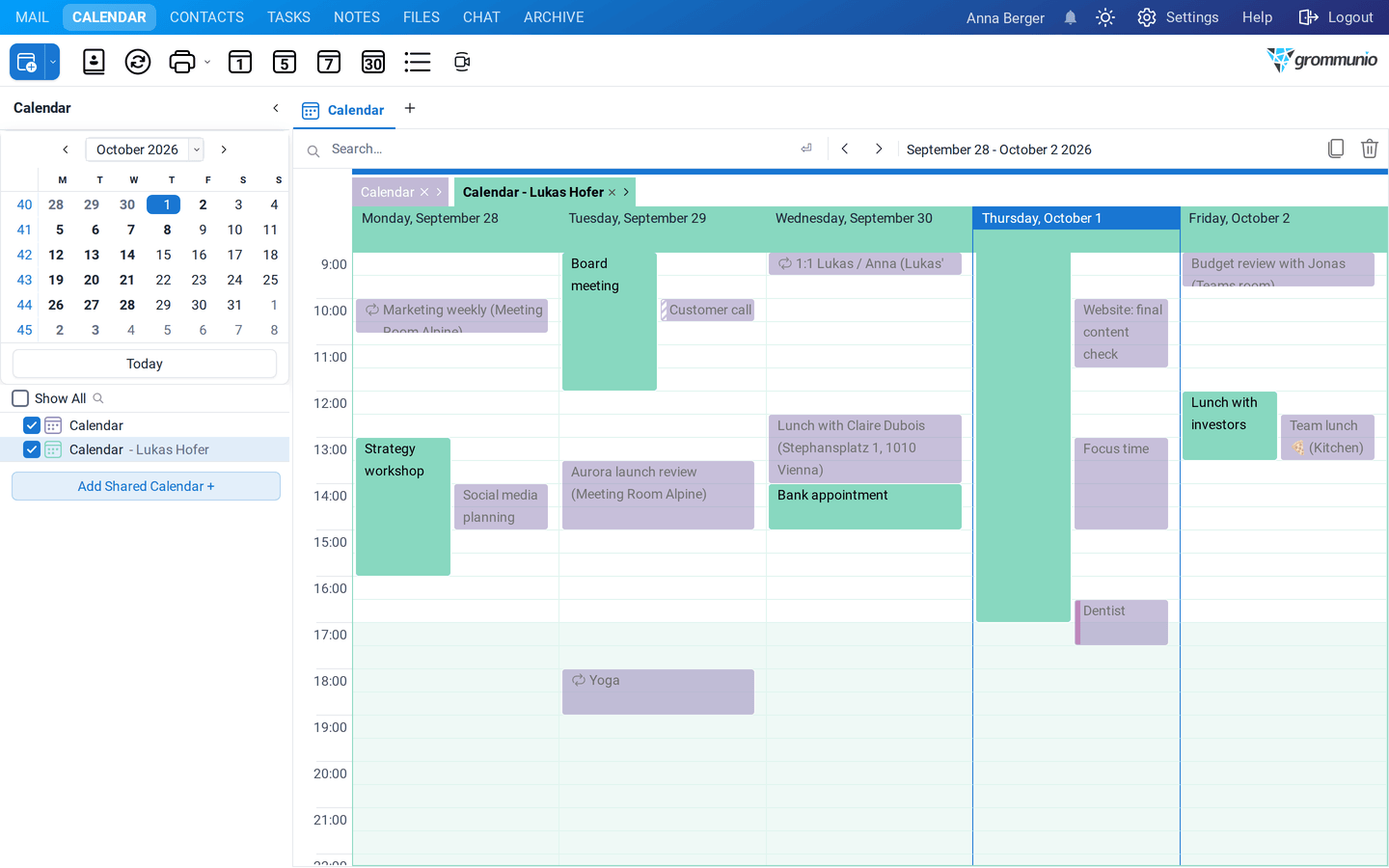
You can make overlay the default under Settings › Calendar. What you see in a shared calendar depends on the permissions you have: only free/busy times, also subjects and locations, or all details. How to share your own calendar is described in Folders & Permissions.
Printing the calendar
Section titled “Printing the calendar”Click Print in the toolbar to print the day, work week, week or month you are looking at. The printout shows the period, your appointments and when and by whom it was printed.
Reminders
Section titled “Reminders”When you create an appointment, grommunio Web sets a reminder 15 minutes before the start. You can change the default under Settings › Calendar. When a reminder is due, the Reminders window opens; see Reminders and notifications.