

Notes
Notes are the digital version of sticky notes: quick ideas, phone numbers, checklists, anything you want to keep without filing it somewhere. They are stored in your mailbox, so they are also available in Outlook and on your phone.
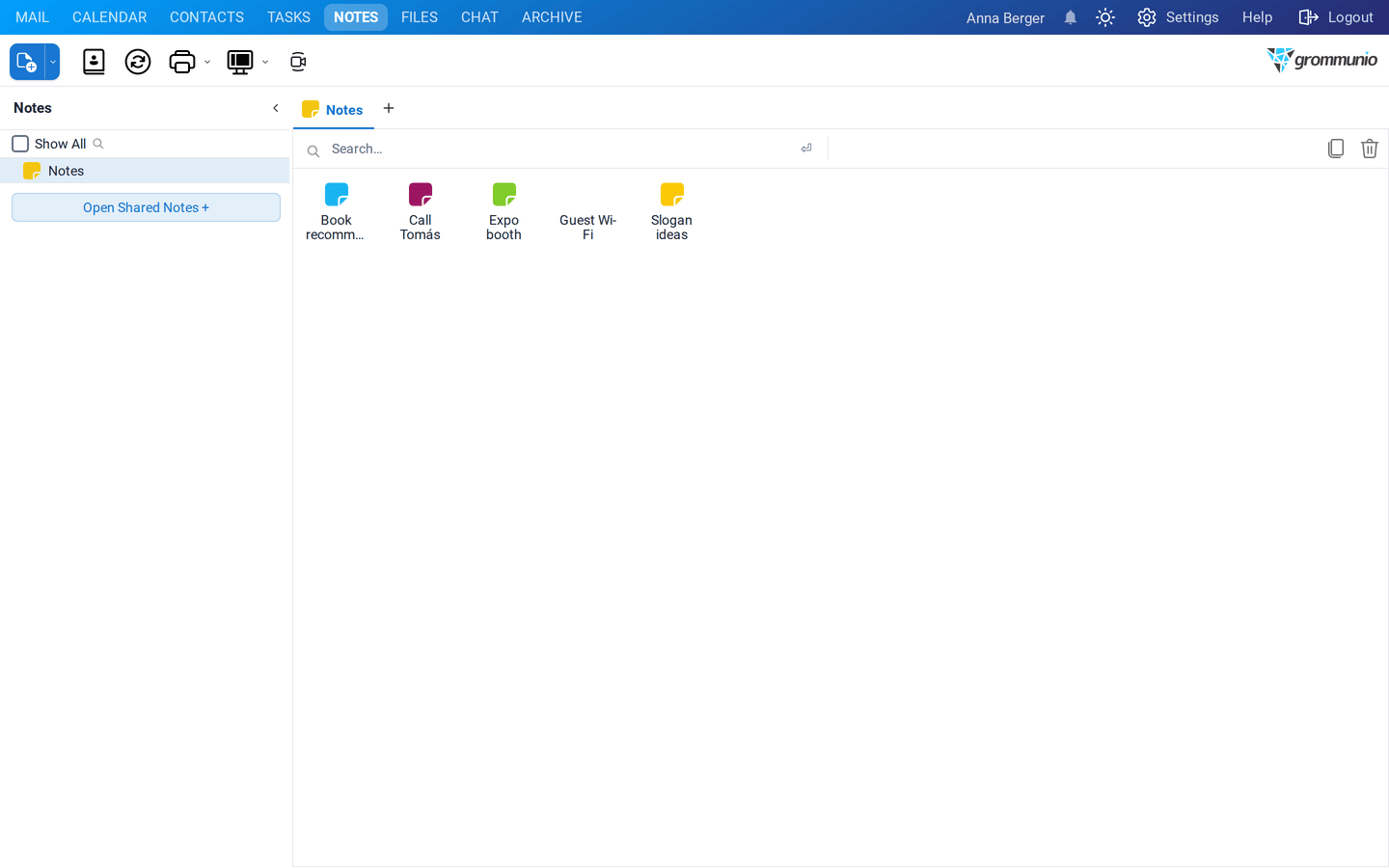
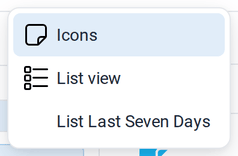
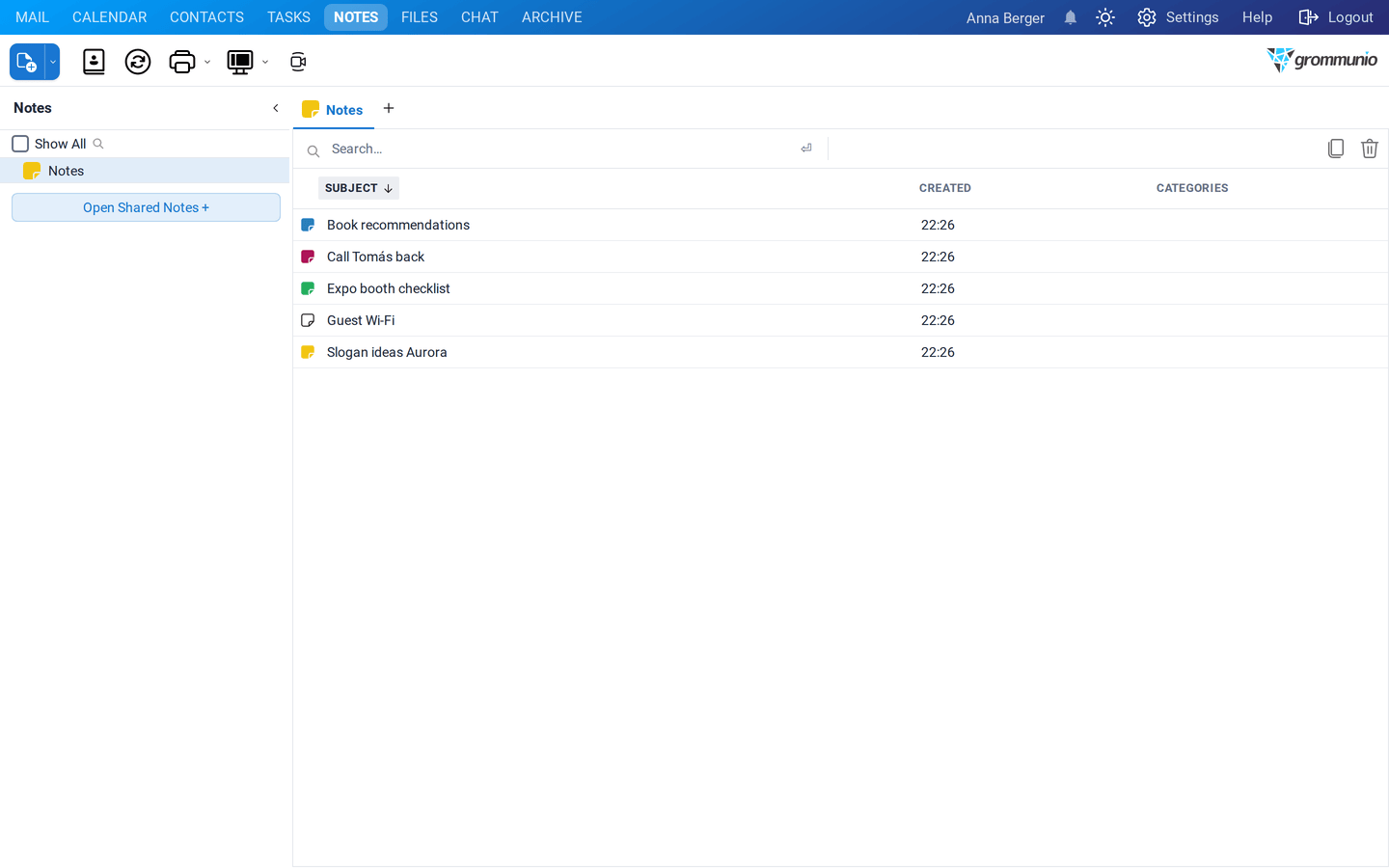
Click Switch view to choose between the Icons view (colored notes, as above), the List view with subject, date and categories, which is better for many notes, and List Last Seven Days with the notes of the past week:
Creating a note
Section titled “Creating a note”- Click New in the toolbar, or choose New › Sticky note from any view.
- Type your text. The first line becomes the title of the note.
- Choose a Color: Blue, Green, Pink, Yellow or White.
- Click Save.
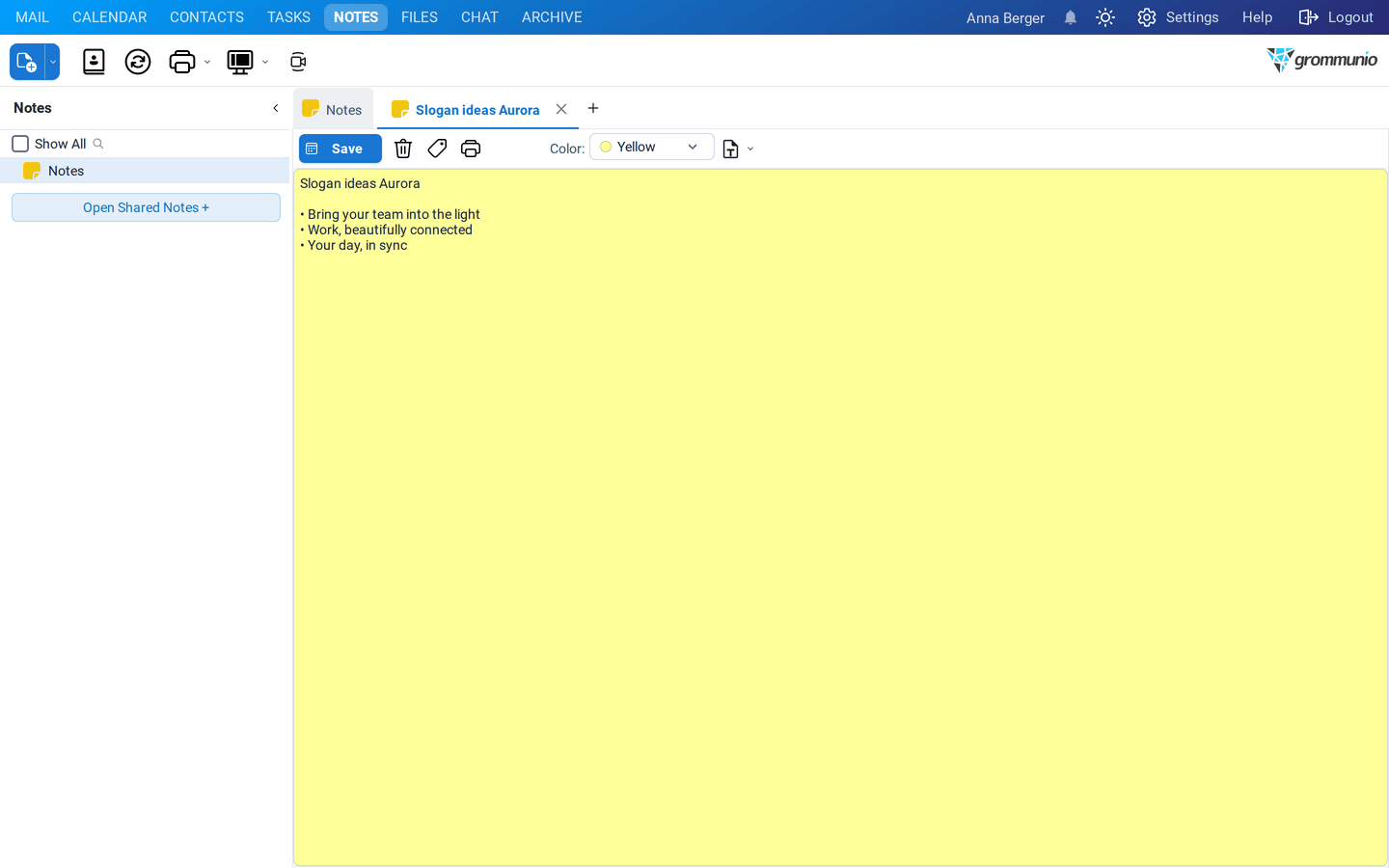
The note toolbar also offers Delete, Categories and Print.
Organizing notes
Section titled “Organizing notes”- Double-click a note to open and edit it.
- Right-click a note to delete it, move it to another folder, assign categories or print it.
- Create subfolders in Notes to group notes by topic: right-click Notes › New Folder.
- Use the Search… box to find a note by its text.
Notes on mails
Section titled “Notes on mails”A note can be attached to a mail, for example to remember what you want to discuss with the sender. Right-click the mail and choose Create note. The note is shown as a colored card at the top of the mail. See Notes on mails.