

Folders & Permissions
Folders keep your mailbox in order, and permissions let you share them. This chapter covers both: creating and managing folders, favorites, sharing your folders with colleagues and opening what others share with you.
The folder pane
Section titled “The folder pane”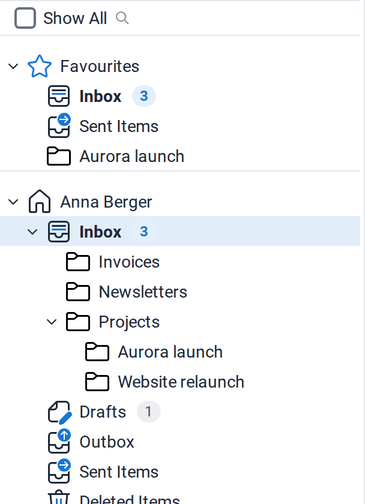
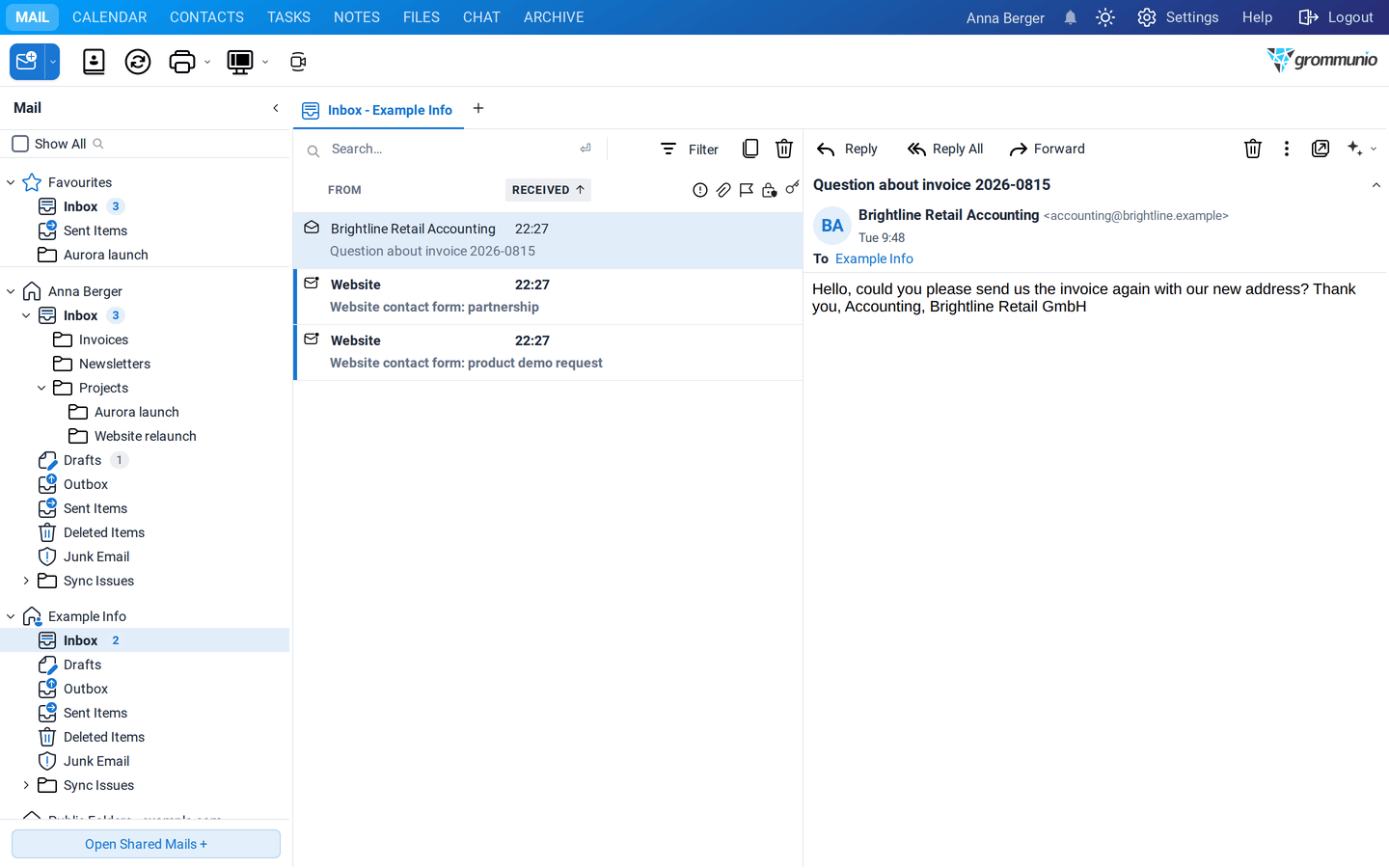
From top to bottom, the folder pane shows:
- Favourites: your quick-access folders.
- Your mailbox (here Anna Berger) with the standard folders and your own folders. The standard folders cannot be renamed or deleted:
| Folder | Contents |
|---|---|
| Inbox | incoming mail |
| Drafts | mails you have not sent yet |
| Outbox | mails waiting to be sent, including scheduled mails |
| Sent Items | copies of the mails you sent |
| Deleted Items | what you deleted, until you empty it |
| Junk Email | mail classified as spam |
| Calendar, Contacts, Tasks, Notes | the folders of the other applications |
- Shared mailboxes and folders that colleagues share with you.
- Public Folders of your organization.
- Open Shared Mails + (or Add Shared Calendar +, Open Shared Contacts +, …) at the bottom.
Working with folders
Section titled “Working with folders”Right-click a folder for all folder actions:
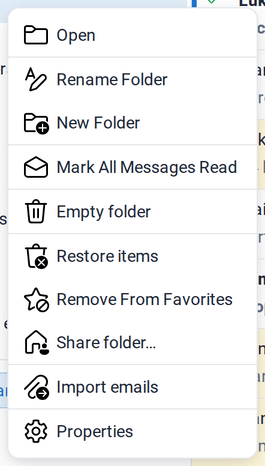
| Action | What it does |
|---|---|
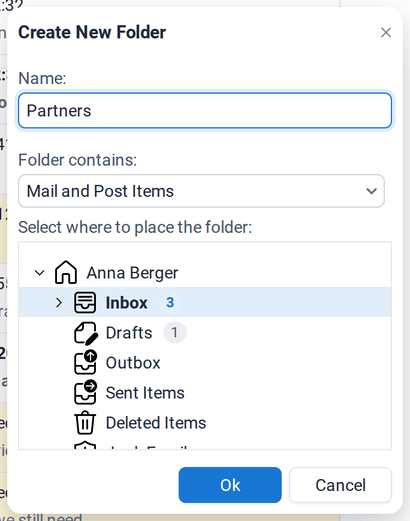
| New Folder | creates a subfolder. You can choose the type: mail, calendar, contacts, tasks or notes. |
| Rename Folder (F2) | renames the folder. |
| Copy/Move Folder | copies or moves the folder with its contents. You can also drag folders in the tree. |
| Delete Folder | moves the folder to Deleted Items. |
| Mark All Messages Read | marks everything in the folder as read. |
| Empty folder | deletes all items in the folder. |
| Restore items | brings back items that were permanently deleted recently. |
| Select color | gives the folder icon a color, which also sets the color of a calendar. |
| Add to Favorites / Remove From Favorites | see Favorites. |
| Share folder… | opens the permissions. |
| Import emails / appointments / contacts | imports .eml, .ics or .vcf files into the folder. |
| Reload | reloads the folder from the server. |
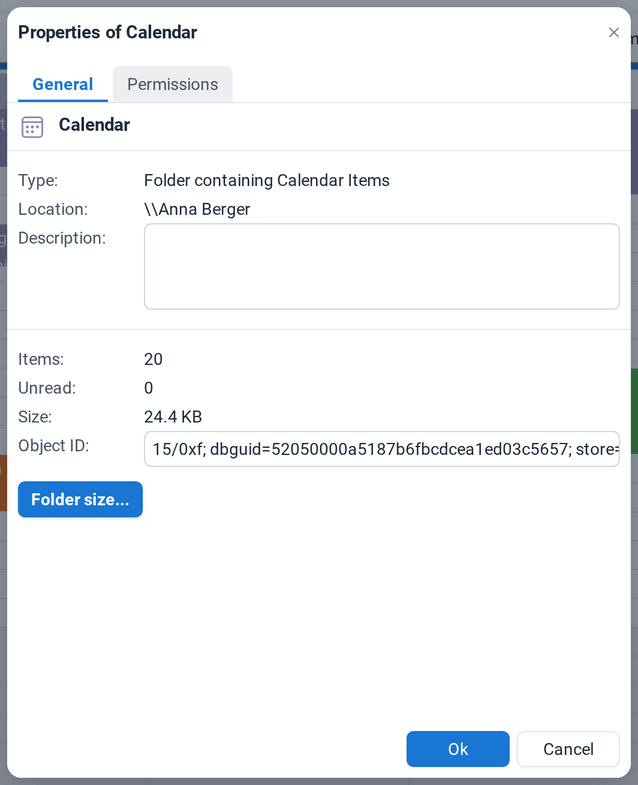
| Properties | shows name, description, size and number of items, and the permissions. |
Favorites
Section titled “Favorites”Favorites put the folders you need most at the top of the folder pane. Right-click a folder and choose Add to Favorites. To remove it, right-click it and choose Remove From Favorites. A search can also be saved as a favorite, see Searching.
Under Settings › General › Display you decide whether favorites are shown only in Mail or in all applications, and whether they stay pinned at the top.
Sharing a folder
Section titled “Sharing a folder”You can give colleagues access to your folders, for example your calendar to your team or a project folder to a colleague. You decide exactly what they may do.
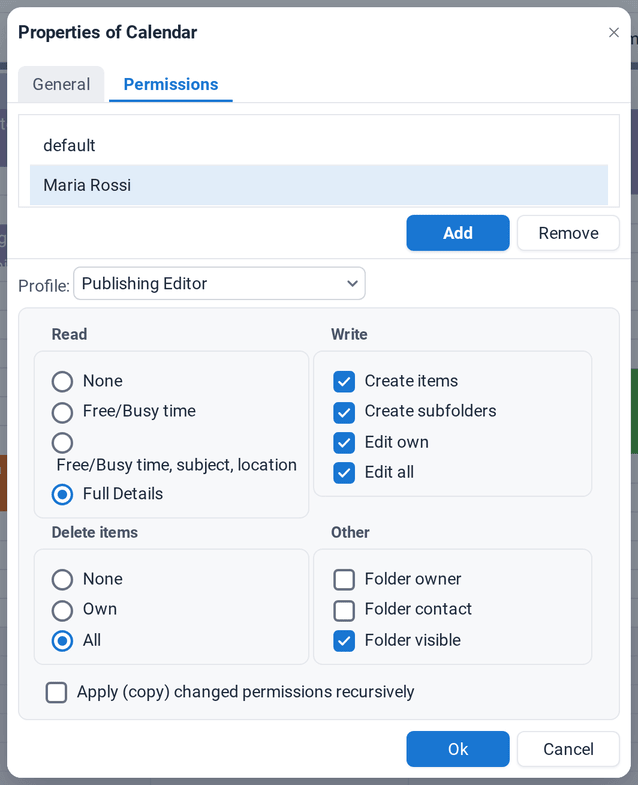
- Right-click the folder and choose Share folder… (or Properties › Permissions).
- Click Add and choose the colleague or group from the address book.
- Select a Profile or set the individual permissions.
- Click Ok.
Permissions
Section titled “Permissions”| Area | Options |
|---|---|
| Read | None, Free/Busy time (calendars: only when you are busy), Free/Busy time, subject, location, Full Details |
| Write | Create items, Create subfolders, Edit own, Edit all |
| Delete items | None, Own, All |
| Other | Folder owner (may change permissions), Folder contact, Folder visible (may see the folder in the tree) |
The entry default applies to everybody in your organization who is not listed separately. anonymous applies to users who are not signed in. Tick Apply (copy) changed permissions recursively to give the same permissions on all subfolders.
Permission profiles
Section titled “Permission profiles”| Profile | Read | Create items | Create subfolders | Edit | Delete | Folder owner | Folder visible |
|---|---|---|---|---|---|---|---|
| Owner | Full Details | ✓ | ✓ | All | All | ✓ | ✓ |
| Publishing Editor | Full Details | ✓ | ✓ | All | All | ✓ | |
| Editor | Full Details | ✓ | All | All | ✓ | ||
| Publishing Author | Full Details | ✓ | ✓ | Own | Own | ✓ | |
| Author | Full Details | ✓ | Own | Own | ✓ | ||
| Nonediting Author | Full Details | ✓ | Own | ✓ | |||
| Reviewer | Full Details | ✓ | |||||
| Contributor | None | ✓ | ✓ | ||||
| None | None |
Shared mailboxes
Section titled “Shared mailboxes”Opening a shared folder or mailbox
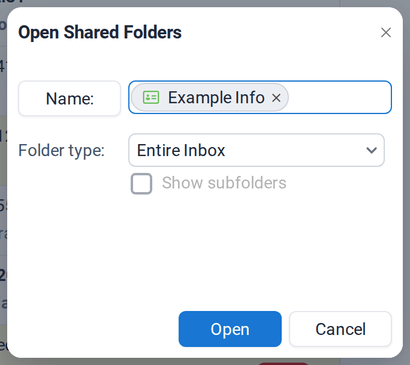
Section titled “Opening a shared folder or mailbox”- Click Open Shared Mails + at the bottom of the folder pane (or the matching button in Calendar, Contacts, Tasks or Notes).
- Enter the name of the colleague or shared mailbox and press Enter.
- Choose the Folder type: Entire Inbox (the whole mailbox), Inbox, Calendar, Contact, Notes or Task.
- For a single folder, tick Show subfolders to include its subfolders.
- Click Open.
The mailbox or folder appears in your folder pane and stays there the next time you sign in:
Mailboxes your administrator gave you full access to may appear automatically.
- Reorder shared mailboxes by dragging them in the folder pane. The order applies to all applications.
- Close a shared mailbox: right-click its top folder and choose Close store. For a single shared folder choose Close folder.
Sending from a shared mailbox
Section titled “Sending from a shared mailbox”To send a mail as the shared mailbox, click Show From field in the new mail and choose the mailbox in From. Your administrator decides whether you may send as the mailbox or on behalf of it. The mailbox's Properties show your Send rights: None, Send on behalf or Send as.
If you send as a delegate, the setting Save emails sent by delegate under Settings › Mail decides whether the copy is kept in your Sent Items, in the Sent Items of the person you represent, or in both.
Public folders
Section titled “Public folders”Public Folders are folders for the whole organization, for example a company calendar, shared contacts or a support mailbox. Your administrator sets them up and decides who may read or write in them. You work with them like with your own folders, and you can search them, including their subfolders.