
Skip to content
English

Tasks

The Tasks Module in grommunio Web allows you to manage your tasks efficiently.

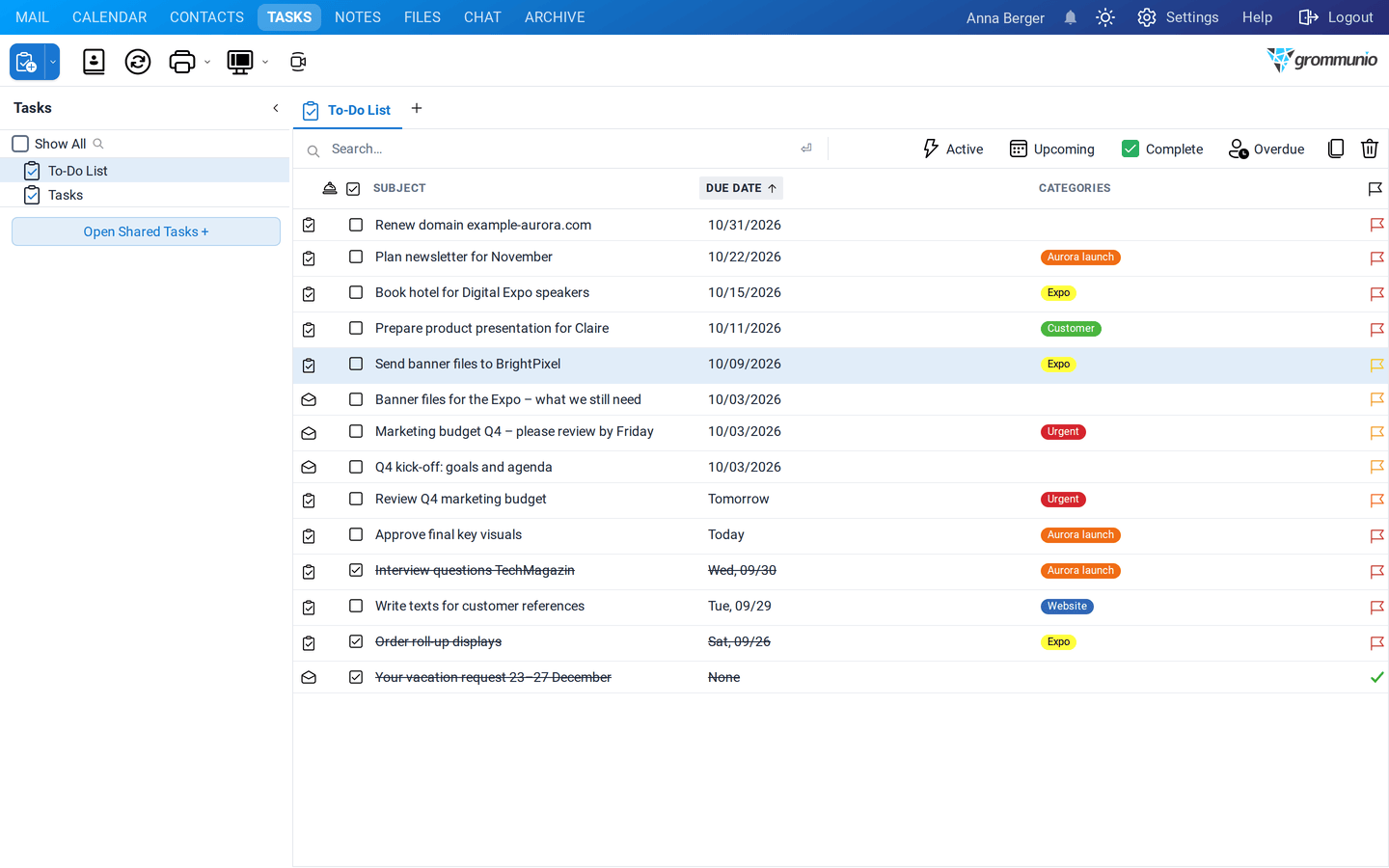
The Tasks module showing the To-Do List with filter buttons and an empty task list

The Main Content Area provides various options to filter, manage, and organize tasks.

Tasks can be filtered to quickly locate specific items. The following buttons are available:

  • Active - Displays tasks that are currently in progress.
  • Upcoming - Shows tasks that are scheduled for the future.
  • Completed - Lists tasks that have already been finished.
  • Overdue - Highlights tasks whose deadlines have passed.

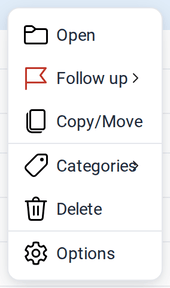
By right-clicking any task, a context menu with several options becomes available:

  • Open - Opens the selected task to view or edit its details.
  • Follow up - Adds follow-up actions related to the task.
  • Mark Complete - Marks the task as finished, moving it to the Completed filter.
  • Copy/Move - Allows duplication of the task or moving it to another folder.
  • Categories - Assigns categories or tags to organize tasks for easier searching.
  • Delete - Permanently removes the task from the list.
  • Options - Displays properties such as the Object ID.

To create a new Task click on the task icon in the Shortcut Bar or click on the + symbol at the end of the Tab Bar.

This will open the Task Editor.

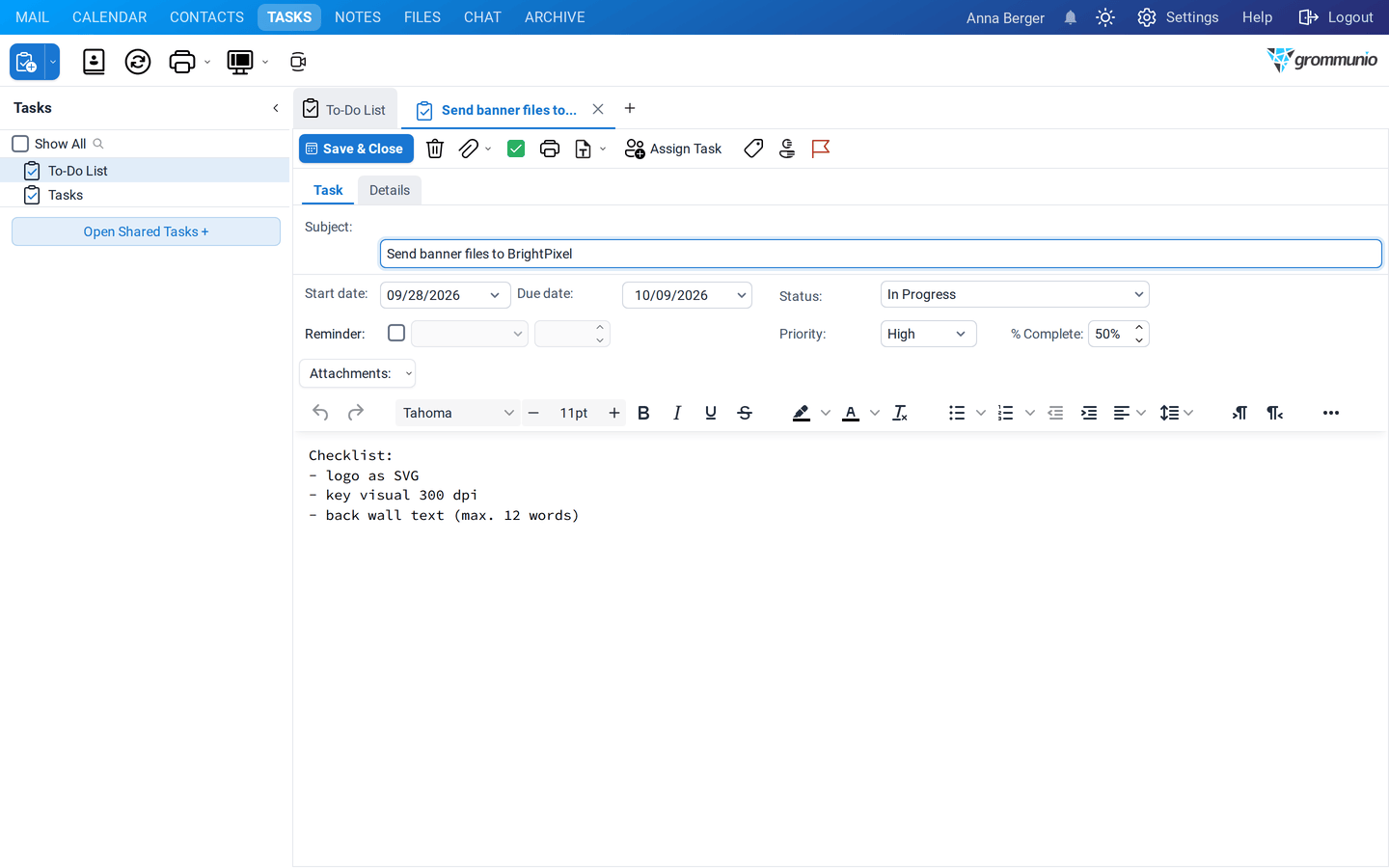
The Task Editor open on the Task tab, showing fields for subject, dates, status, priority, and a rich-text description area

The Task Editor is used to create, view, and manage tasks. It provides fields for defining task details, status, and progress, as well as tools for assignment and formatting.

The toolbar at the top of the Task Editor provides quick access to common actions:

  • Save & Close - Saves the task and closes the editor.
  • Delete - Removes the task permanently from Tasks. Moves it into the Deleted Items folder.
  • Attachment Dropdown - Provides two methods for adding attachments:
    • File Upload: Upload a file directly from the computer.
    • Attach Item: Attach an item from the mailbox (email, contact, calendar entry, task, or note) as an attachment or as text only.
  • Mark Complete - Marks the task as completed.
  • Print - Prints the task details.
  • Assign Task - Assigns the task to another user.
  • Categories - Assigns one or more categories for organization and filtering.
  • Private Mask - Marks the Task as private.
  • Flag - Flags the task for follow-up.

The Task Editor contains two tabs:

  • Task - Used to enter and manage the main task information.
  • Details - Displays additional metadata and extended task information.

Within the Task tab, the following fields are available:

  • Subject The title or short description of the task.
  • Start date Defines when work on the task begins.
  • Due date Specifies the deadline for task completion.
  • Status Indicates the current state of the task. Options: Not Started, In Progress, Complete, Wait for other person, Deferred
  • Priority Sets the importance of the Task Options: Low, Normal, High
  • % Complete Shows the progress of the task as a percentage.
  • Reminder Enables a reminder and allows configuration of the reminder date and time.
  • Description Area The lower section of the editor provides a rich-text area for entering detailed task notes or instructions. Basic text formatting options such as font selection, size, bold, italic, underline, and lists are available.

This editor allows users to track progress, set deadlines, assign responsibilities, and maintain detailed notes for effective task management.

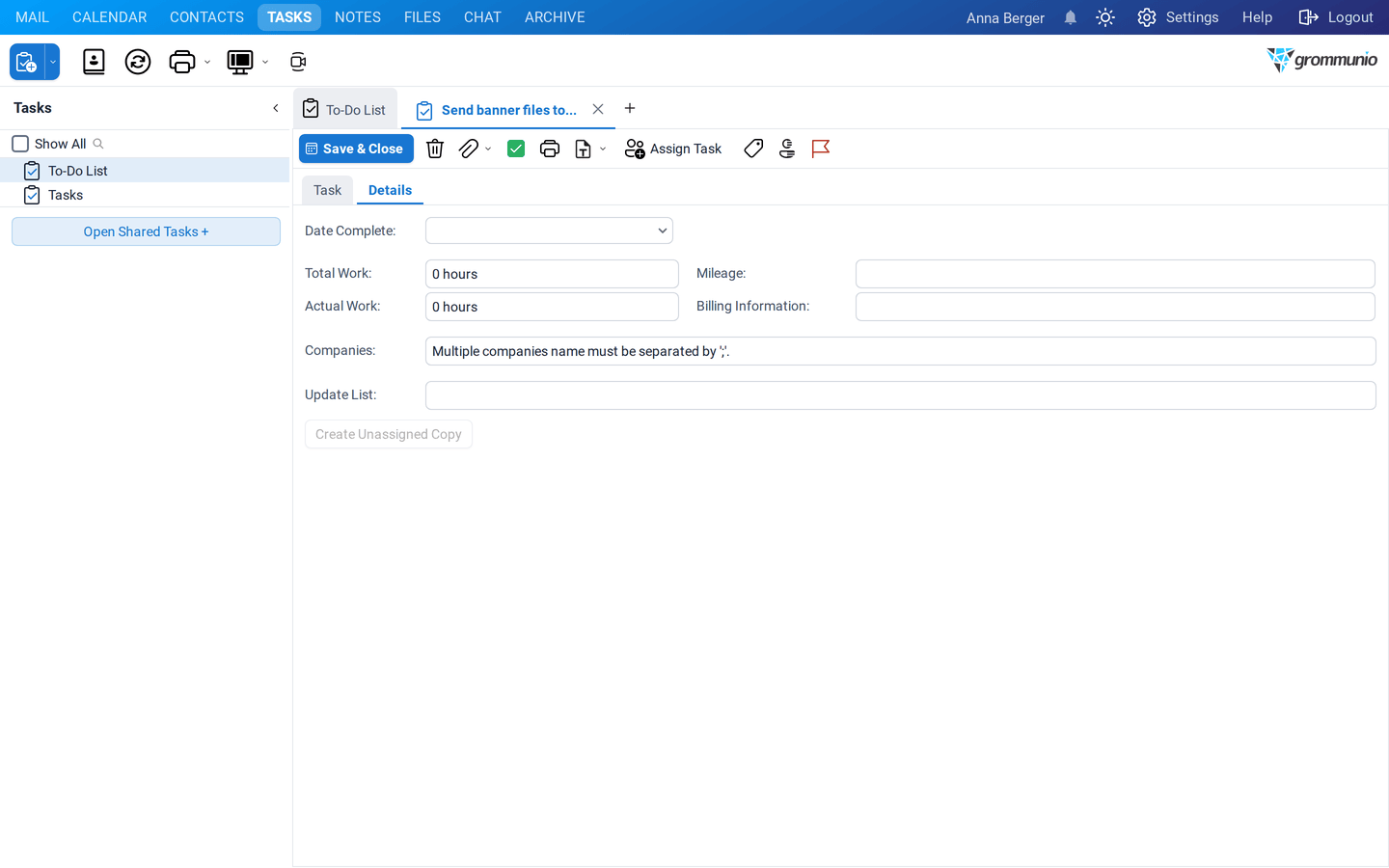
The Details tab provides additional information and tracking fields related to the task. These fields are typically used for reporting, billing, and documentation purposes.

The Details tab of the Task Editor, showing Date Complete, Total Work, Actual Work, Mileage, Billing Information, Companies, and Update List fields

  • Date Complete Displays or sets the date on which the task was completed.
  • Total Work Represents the total estimated time required to complete the task.
  • Actual Work Shows the actual time spent working on the task.
  • Mileage Records the distance traveled in relation to the task, if applicable.
  • Billing Information Allows entry of billing-related notes or references associated with the task.
  • Companies Specifies one or more related companies. Multiple company names must be separated by a semicolon (;).
  • Update List Displays user who has accepted the task
  • Create Unassigned Copy Creates a copy of the task without an assigned owner, allowing it to be reassigned or reused.

A Task request is different from a normal task because it can be assigned to someone else.

A Task request can be created in one of the following ways:

  • By selecting Task request from the Shortcut Bar drop-down menu.
  • By selecting Assign Task in the Task Editor.

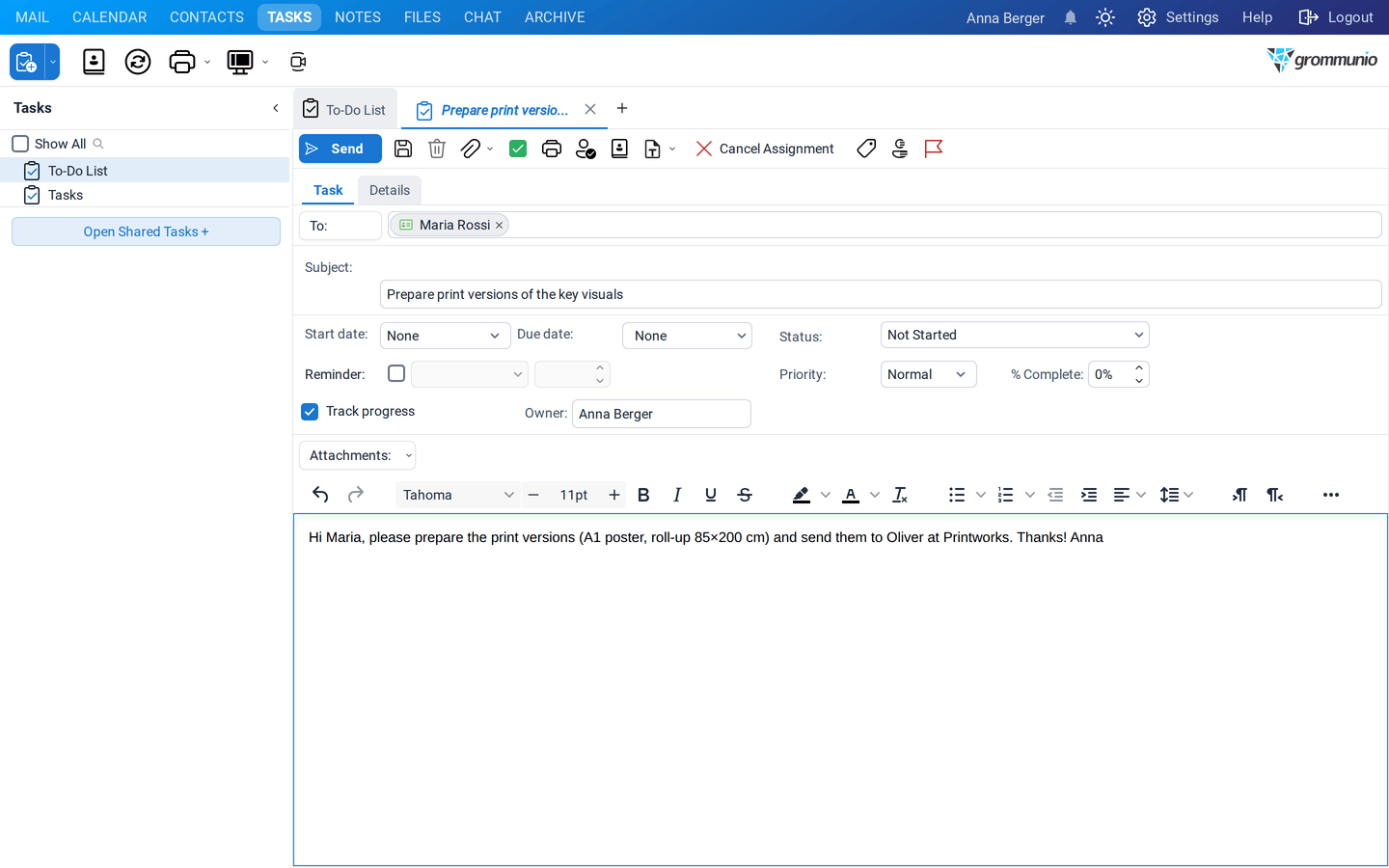
The Task Editor as a task request, with a To: field, Track progress checkbox, Owner field, and a Send button in the toolbar

Once a task is assigned, the task is converted into a Task request and the toolbar changes to reflect the available Task request actions.

When an task becomes a Task request, the toolbar is updated as follows:

  • Save & Close is replaced by Send.
  • An additional Save button is displayed.

The Task request toolbar provides the following additional options:

  • Check Names - Verifies assignee names and resolves them against the address directory.
  • Open Address Book - Opens the address book to select assignee from available contacts.
  • Cancel Assignment - Cancels the assignment and sends a cancellation notice to assignee.

Once it is a Task request additional fields become available in the Task tab.

  • To: Specifies the assignee of the task request.

    The field supports the following methods for selecting users:

    • Manual entry with autocomplete support
    • Assignee validation using the Check Names icon
    • User selection via the Address Book icon
    • Opening the Address Book by selecting the To: button to choose a user
  • Track progress Enables progress tracking for the assigned task. Maintains an updated copy of the task and receives automated status reports from the assignee.
  • Owner Displays the email address of the task owner, i.e. the user who assigned the task.

A completed task request addressed to Jane Doe, with subject, start and due dates filled in, ready to be sent

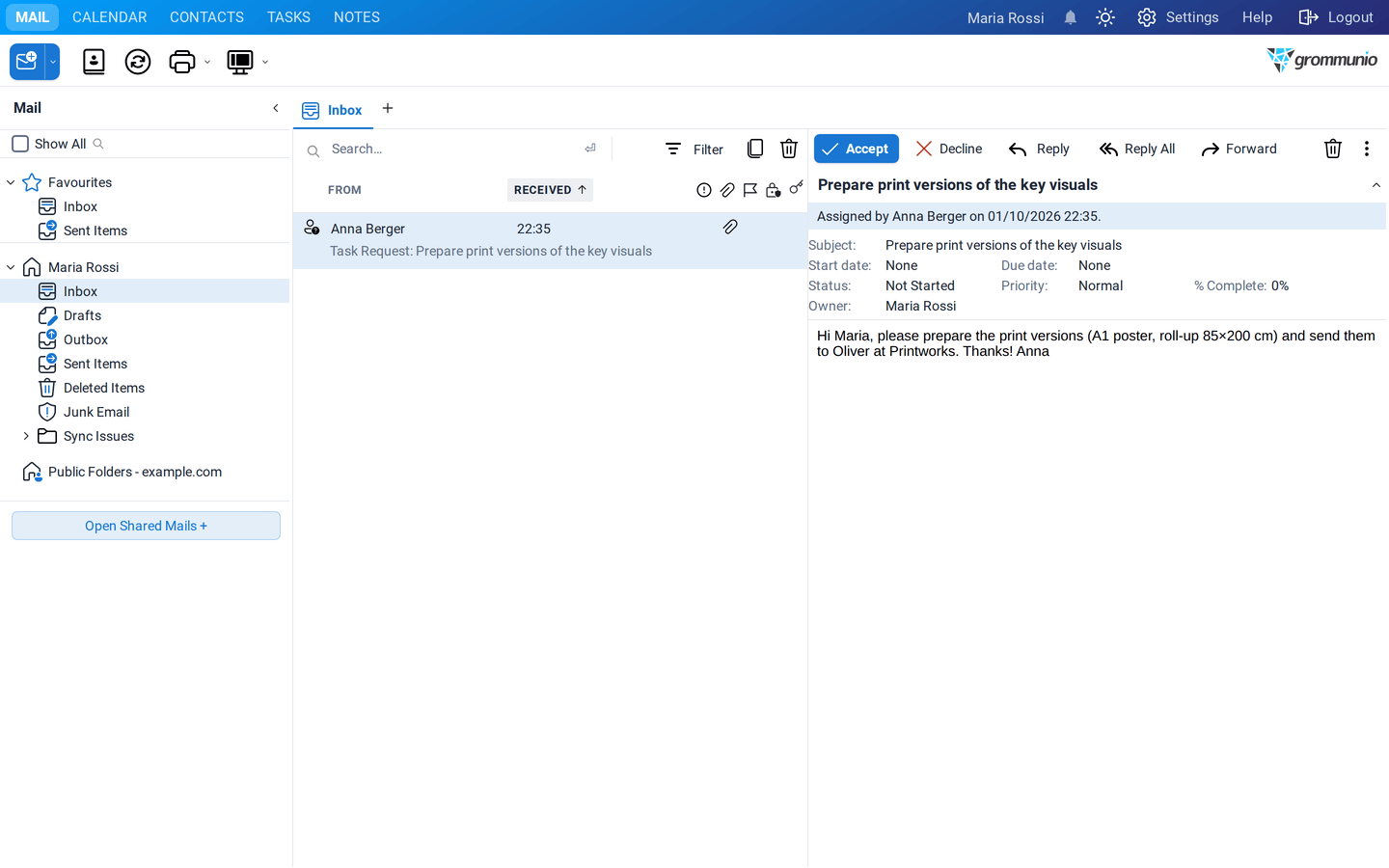
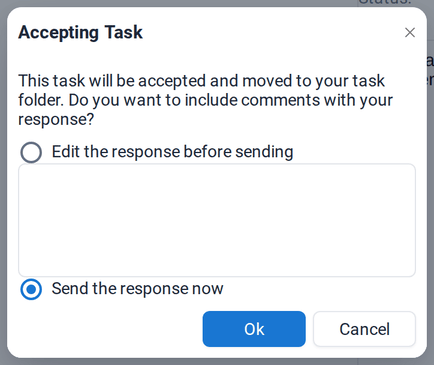
Once a task request has been sent, the assignee must accept the task.

The assignee's Inbox showing the incoming task request with Accept and Decline actions in the toolbar

The Accepting Task dialog offering to edit the response before sending or to send the response now

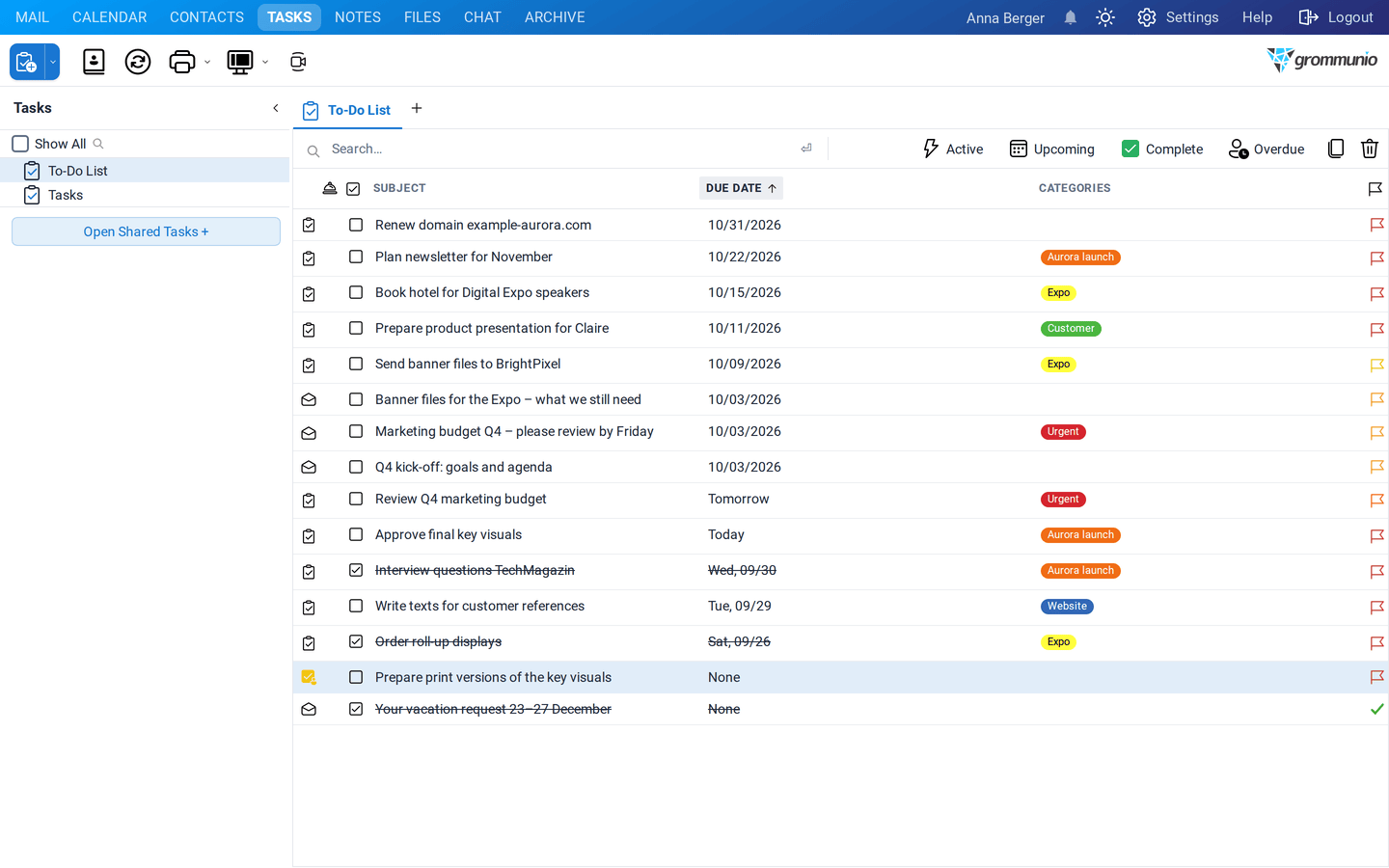
After acceptance, the task is fully under the control of the assignee. The task owner (the user who assigned the task) can no longer modify the task settings.

The accepted task in the assignee's To-Do List, marked as accepted by Jane Doe

The Details tab of the accepted task, showing work tracking fields and the Create Unassigned Copy button

If Track progress is enabled, the task remains visible to the owner in a read-only state. The only available action is Create Unassigned Copy, and the owner receives continuous automated status updates via email.

If Track progress is not enabled, the task is no longer visible to the owner.

When the assignee completes the task, it can be marked as Completed. A Task Completed notification is then automatically sent to the task owner.