

Getting Started
This chapter takes you from the sign-in page to your first steps in grommunio Web. After reading it, you know where everything is on the screen and how to find things quickly.
What you need
Section titled “What you need”grommunio Web runs in any current version of Google Chrome, Microsoft Edge, Mozilla Firefox and Apple Safari, and in browsers based on them. Use an up-to-date browser for the best experience. Some features depend on the browser:
- Dragging attachments to the desktop and Save selection to folder work in Chromium-based browsers (Chrome, Edge, Brave and others).
- Desktop notifications need your permission in the browser.
- Your browser may offer to install grommunio Web as an app and to register it as the handler for
mailto:links.
Signing in
Section titled “Signing in”- Open the address your administrator gave you, for example
https://mail.example.com/web. - Enter your user name or e-mail address and your password.
- Optionally tick Remember me so that you stay signed in on this computer.
- Click Sign In.
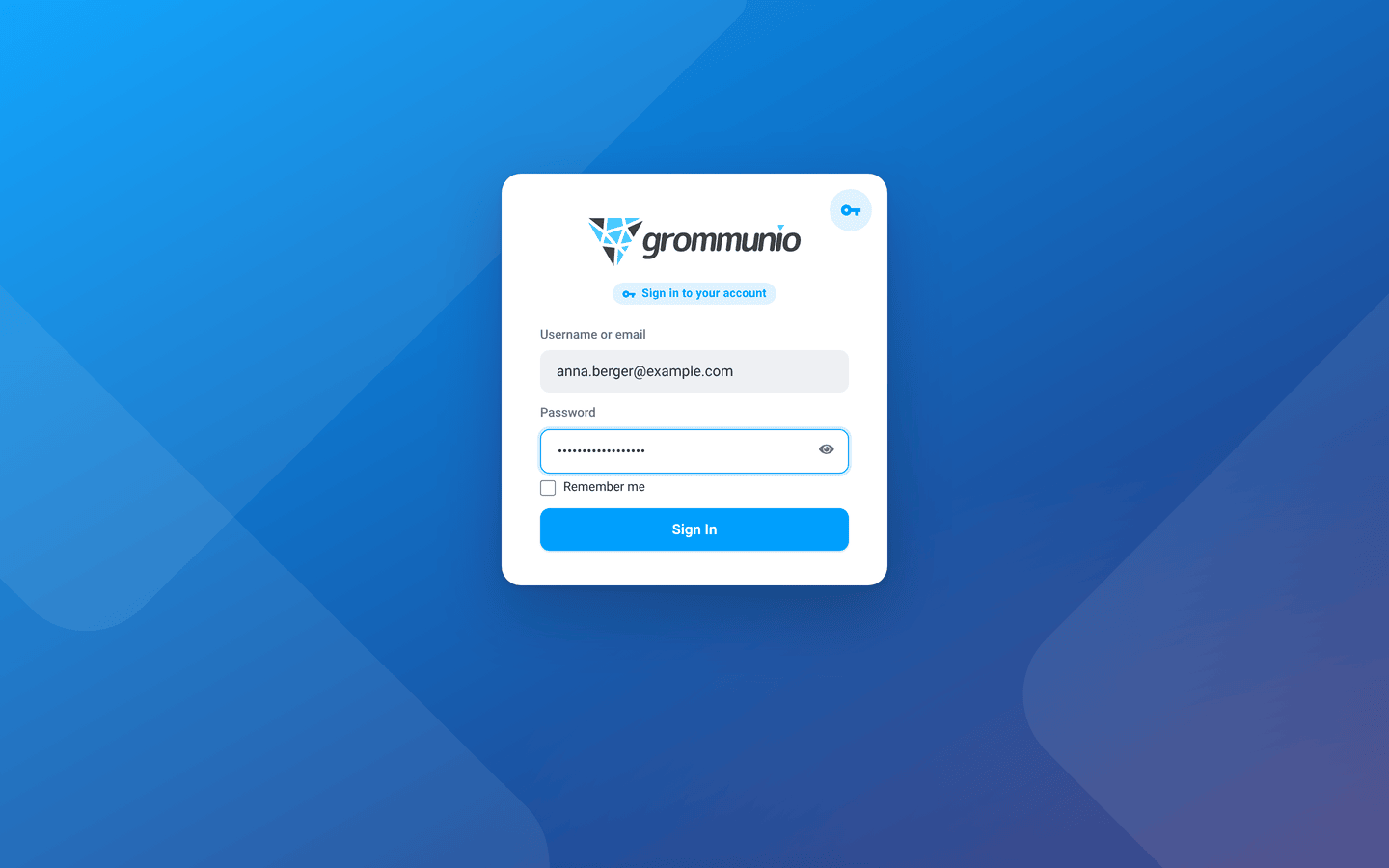
If your organization uses single sign-on, the same sign-in page is used for grommunio Web, Chat, Files, Meet and Archive, and you are signed in to all of them at once. Your administrator may offer additional sign-in methods on this page.
The Welcome Assistant
Section titled “The Welcome Assistant”The first time you sign in, grommunio Web greets you with the Welcome to grommunio Web dialog. Choose your preferences and click Get Started. You can change every one of them later in Settings.
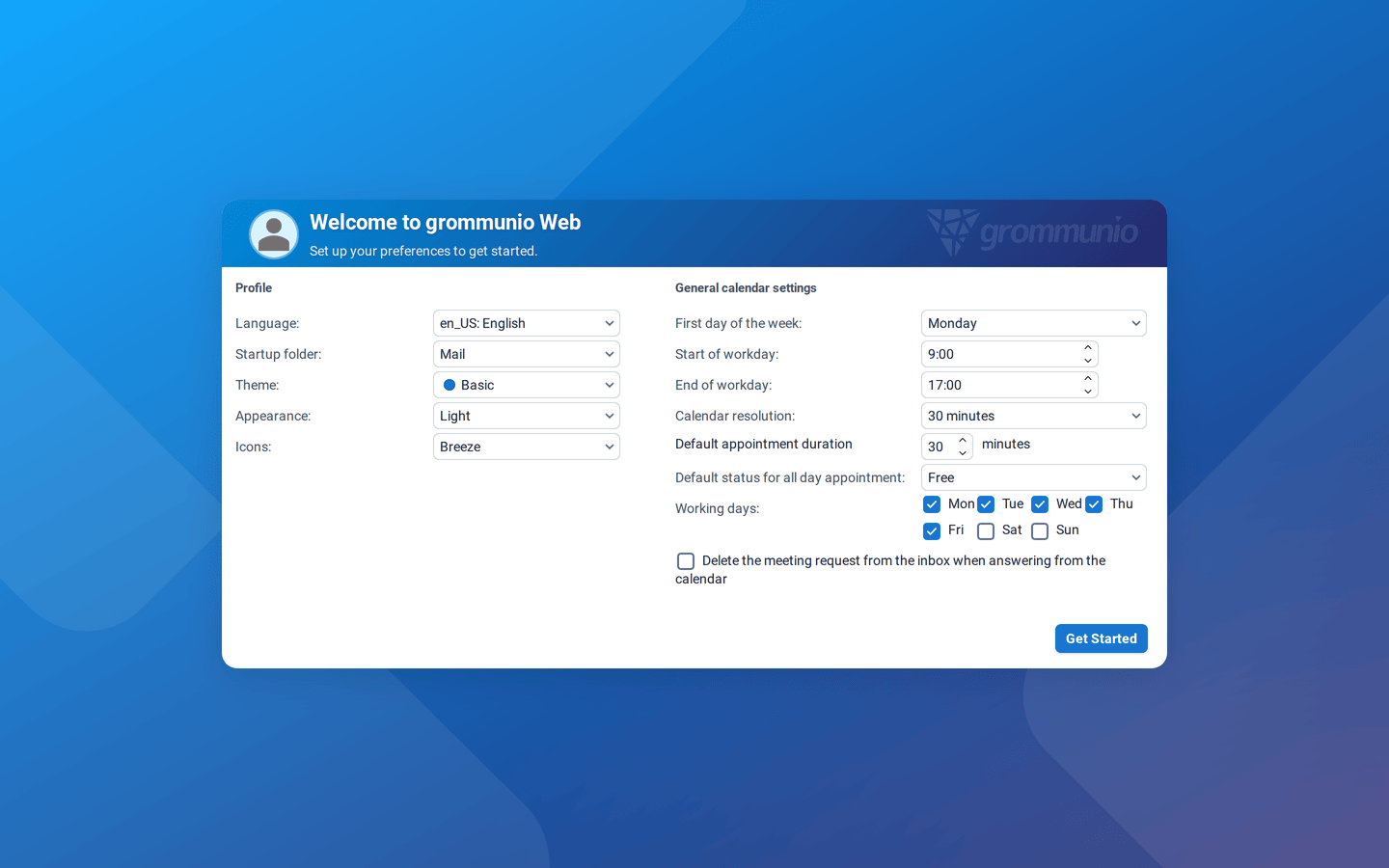
Profile
| Option | What it does |
|---|---|
| Language | The language of the interface, for example en_US: English or de_DE: Deutsch. |
| Startup folder | The view that opens after sign-in: Mail, Calendar, Contacts, Tasks or Notes. |
| Theme | The color scheme. Basic is the default; your administrator may add a company theme. |
| Appearance | Light, Dark or System (follows the setting of your operating system). |
| Icons | The icon set: Breeze (default) or Classic. |
General calendar settings
| Option | What it does |
|---|---|
| First day of the week | The weekday your calendar weeks start with. |
| Start of workday / End of workday | Your working hours. They are highlighted in the calendar and used for scheduling. |
| Calendar resolution | The size of a time slot in the day and week views (5 minutes to 1 hour). |
| Default appointment duration | The length of new appointments. |
| Default status for all day appointment | How all-day events show your availability (Free, Busy, …). |
| Working days | The days of your working week. |
| Delete the meeting request from the inbox when answering from the calendar | Keeps your inbox tidy when you respond to invitations in the calendar. |
The window at a glance
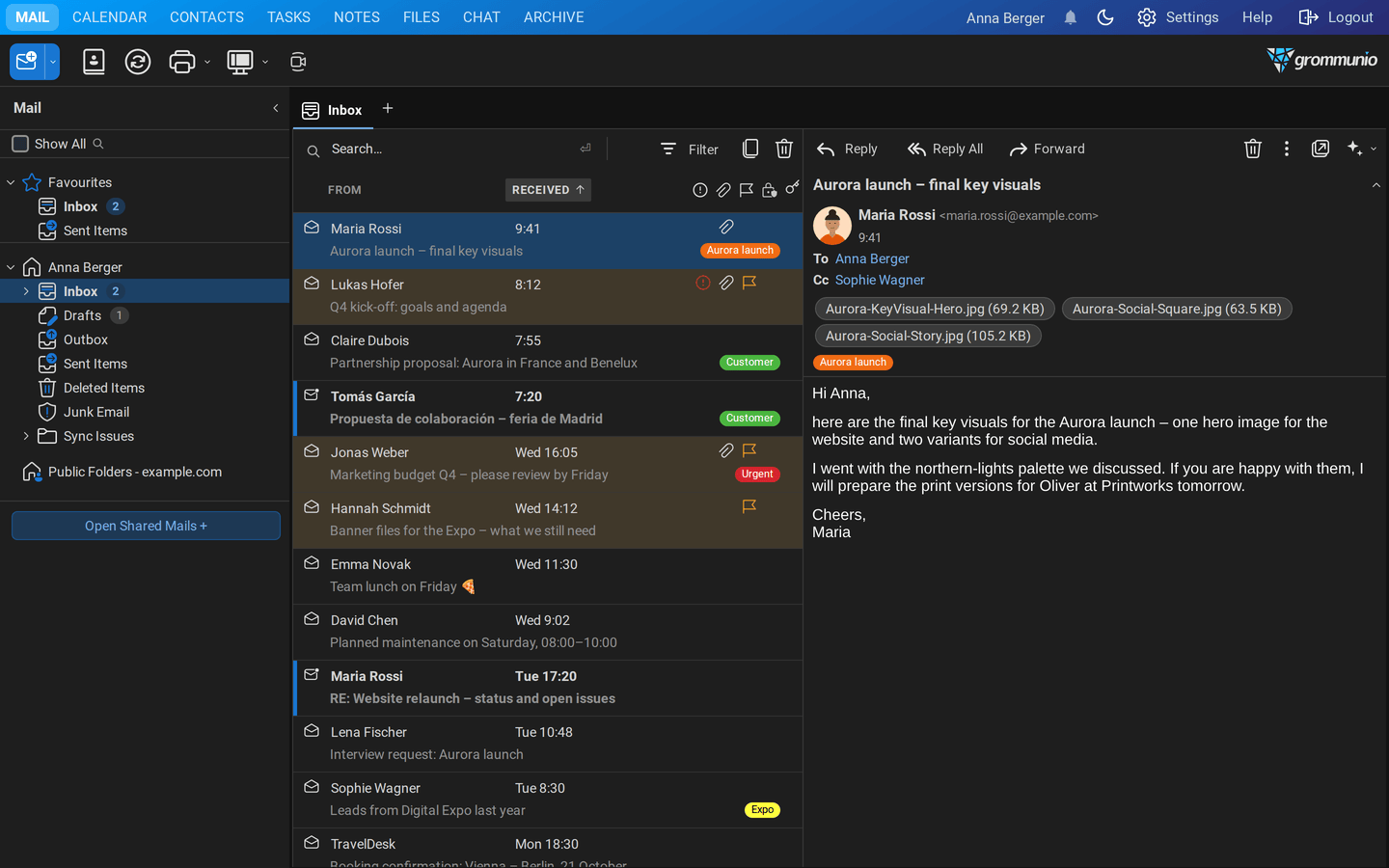
Section titled “The window at a glance”After the Welcome Assistant, grommunio Web opens your startup folder, by default the Inbox.
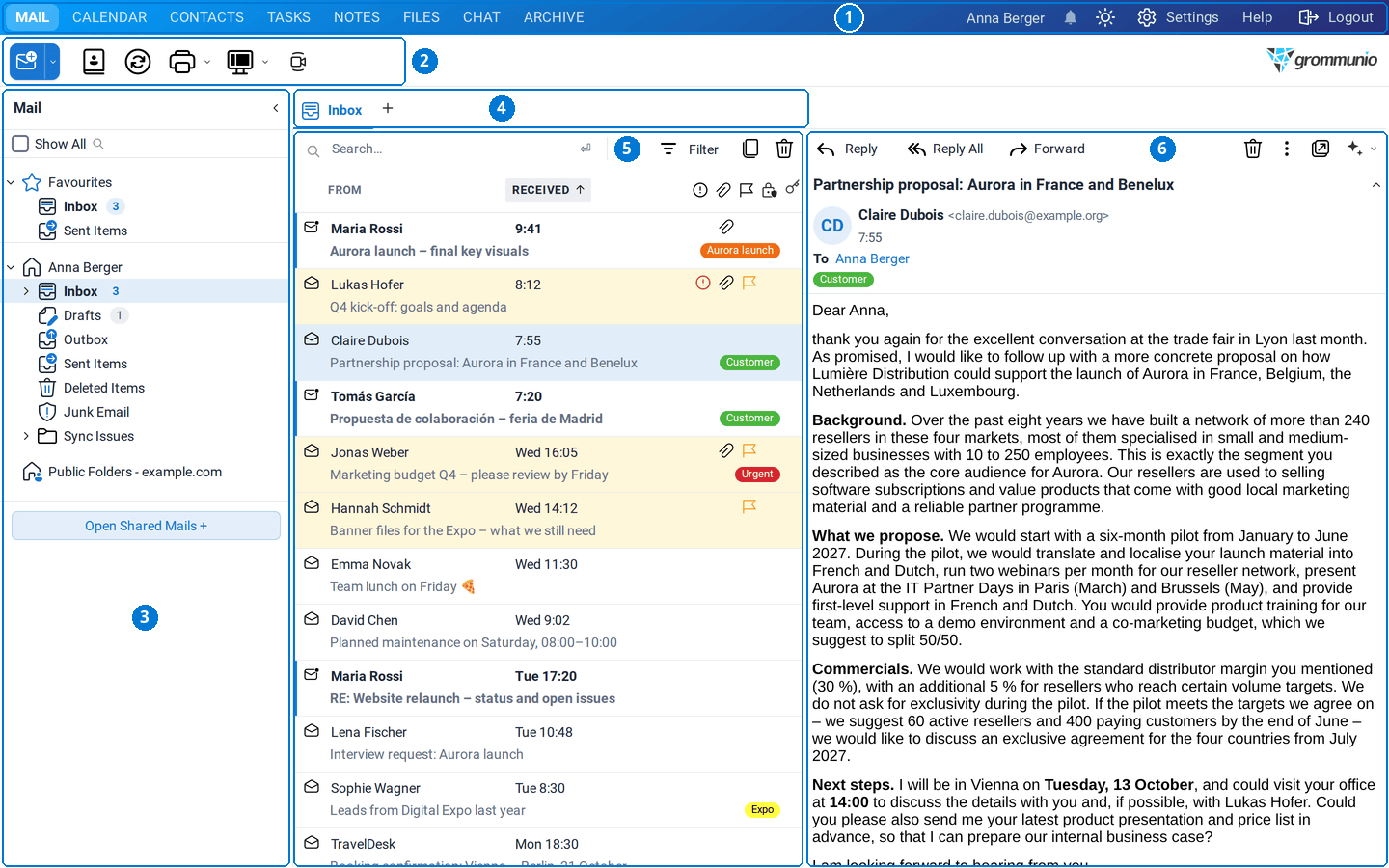
- Top bar: switches between the applications and holds your personal controls.
- Toolbar: the most important actions of the current view.
- Folder pane: your folders, favorites and shared mailboxes.
- Tab bar: the current folder and every item you have opened.
- Item list: the mails, contacts, tasks or notes of the selected folder.
- Reading pane: the content of the selected item.
Top bar
Section titled “Top bar”
On the left you find one tab per application: Mail, Calendar, Contacts, Tasks and Notes. Plugins add more tabs, for example Files, Chat and Archive.
On the right:
- Your name: shows which account you are signed in with.
- Reminders (bell): opens the reminders of upcoming appointments and tasks. A number shows how many are due; the bell is grey when there are none. See Reminders.
- Appearance (sun/moon): switches between light, automatic and dark mode. See Appearance and dark mode.
- Settings: opens your settings.
- Help: opens this manual at the page for the current view.
- Logout: signs you out.
Toolbar
Section titled “Toolbar”
The toolbar changes with the application you are in. In Mail it offers:
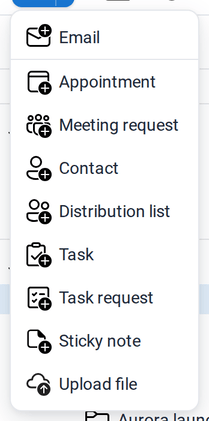
- New creates a new item of the current type (here a mail). The small arrow next to it opens a menu with all item types: Email, Appointment, Meeting request, Contact, Distribution list, Task, Task request and Sticky note. With the Files plugin you can also upload a file from here.
- Address Book opens the address book of your organization and your contact folders.
- Refresh (F5) reloads the current folder.
- Print (Ctrl+P) prints the selected item.
- Switch view changes the layout, for example the position of the reading pane.
- Undo and Redo appear when you have switched them on (see Undo and redo).
- Meet (camera) starts a video meeting when the Meet plugin is enabled.
Tab bar
Section titled “Tab bar”
grommunio Web works with tabs, like a browser. The first tab always shows the current folder and cannot be closed. Every item you open or create, such as a mail you are writing, an appointment or a contact, opens in its own tab next to it. You can switch between them without losing anything, for example to look up an appointment while you write a mail.
- Click + at the end of the tab bar to create a new item of the current type.
- Close a tab with the × on the tab. If the item has unsaved changes, grommunio Web asks whether you really want to close it.
- The tab of an item closes automatically when you send it or click Save & Close.
Folder pane
Section titled “Folder pane”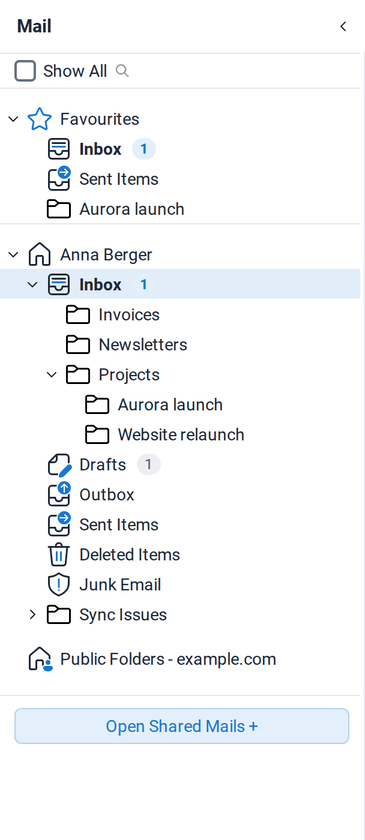
The folder pane lists the folders of the current application. In Mail you see:
- Favourites: folders you use most often, at the top for quick access. See Favorites.
- Your mailbox with the Inbox and its subfolders, Drafts, Outbox, Sent Items, Deleted Items, Junk Email and your own folders.
- Shared mailboxes and folders others have shared with you.
- Public Folders of your organization.
- Open Shared Mails + at the bottom, to open a mailbox or folder someone has shared with you.
Tick Show All at the top to see the folders of all applications at once. Selecting a calendar, contact, task or note folder switches to the matching application.
Click the arrow ‹ at the top of the pane to collapse it. A narrow rail then shows buttons for your favorites and the most important folders.
Item list
Section titled “Item list”The middle column lists the items of the selected folder. In the Inbox, every mail shows the sender, the subject, the date, its categories and icons for importance, attachments and follow-up flags. Unread mails are bold and have a colored bar on the left.
- Sort the list by clicking a column header. Click again to reverse the order.
- Select several items with Ctrl-click (Cmd on a Mac) or Shift-click, or select all with Ctrl+A.
- Quick actions appear when you hover over a mail: Mark Read/Unread, Follow up and Delete.
- Right-click an item for all actions that apply to it.
- Drag and drop items onto a folder to move them; hold Ctrl to copy.
Reading pane
Section titled “Reading pane”The reading pane shows the item you selected: the sender with their photo or logo, recipients, attachments, categories and the content. Use Switch view in the toolbar to place it on the right (default), at the bottom or to switch it off.
Searching
Section titled “Searching”Every list has a Search… box at the top. Press Ctrl+F to jump into it.
When you click into the box, a panel helps you to build your search:
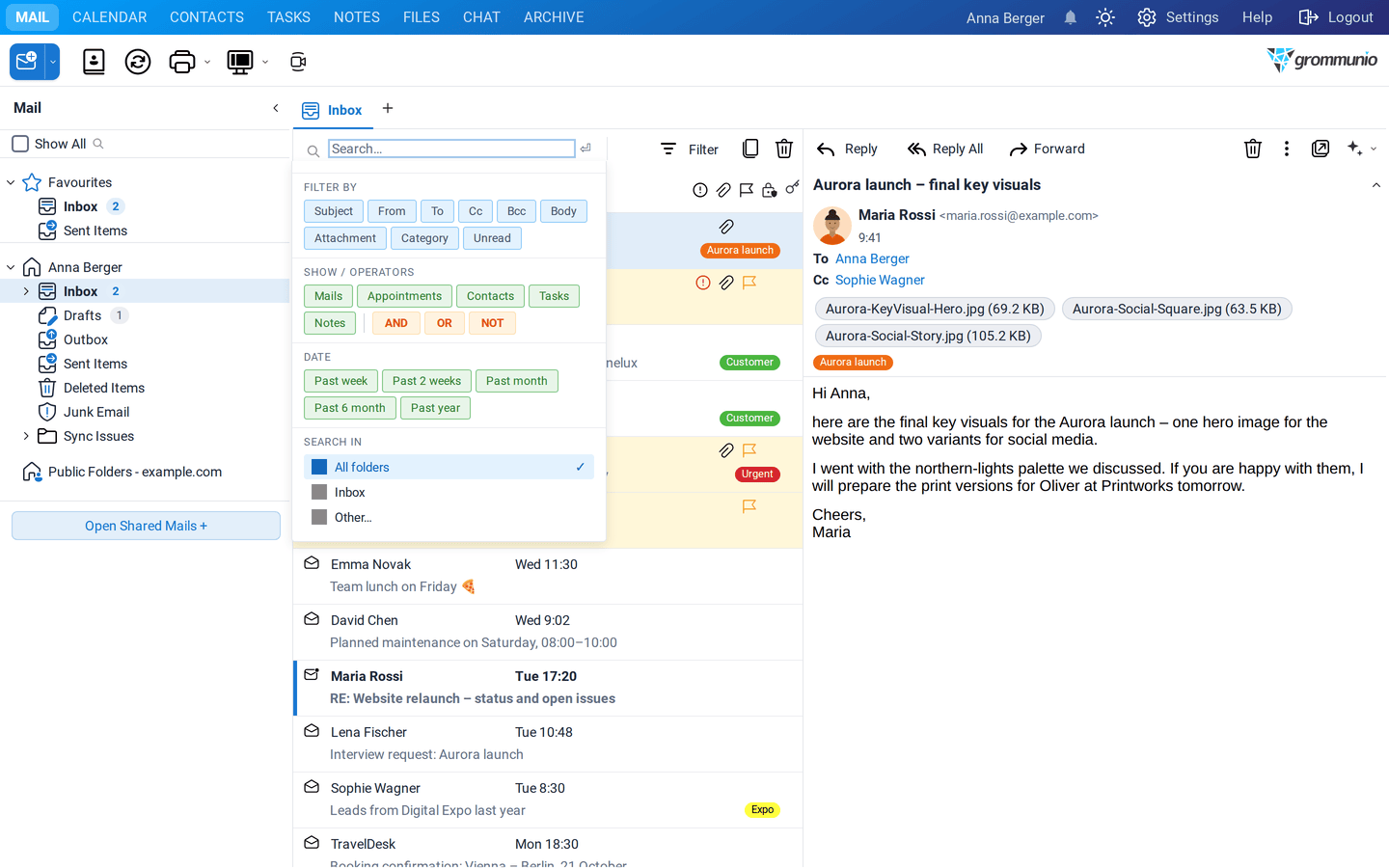
- Recent searches lets you repeat an earlier search.
- Filter by limits the search to a field: Subject, From, To, Cc, Bcc, Body, Attachment, Category or Unread.
- Show / Operators restricts the result to Mails, Appointments, Contacts, Tasks or Notes and combines terms with AND, OR and NOT.
- Date restricts the result to the past week, 2 weeks, month, 6 months or year.
- Search in chooses the scope: All folders, the current folder or Other….
Type your search terms and press Enter. The results open in their own tab, together with the search tools on the left, where you can refine the search: include subfolders, choose the item types, show only unread items or items with attachments, pick a date range, select the fields to search in and filter by category.
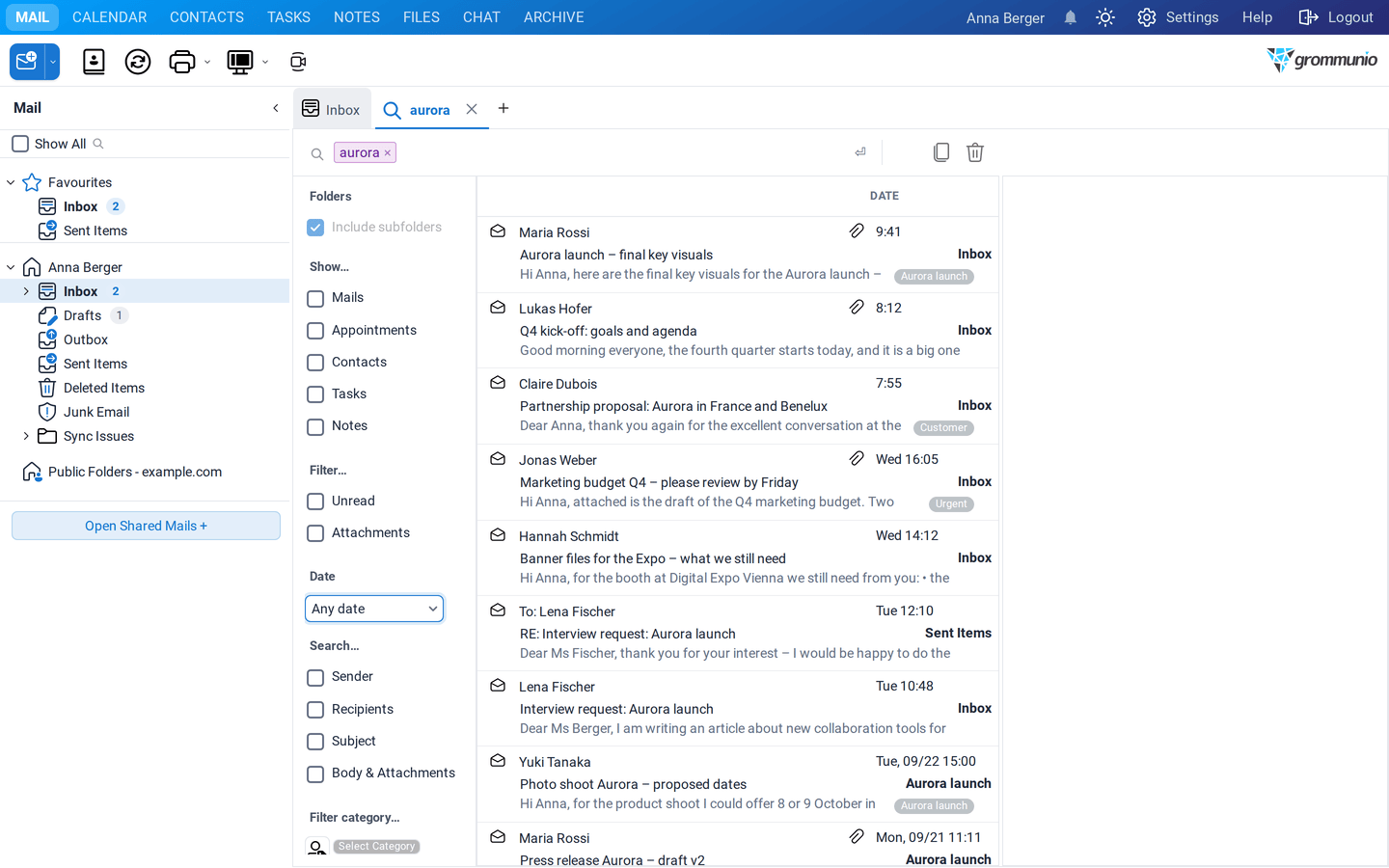
Click Favorites in the search tools to keep a search as a search folder among your favorites. It is updated automatically.
Command palette
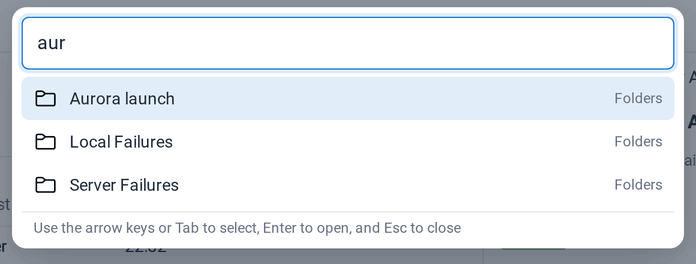
Section titled “Command palette”The command palette is the fastest way to get anywhere. Press Ctrl+K (Cmd+K on a Mac) and start typing:
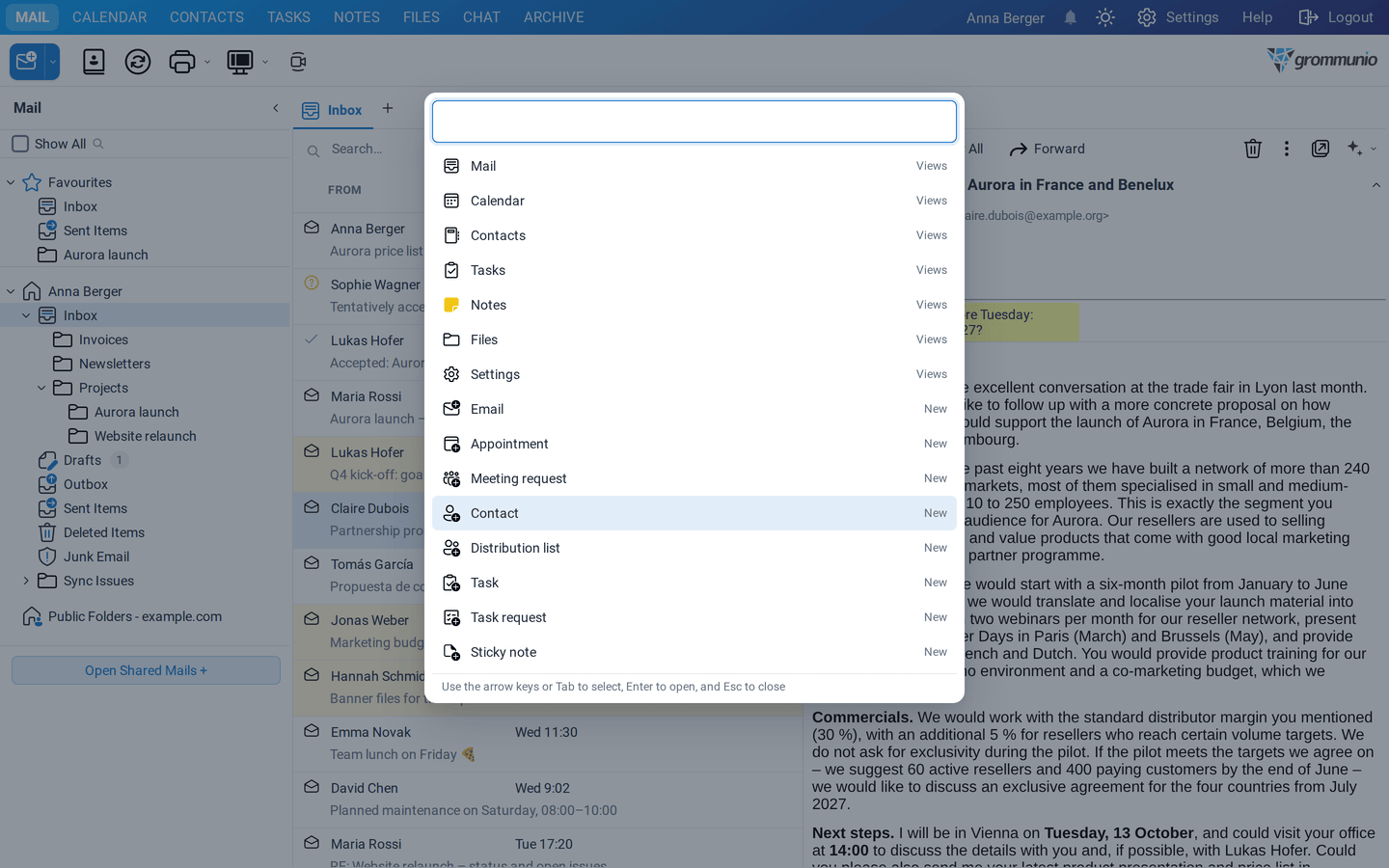
- Views: Mail, Calendar, Contacts, Tasks, Notes, Files, Settings
- New: every item type of the New menu
- Settings: every settings page
- Folders: every folder of your own, shared and public mailboxes, with its path
- Tools and Appearance: the address book, dark/light mode, compact/comfortable list spacing
- Account: sign out
Use the arrow keys or Tab to select an entry and press Enter. Esc closes the palette. You don't need to type the exact name. The palette also finds entries from parts of words, for example aur for the folder Aurora launch:
Undo and redo
Section titled “Undo and redo”grommunio Web can take back what you just did, like a desktop program. Switch it on under Settings › General › Undo and redo, then reload grommunio Web.
- Ctrl+Z takes back the last action, Ctrl+Y repeats it.
- The Undo button in the toolbar has a menu with your recent actions. Pick an entry to undo everything down to it.
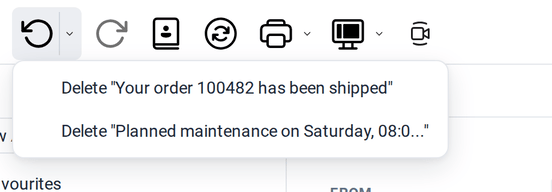
Undo works for deleting, moving, copying and creating items, read/unread changes, flags, categories and appointments you moved or resized in the calendar. It keeps the last 20 actions of your session. Sending mail, answering invitations, Shift+Delete and actions on more than 25 items cannot be undone.
Appearance and dark mode
Section titled “Appearance and dark mode”
Click the sun/moon icon in the top bar to switch the appearance. Each click moves on to the next mode: Light → Automatic (follows your operating system) → Dark. Your choice is saved with your account, so it follows you to other computers.
More options are in Settings › General: the Theme (color scheme), the Icons and the list spacing (comfortable or compact).
Reminders and notifications
Section titled “Reminders and notifications”When an appointment or task with a reminder is due, the Reminders window opens and the bell in the top bar shows the number of due reminders.
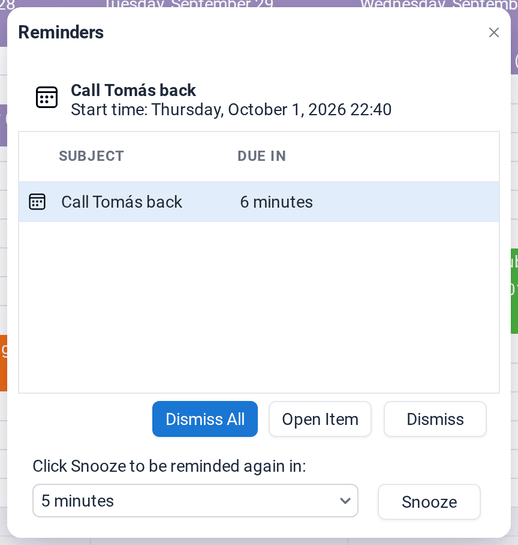
- Open Item opens the selected appointment or task.
- Dismiss removes the selected reminder, Dismiss All removes all of them.
- Choose a time under Click Snooze to be reminded again in and click Snooze to be reminded later.
New mail is announced with a short message in the bottom corner. Under Settings › Mail › New Mail Notifications you decide whether you are notified about all folders, only your own mailbox or only the folders you choose. With the Desktop Notifications plugin, grommunio Web also shows notifications from your operating system.
Keyboard shortcuts
Section titled “Keyboard shortcuts”grommunio Web can be operated almost completely from the keyboard. The most important shortcuts work out of the box:
| Keys | Action |
|---|---|
| Ctrl+K | Open the command palette |
| Ctrl+F | Jump to the search box |
| Enter / Delete | Open / delete the selected item |
| Ctrl+S / Ctrl+Enter | Save / send the open item |
| Ctrl+P | |
| F5 | Refresh |
Switch on the extended shortcuts for even more, for example Ctrl+R to reply. All shortcuts are listed in Keyboard Shortcuts.
Signing out
Section titled “Signing out”Click Logout in the top bar to end your session. If you only close the browser, your session stays active until it expires. Always sign out on computers that others use as well.