

Chat
grommunio Chat is the team messenger of grommunio: channels for teams and topics, direct messages, file sharing and notifications. With the Chat plugin it opens right inside grommunio Web.
Switching Chat on
Section titled “Switching Chat on”- Open Settings › Plugins.
- Tick Chat and click Apply.
- Reload grommunio Web when asked.
A Chat tab appears in the top bar. Under Settings › Chat you can tick Open Chat at start to open it automatically after you sign in.
Signing in
Section titled “Signing in”Click Chat in the top bar. Chat opens in a grommunio Web tab:
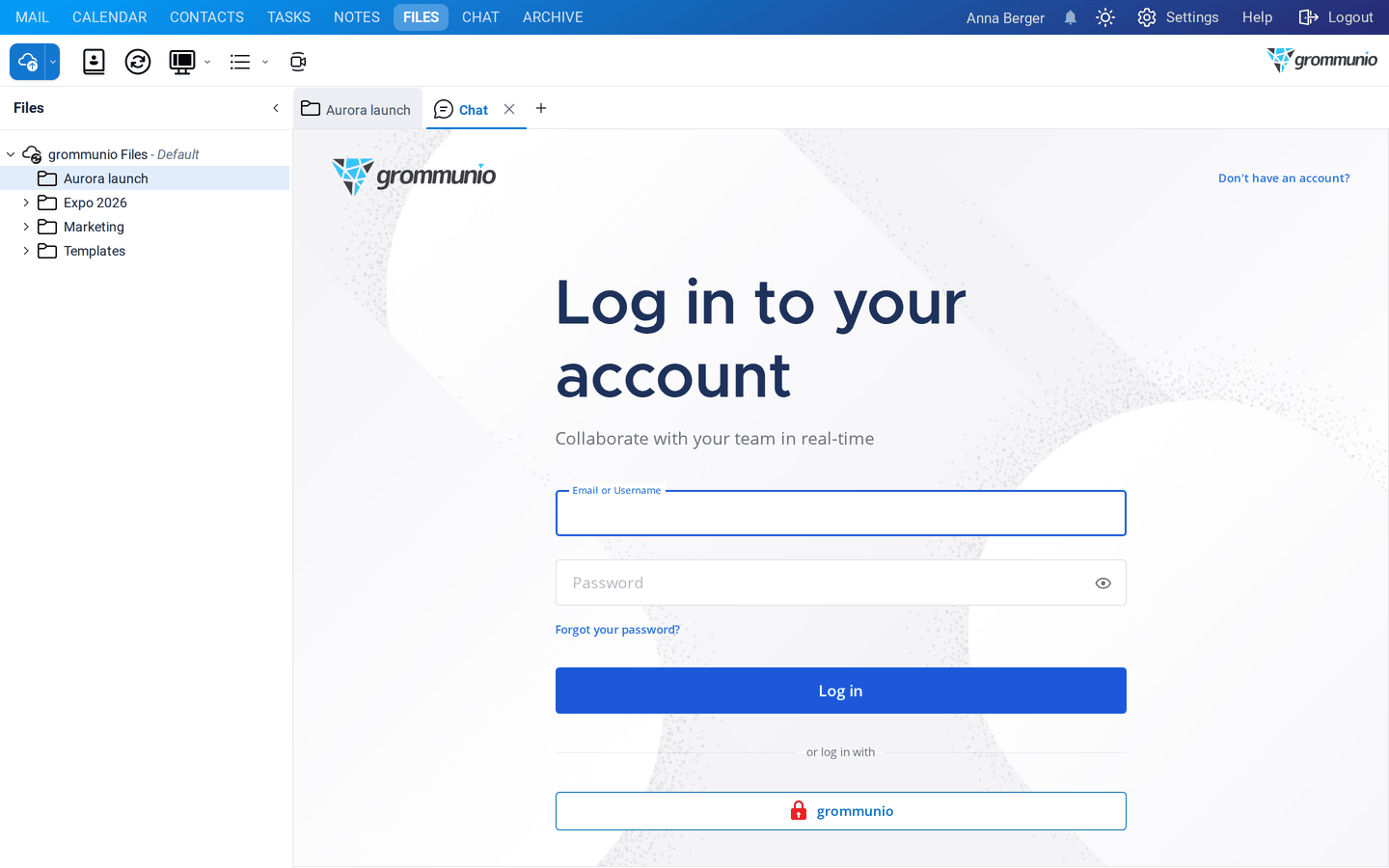
- If your organization uses single sign-on, click grommunio below or log in with. You are signed in with your grommunio account.
- Otherwise sign in with the user name and password your administrator gave you.
Your administrator creates the teams of your organization and adds you to them. After signing in, you see your teams on the left and the channels of the current team.
Working in Chat
Section titled “Working in Chat”- Channels are conversations about a topic or for a group, for example Town Square for the whole team or Aurora launch for a project. Click + next to Channels to browse or create channels.
- Direct Messages are private conversations with one or more colleagues. Click + next to Direct Messages to start one.
- Write your message in the field at the bottom and press Enter. Use Shift+Enter for a new line.
- Click the paper clip to send a file, or drag it into the conversation.
- Mention colleagues with
@nameto notify them, and react to messages with emojis. - If your administrator set it up, notifications from Chat are also shown in grommunio Web, so you don't miss a message while you work on your mail.
See also
Section titled “See also”- grommunio Chat: teams, channels and users: server-side setup, teams and single sign-on for administrators.