

Mail is where most people spend most of their day. This chapter shows how to read and answer mail, work with attachments, write new messages and keep your mailbox organized.
Reading mail
Section titled “Reading mail”Select a mail in the list to show it in the reading pane. Double-click it to open it in its own tab.
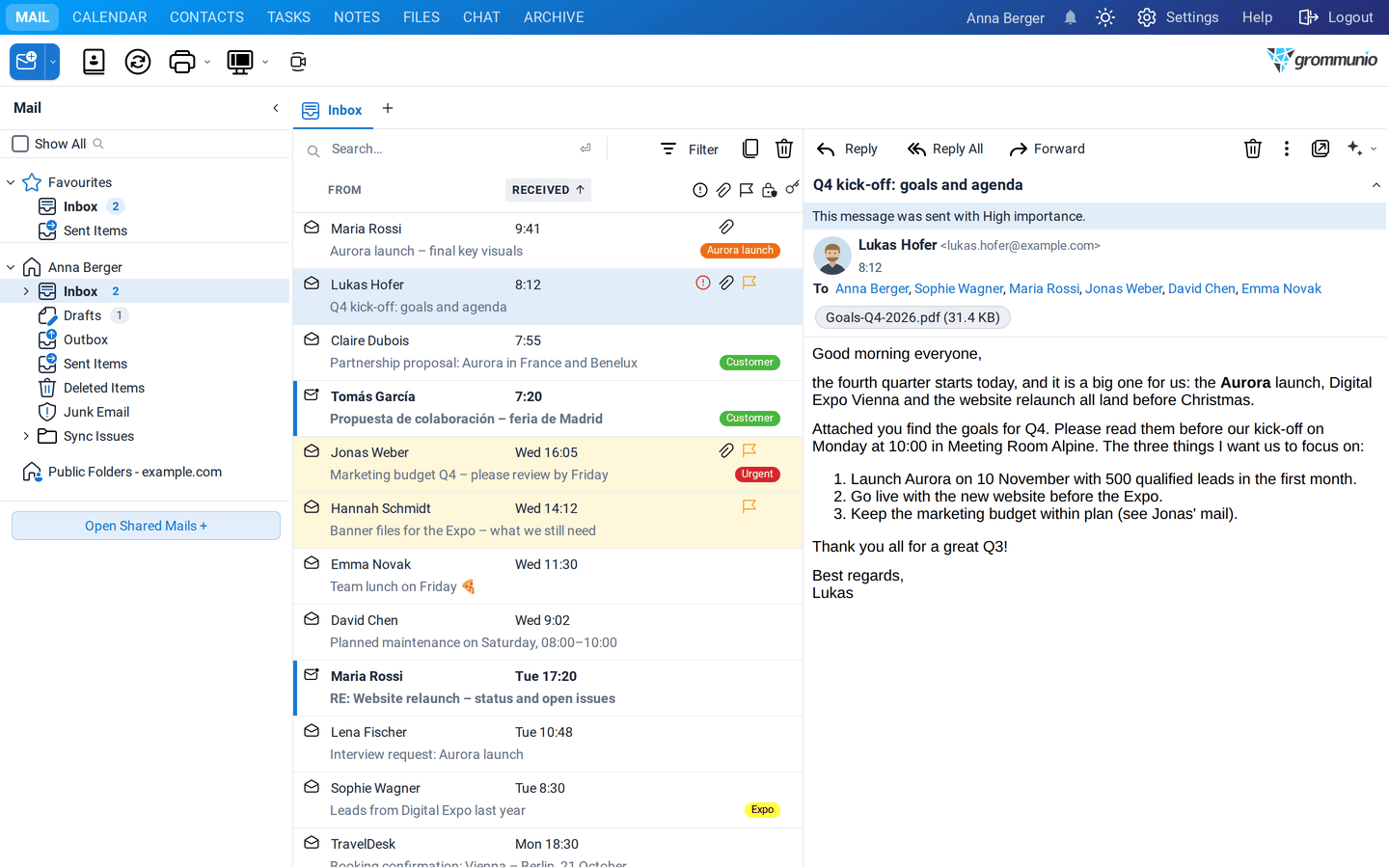
The header of the reading pane shows:
- the subject,
- the sender with photo, initials or company logo, and the time,
- the recipients (To, Cc),
- the attachments,
- the categories of the mail,
- information bars, for example This message was sent with High importance or a notice that the mail is private.
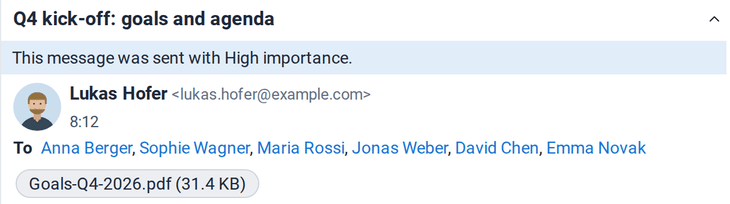
Above the mail you find the actions Reply, Reply All and Forward, and on the right Delete, More options (⋮), Pop-out and the AI Assistant (✦).
Read and unread
Section titled “Read and unread”A mail is marked as read as soon as you select it. You can change this under Settings › Mail › Incoming mail, for example to mark mail as read only after a few seconds. To change the state yourself:
- hover over the mail and click the envelope icon,
- right-click and choose Mark Read or Mark Unread,
- or right-click a folder and choose Mark All Messages Read.
Pictures and external content
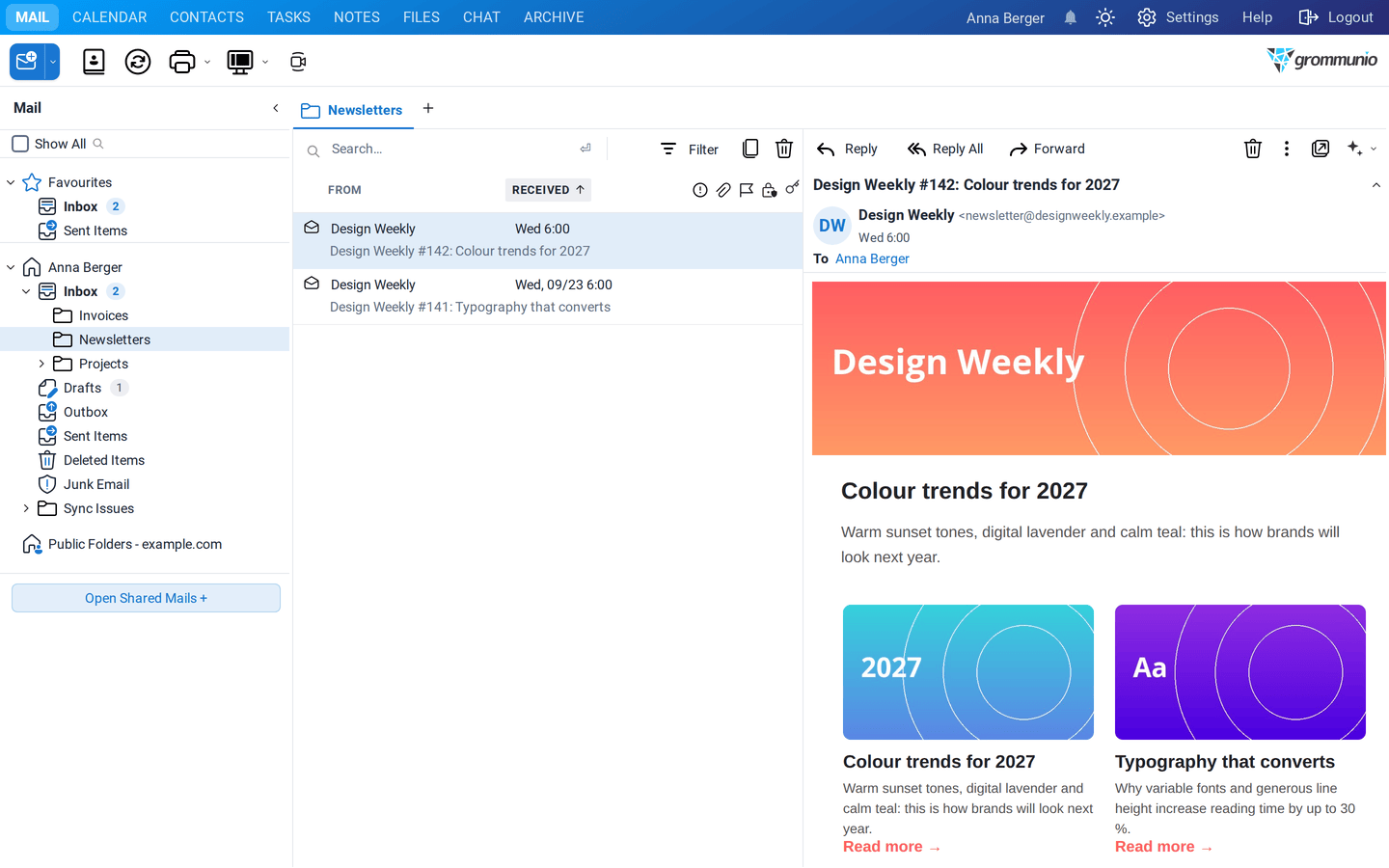
Section titled “Pictures and external content”To protect your privacy, grommunio Web does not load pictures from the internet in mails from unknown senders. An information bar tells you when content was blocked. Click it to:
- Download Pictures for this mail only,
- Add Sender to Safe Senders List to always show pictures from this sender,
- Add Domain to Safe Senders List to trust everyone from this domain.
You manage these lists under Settings › Sender Lists. Newsletters with embedded pictures are shown completely:
Conversation view
Section titled “Conversation view”The conversation view groups the mails of a conversation in your Inbox, including your own replies from Sent Items. Switch it on under Settings › Mail › Conversation view settings.
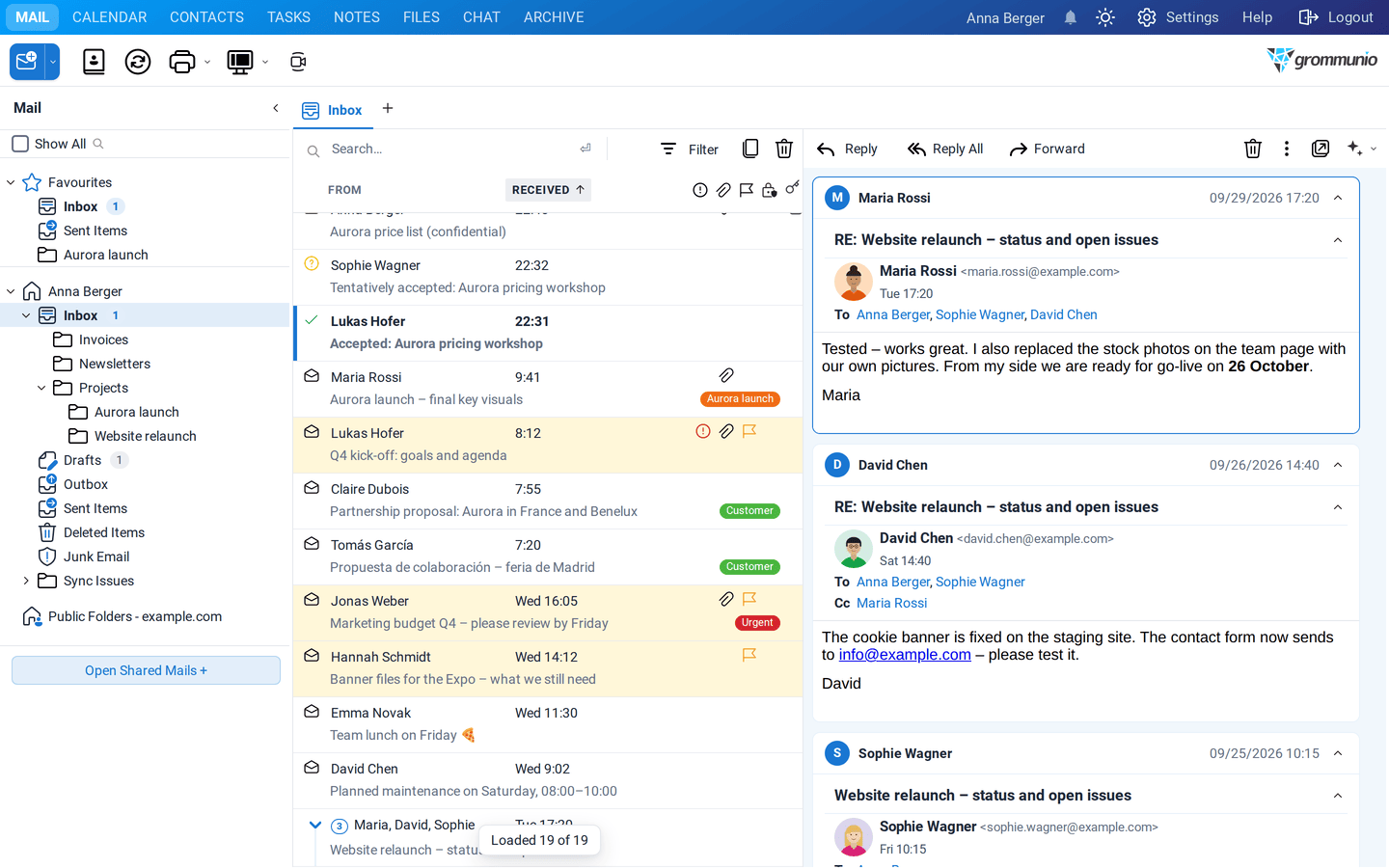
- A conversation shows the number of messages and the participants. Click the arrow to expand it.
- When you select a conversation, the reading pane shows all its messages as cards, the newest first.
- Conversations are shown when the list is sorted by Received (newest first) and no search or filter is active. Otherwise the list is shown flat.
Switching the layout
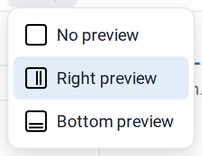
Section titled “Switching the layout”Click Switch view in the toolbar to choose where the reading pane is shown:
Attachments
Section titled “Attachments”Attachments are listed in the header of a mail with their name and size.
Opening attachments in the viewer
Section titled “Opening attachments in the viewer”Click an attachment to open it in the built-in document viewer. You don't need any other program:
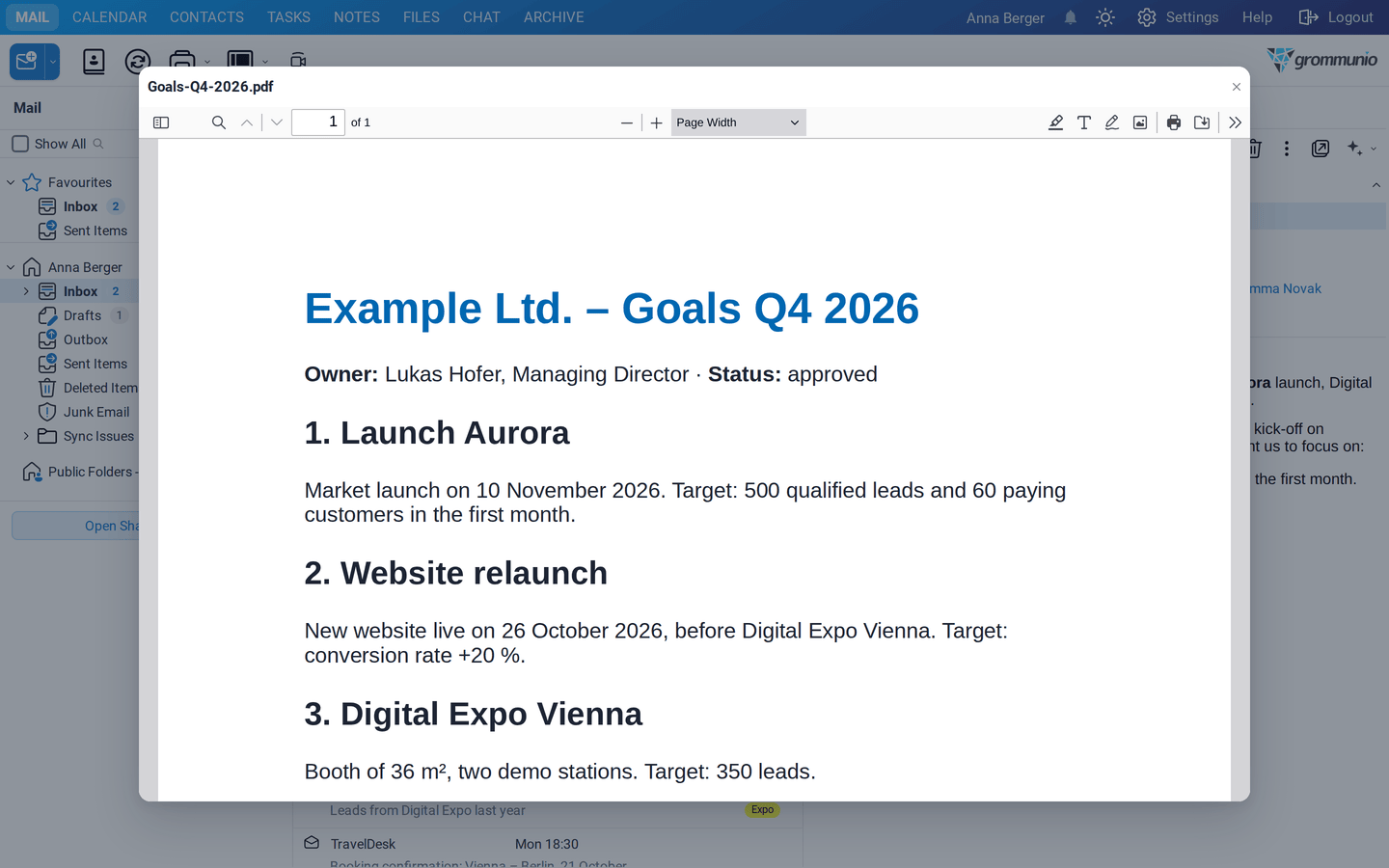
The viewer opens these formats directly in the browser:
| Type | Formats |
|---|---|
| Documents | PDF, Word (.docx, .doc, .docm, .dotx), RTF, OpenDocument text (.odt) |
| Spreadsheets | Excel (.xlsx, .xls, .xlsm, .xlsb), OpenDocument spreadsheet (.ods), CSV, TSV |
| Presentations | PowerPoint (.pptx, .ppsx, .potx), OpenDocument presentation (.odp) |
| Images | PNG, JPEG, GIF, WebP, AVIF, BMP, SVG, ICO |
| Audio and video | MP3, M4A, OGG, Opus, WAV, FLAC, MP4, WebM, MOV and more |
| Text and code | TXT, Markdown, JSON, XML, YAML, HTML (as source), CSS, JavaScript, PHP, Python, shell scripts and more |
| attached mails (.eml) including their own attachments |
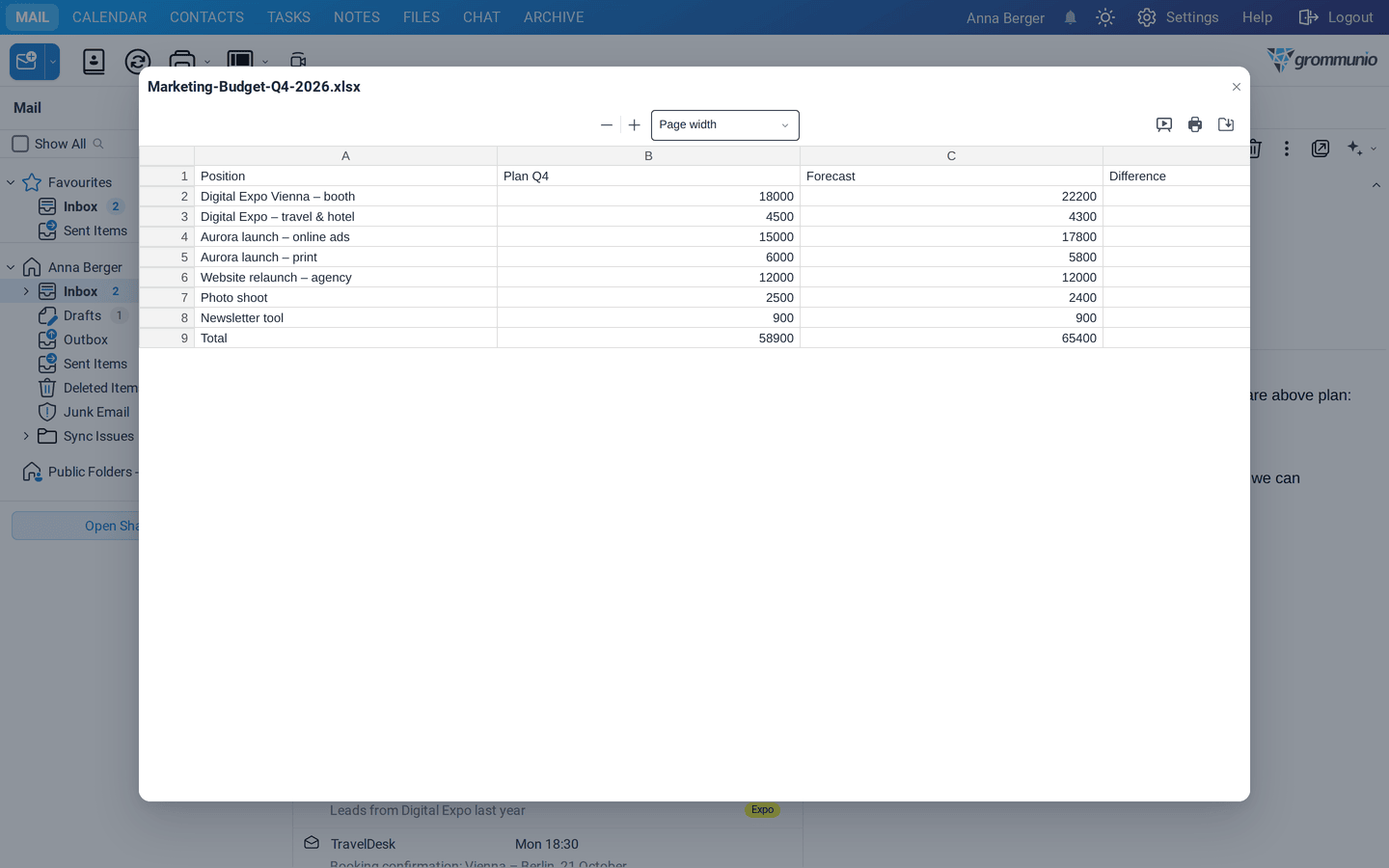
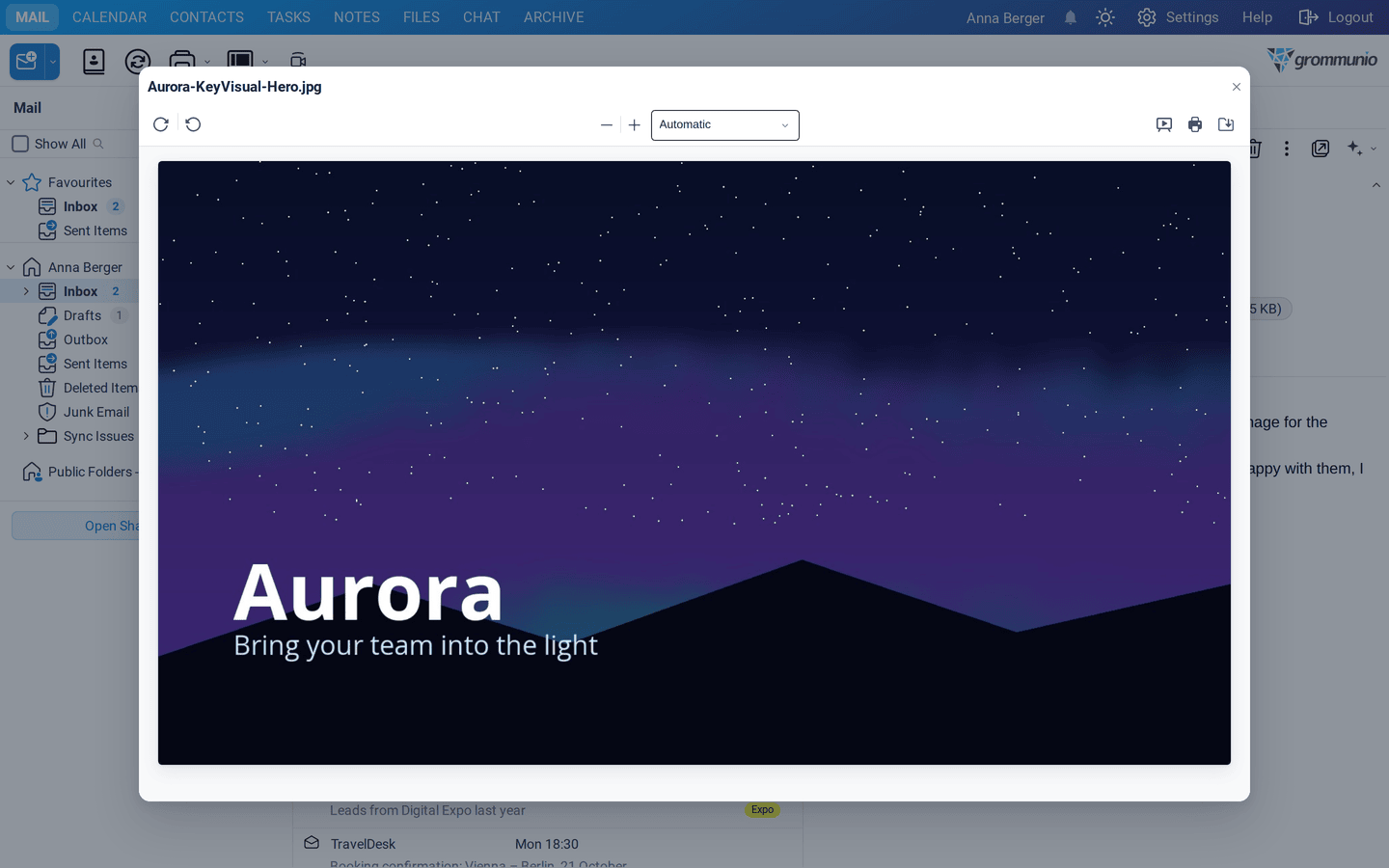
The viewer has buttons to print, download, show the document as a presentation or in full screen, zoom, rotate and page through. Files that cannot be previewed are downloaded.
Under Settings › General › File previewing you choose whether previews open in a dialog (default), in a grommunio Web tab or in a separate browser window, and the default zoom.
The attachment menu
Section titled “The attachment menu”Right-click an attachment for more options:
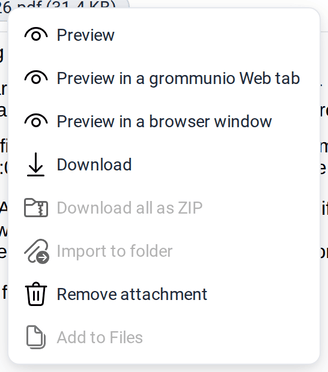
- Preview, Preview in a grommunio Web tab, Preview in a browser window
- Download saves the file.
- Download all as ZIP saves all attachments of the mail in one ZIP file.
- Save selection to folder writes the selected attachments into a folder on your computer (shown when two or more attachments are selected; Chromium-based browsers).
- Import to folder imports a contact card (.vcf), calendar file (.ics) or mail (.eml) into one of your folders.
- Remove attachment deletes the attachment from a mail that is stored in your mailbox, for example to save space. The mail itself stays unchanged. This cannot be undone.
- Add to Files saves the attachment to your Files storage.
Writing mail
Section titled “Writing mail”Click New in the toolbar, press the + at the end of the tab bar, or press Ctrl+Alt+X with extended shortcuts. A new mail opens in its own tab:
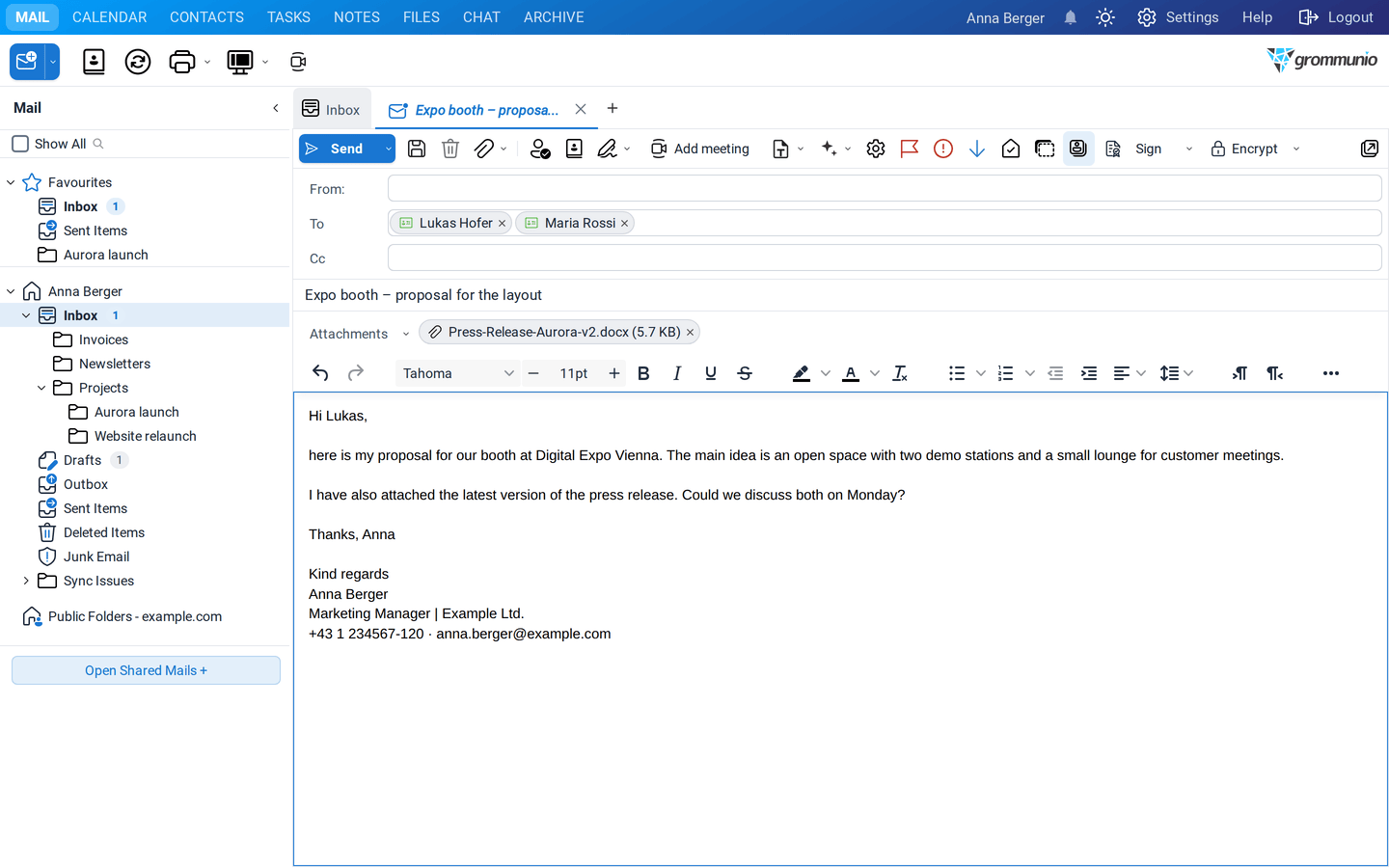
- Enter the recipients in To. grommunio Web suggests addresses as you type. Separate several recipients with a semicolon or press Enter after each one.
- Add more recipients in Cc. Click Show Bcc field in the toolbar for blind copies.
- Enter a subject.
- Write your text. The editor offers fonts, sizes, bold, italic, colors, lists, alignment, links, tables and images.
- Click Send or press Ctrl+Enter.
The compose toolbar
Section titled “The compose toolbar”
| Button | What it does |
|---|---|
| Send (Ctrl+Enter) | Sends the mail. The arrow offers Send Later. |
| Save (Ctrl+S) | Saves the mail to Drafts. grommunio Web also saves automatically every minute. |
| Delete | Discards the draft. |
| Add attachments | Attaches files. The arrow offers File upload, Attach item and, with the Files plugin, Add from Files. |
| Check names | Resolves the names you typed against the address book. |
| Open addressbook | Picks recipients from the address book. |
| Add signature | Inserts one of your signatures. |
| Insert Template | Inserts a template snippet (with the Template Snippets plugin). |
| AI writing assistant | Improves, shortens or translates your text, see AI Assistant. |
| Add meeting | Adds a video meeting link (with the Meet plugin). |
| Open options dialog | Importance, sensitivity, read receipt. |
| Set flag | Flags the mail for follow-up by the recipients. |
| High priority / Low priority | Sets the importance. |
| Request read receipt | Asks the recipients to confirm that they read the mail. |
| Show Bcc field / Show From field | Shows the Bcc or From field. |
| Sign / Encrypt | Signs or encrypts the mail with S/MIME or OpenPGP, see Signing & Encryption. |
| Pop-out | Opens the mail in its own browser window. |
Attachments
Section titled “Attachments”There are several ways to attach a file:
- Drag files from your computer anywhere onto the mail. Drop files here to attach them appears.
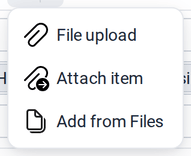
- Click Add attachments › File upload and choose the files.
- Click Add attachments › Attach item to attach an item from your mailbox, such as another mail, a contact or an appointment, either as an attachment or as text.
- Click Add attachments › Add from Files to attach a file from your Files storage.
Pictures you drop into the text are embedded in the mail.
Message options
Section titled “Message options”Click Open options dialog to set the Importance (Low, Normal, High), the Sensitivity (None, Personal, Private, Confidential) and to request a read receipt:
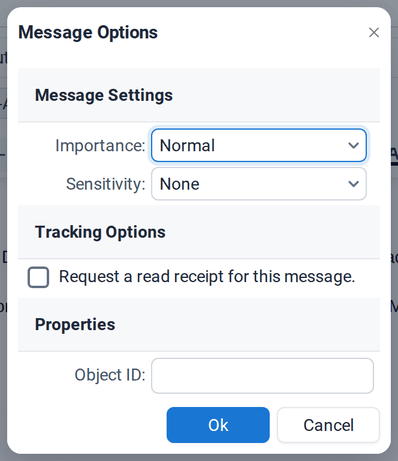
Sensitivity is a hint for the recipient's mail program. It does not protect the content. To protect a mail, encrypt it.
Sending later
Section titled “Sending later”Click the arrow next to Send and choose Send Later:
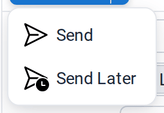
Choose when the mail should go out: in a number of hours, days or months, or at a specific date and time. grommunio Web confirms the time with a short sentence before you click Send.
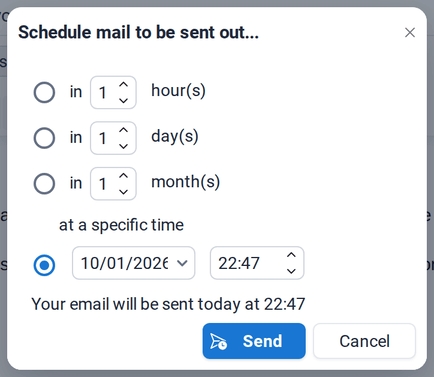
Until then, the mail waits in your Outbox, where you can still open, change or delete it.
Sending from another address
Section titled “Sending from another address”If you may send as another person or as a shared mailbox such as info@, click Show From field and choose the address in From:

You can save frequently used sender addresses under Settings › From Addresses. Your administrator grants the permission to send as or on behalf of someone else.
Drafts and autosave
Section titled “Drafts and autosave”grommunio Web saves the mail you are writing every minute to Drafts. If you close the tab or your browser crashes, you find the mail there and can continue writing. Double-click a draft to open it.
Replying and forwarding
Section titled “Replying and forwarding”Select a mail and click Reply, Reply All or Forward above the reading pane (or right-click the mail). The answer opens in a new tab with the original mail quoted below your text:
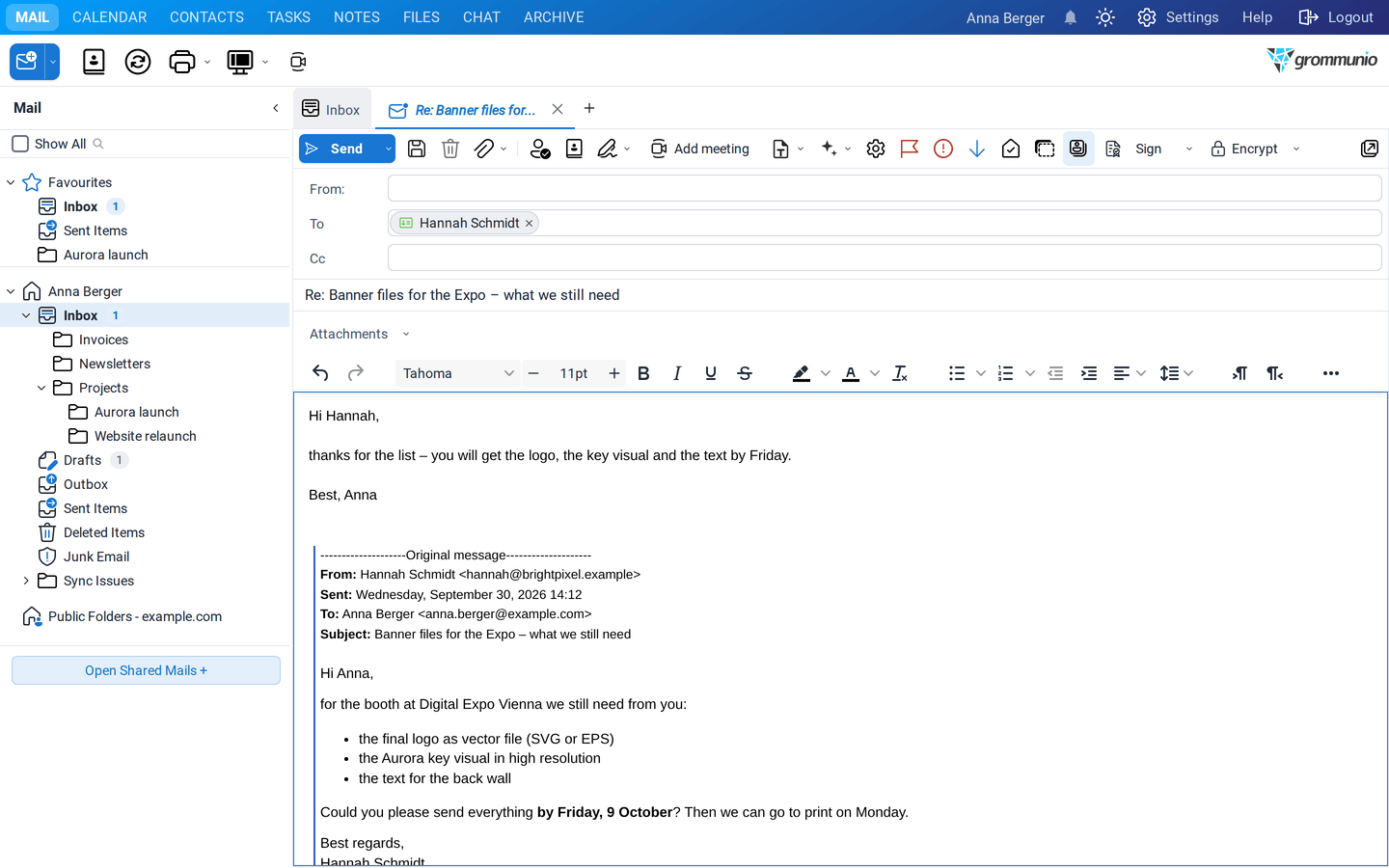
- Reply answers the sender only.
- Reply All answers the sender and all recipients.
- Forward sends the mail with its attachments to someone else.
- Edit as New (right-click) opens a copy of the mail as a new message, for example to send it again.
By default, grommunio Web closes the original mail when you reply. You can change this and the subject prefixes (RE:, FW:) in Settings › Mail.
Organizing your mail
Section titled “Organizing your mail”The context menu
Section titled “The context menu”Right-click a mail for everything you can do with it:
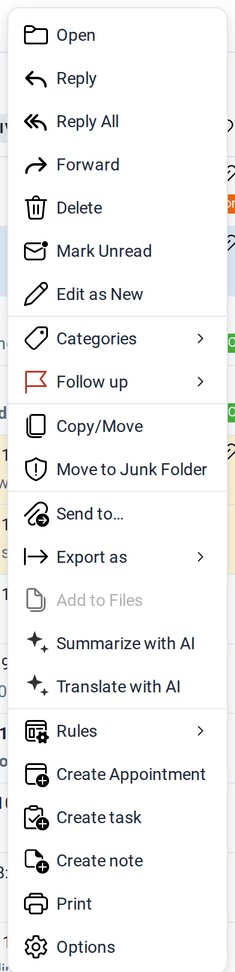
Besides the actions described in this chapter you find:
- Send to… to forward the mail as an attachment,
- Export as › EML file(s) or ZIP file, to save mails to your computer,
- Create Appointment, Create task and Create note, which create a new item from the mail,
- Options with importance, sensitivity and the Internet Headers of the mail, which are useful when your IT support asks for them.
Flags and follow-up
Section titled “Flags and follow-up”Flag mails you still need to deal with. Hover over a mail and click the flag, or right-click the mail and choose Follow up:
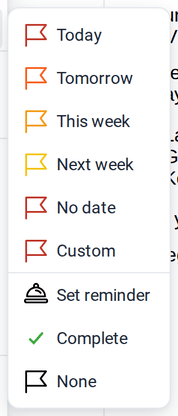
Flagged mails are tinted in the list and also appear in your To-Do List. Choose Complete when you are done; the flag turns into a check mark.
Categories
Section titled “Categories”Categories are colored labels for mails, appointments, contacts, tasks and notes, for example Customer, Urgent or a project name. Right-click an item and choose Categories:
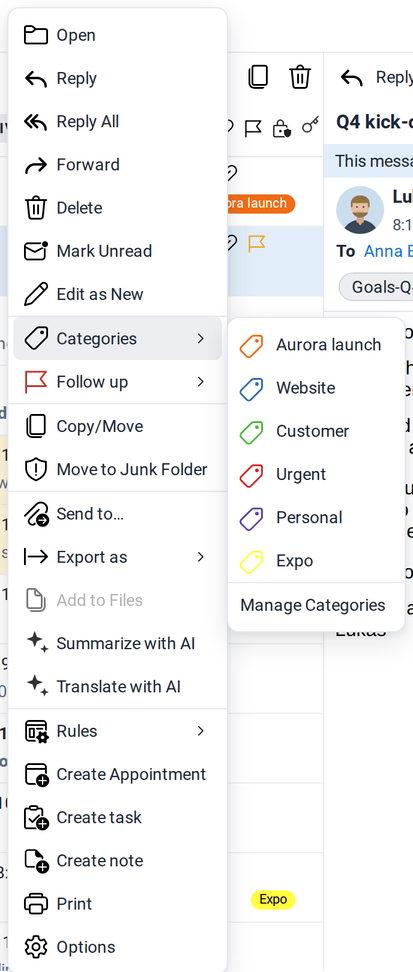
Choose Manage Categories to create, rename, recolour or delete categories and to pin your favorites to the quick-access list:
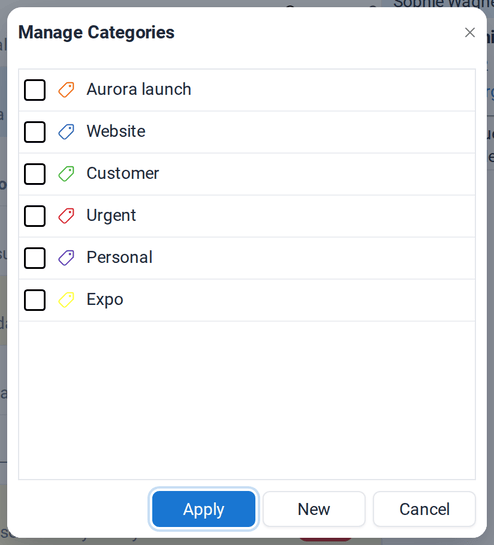
Categories are stored in your mailbox the way Outlook stores them, so you see the same names and colors in grommunio Web, Outlook and on your phone. A shared mailbox has its own categories.
Notes on mails
Section titled “Notes on mails”You can attach a sticky note to a mail, for example to remember what you want to discuss. Right-click the mail and choose Create note. The note opens with a link to the mail:
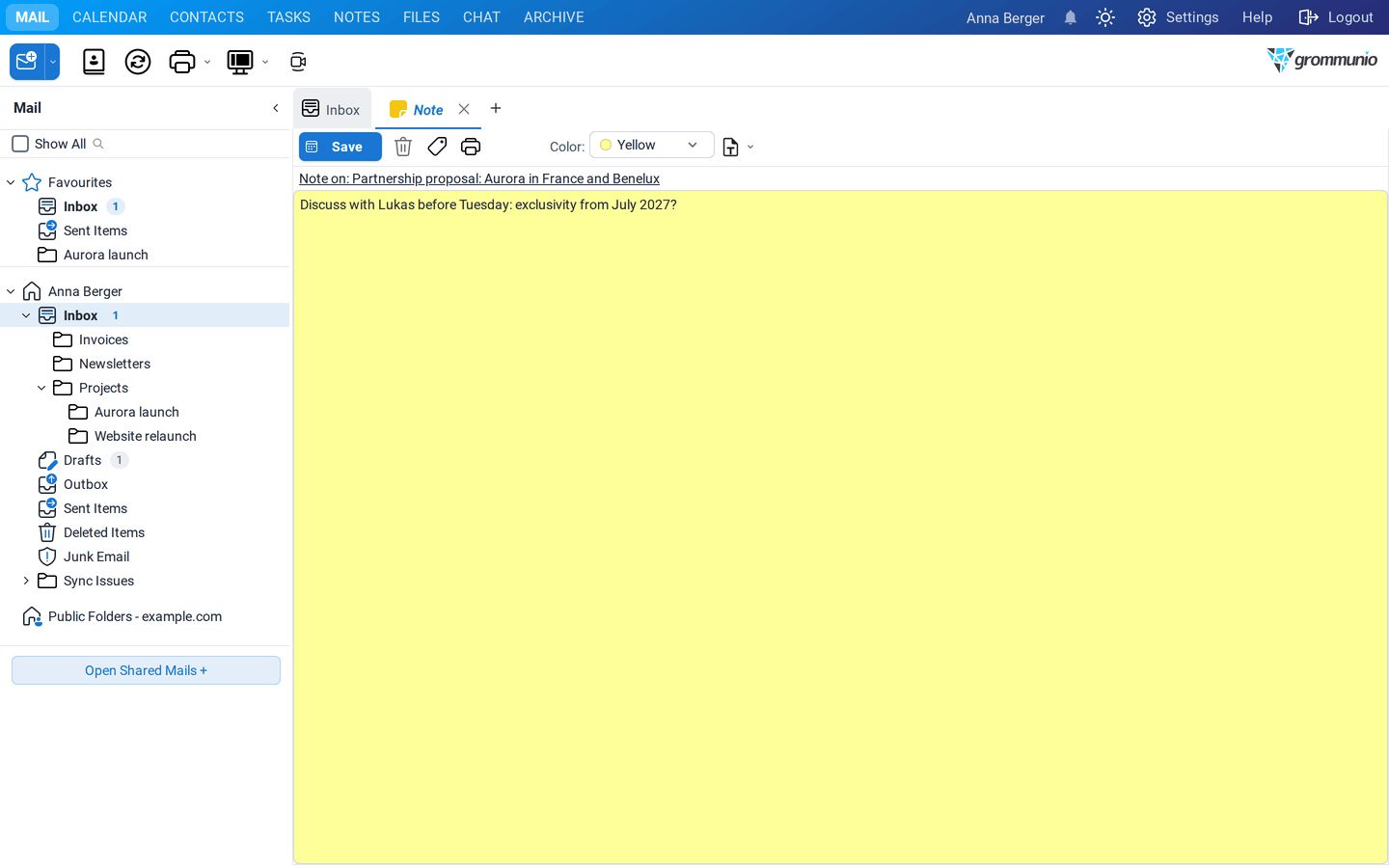
Save the note. From then on, it is shown as a colored card at the top of the mail, for you and for everyone who works in the same (shared) mailbox:
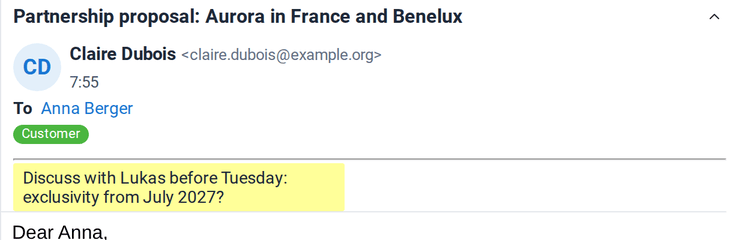
Click the card to open the note. The mail itself is not changed. The note is stored in the Notes folder.
Folders and moving mail
Section titled “Folders and moving mail”Create your own folders to sort your mail, for example per project. Right-click a folder and choose New Folder. More folder options are described in Folders & Permissions.
To move or copy mails:
- drag them onto a folder (hold Ctrl to copy), or
- right-click and choose Copy/Move (Ctrl+M with extended shortcuts).
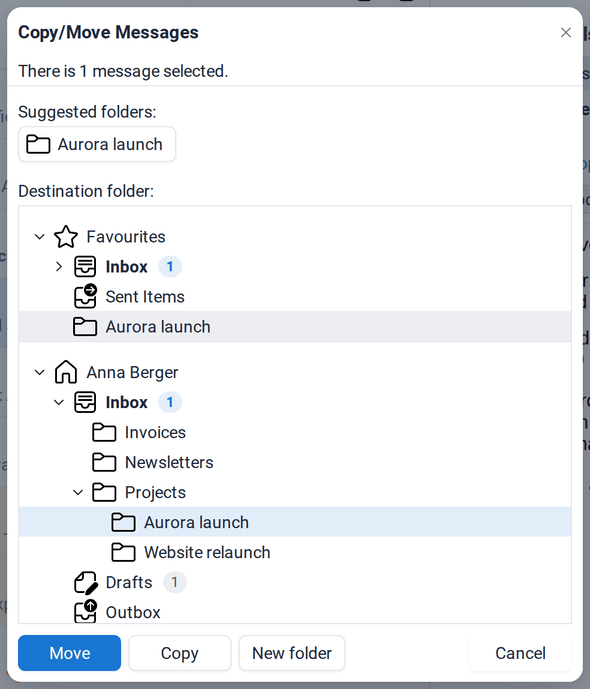
grommunio Web remembers where you filed mail from a sender before and offers those folders as Suggested folders at the top of the dialog. You can also type the beginning of a folder name to jump to it. Move (or Enter) moves the mail, Copy copies it, New folder creates a folder on the spot.
Rules sort your incoming mail automatically. Right-click a mail and choose Rules for quick rules such as Always move messages from …, or Create rule… for a full rule. All rules are managed under Settings › Rules.
Junk mail
Section titled “Junk mail”Mail that the server classifies as spam lands in Junk Email. If a legitimate mail ends up there, right-click it and choose Not Junk Email. To move unwanted mail to the junk folder, right-click it and choose Move to Junk Folder.
Deleting and restoring
Section titled “Deleting and restoring”- Delete (or the Delete key) moves mail to Deleted Items.
- Shift+Delete deletes mail without moving it to Deleted Items.
- Right-click Deleted Items and choose Empty Deleted Items to clean up.
- Accidentally deleted something permanently? Right-click the folder and choose Restore items to bring back recently deleted items.
- With undo and redo switched on, Ctrl+Z takes back the last action.
Printing
Section titled “Printing”Select one or more mails and click Print in the toolbar or press Ctrl+P. grommunio Web uses the print dialog of your browser, where you can also save the mail as a PDF file.
Shared mailboxes
Section titled “Shared mailboxes”When colleagues share a mailbox with you, for example a team address like [email protected], it appears in your folder pane below your own mailbox. You work with it like with your own: read, reply, move and categorise. How to open a shared mailbox and how to send from it is described in Folders & Permissions.