

Mobile Devices
Phones and tablets that synchronize your mail, calendar and contacts with grommunio (via Exchange ActiveSync) are listed under Settings › Mobile Devices. Here you can check them, resynchronize them and, if a device is lost or stolen, wipe it remotely.
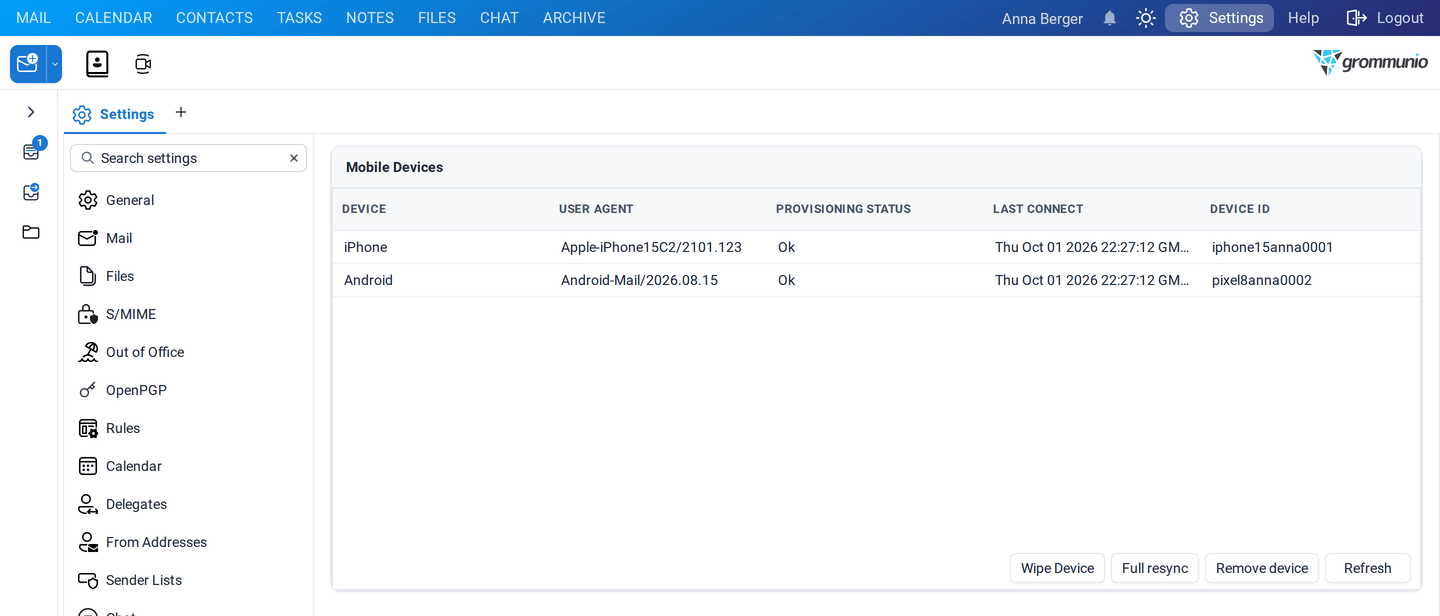
The device list
Section titled “The device list”| Column | Meaning |
|---|---|
| Device | the type of device, for example iPhone or Android |
| User Agent | the mail app and its version |
| Provisioning Status | the state of the security policy, for example Ok or Wipe Pending |
| Last Connect | when the device last synchronized |
| Device ID | the unique identifier of the device |
| further columns | operating system, device information, first synchronization and who impersonated the device |
If no device synchronizes with your account, the list shows No devices connected to your account.
Device details
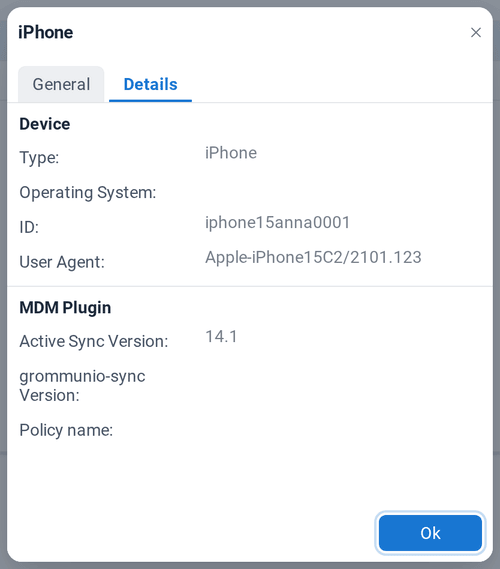
Section titled “Device details”Double-click a device to see its details:
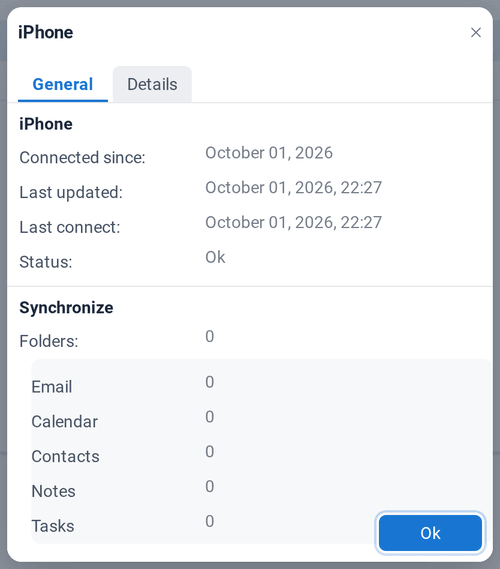
- General: when the device was first connected and last synchronized, its status, and how many folders of each type are synchronized. Under Shared Folders, click Manage Shared Folders to choose which shared folders are synchronized to the device. Shared mailboxes must be opened in grommunio Web first to appear here.
- Details: device type, operating system, device ID, user agent, ActiveSync version, grommunio-sync version and the policy.
Actions
Section titled “Actions”Select a device and use the buttons below the list.
Full resync
Section titled “Full resync”Full resync resynchronizes all data on the device from scratch. Use it when the device shows outdated or missing items. Depending on the size of your mailbox, this can take a while.
Wipe Device
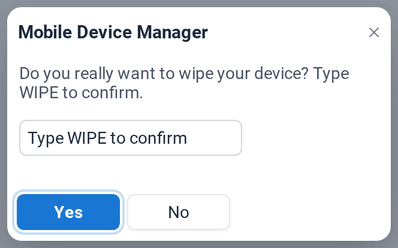
Section titled “Wipe Device”If a device is lost or stolen, Wipe Device deletes the data on it the next time it connects. You can choose:
- Wipe only data related to this account: removes only your grommunio mail, calendar and contacts from the device,
- Wipe all data: resets the device to factory settings, deleting everything on it.
To confirm, enter your password, or type WIPE if you sign in with single sign-on:
Remove device
Section titled “Remove device”Remove device removes the device from the list, for example a phone you no longer use. Confirm with your password, or by typing REMOVE with single sign-on. If the device connects again, it reappears and synchronizes from scratch.
Refresh
Section titled “Refresh”Refresh updates the list and the status of the devices.