
Guided Installation (grommunio Appliance)
grommunio delivers ready-to-use appliances for:
- bare metal or virtualized environments (ISO)
- container environments (docker)
- specialized, automated virtualization environments (OVA)
and a community image to run grommunio on a raspberry pi.
To deploy grommunio via ISO, you need to make the installation media available to your installation target. The ISO is a generic, bootable installation medium which works in most scenarios. To deploy the ISO with bare metal, the ISO can be imaged to USB drives for simplified installation.
The grommunio Appliance is a general-purpose installation target, which comes with all components required for successful operation of grommunio. It is based on openSUSE Leap 16.0 and already includes the operating system for simplified management. Every appliance installation is automatically deployed with update servers ready-configured and services prepared for usage. If you are seeking a general-purpose and simple deployment, grommunio Appliance is the right place for you. Simplified update management, backups and full portability allow the appliance to operate for any installation target sizing 1-2000 users with adequate hardware sizing. For larger installations or installations with special deployment needs, such as - but not limited to - geographically split, cluster or hyperscale installations, please refer our partners and/or our support/professional services team. Alternatively, the combined information from the manual installation in this chapter together with the man page sections is sufficient to build the grommunio setup of your needs.
The guided installation consists of three stages:
- Installing the appliance from the ISO onto the target disk.
- Preparing the operating system with the console user interface (
grommunio-cui): root password, network, hostname, time. - Configuring grommunio with the grommunio setup wizard (
grommunio-setup): roles, database, admin password, domain and TLS.
Installing the appliance
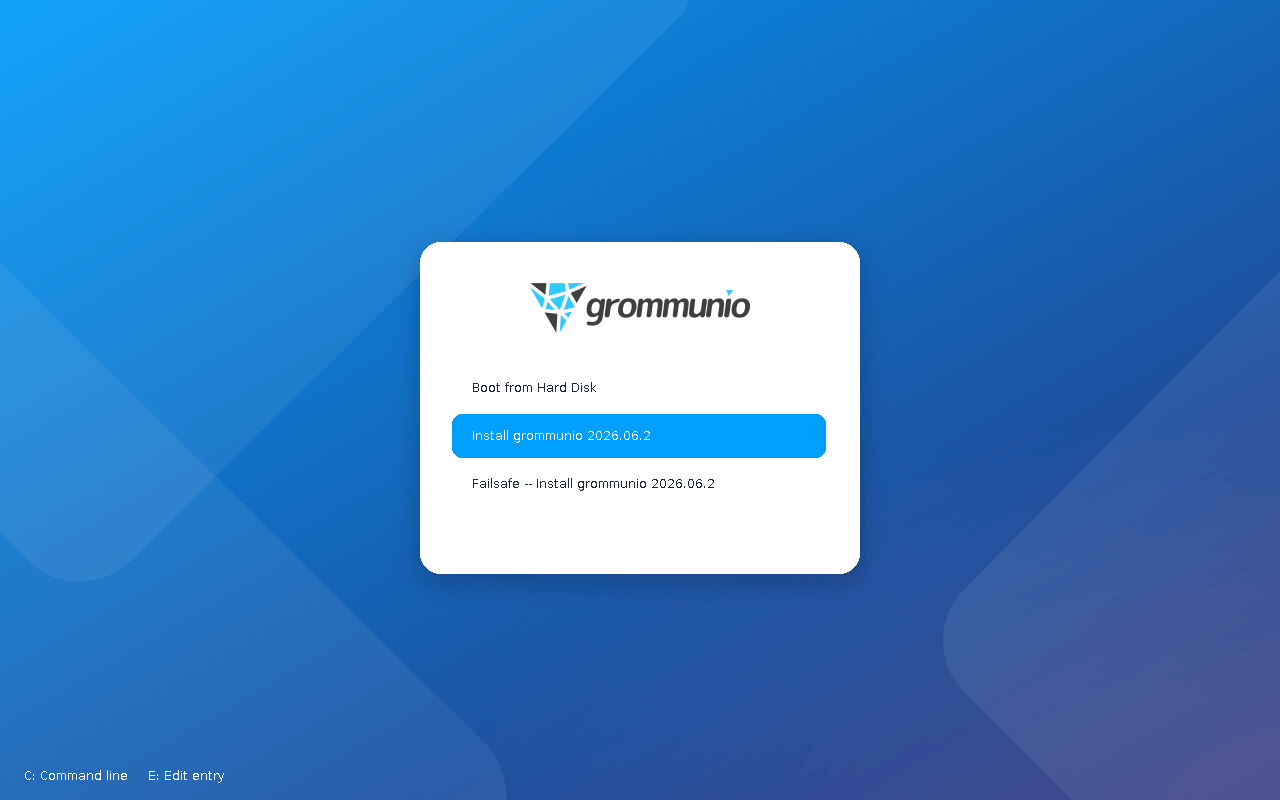
Section titled “Installing the appliance”Boot the target system from the ISO. The boot menu offers three entries:
- Boot from Hard Disk — the default, started automatically after 10 seconds. It boots an already installed system, so select the installer before the countdown expires.
- Install grommunio 2026.06.2 — installs the appliance.
- Failsafe -- Install grommunio 2026.06.2 — the same installer with conservative kernel options, for hardware where the regular entry fails to boot.
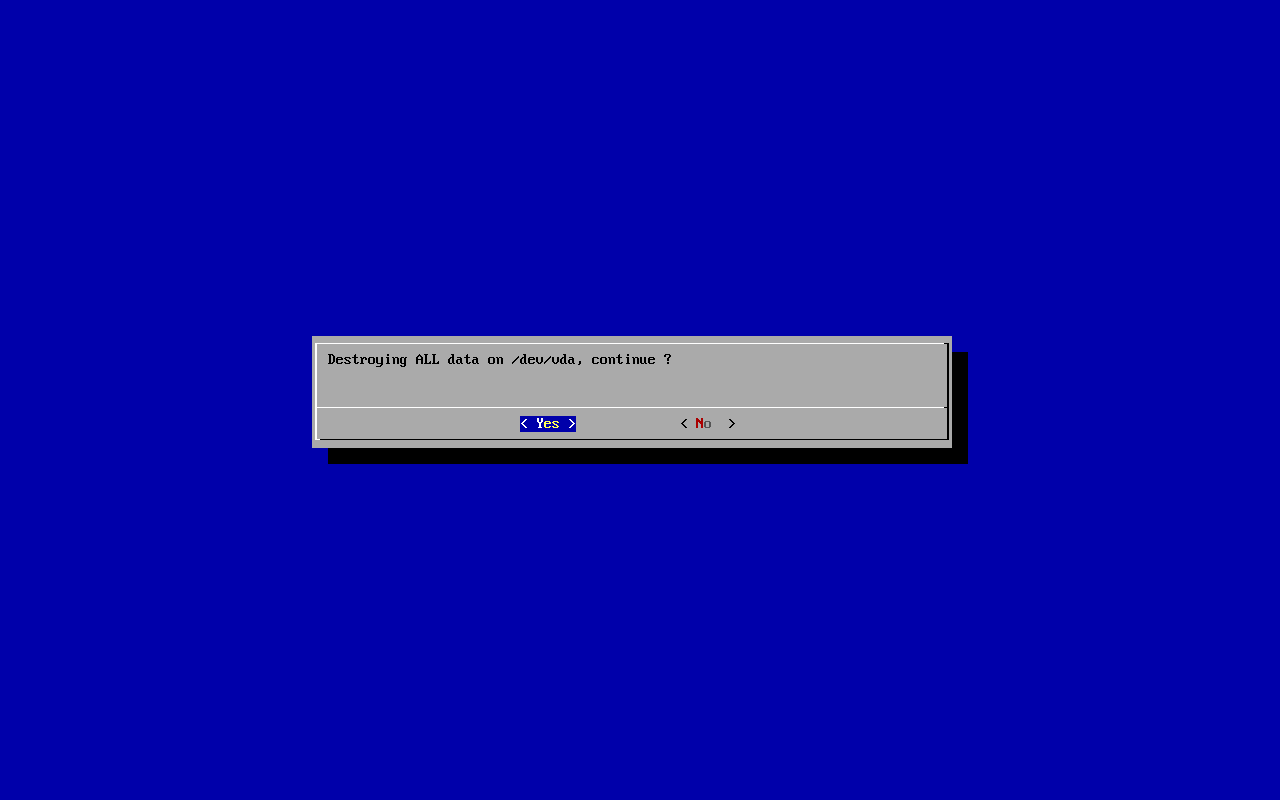
The installer asks for confirmation before it writes to the target disk. The appliance always uses the entire disk; all data on it is destroyed.
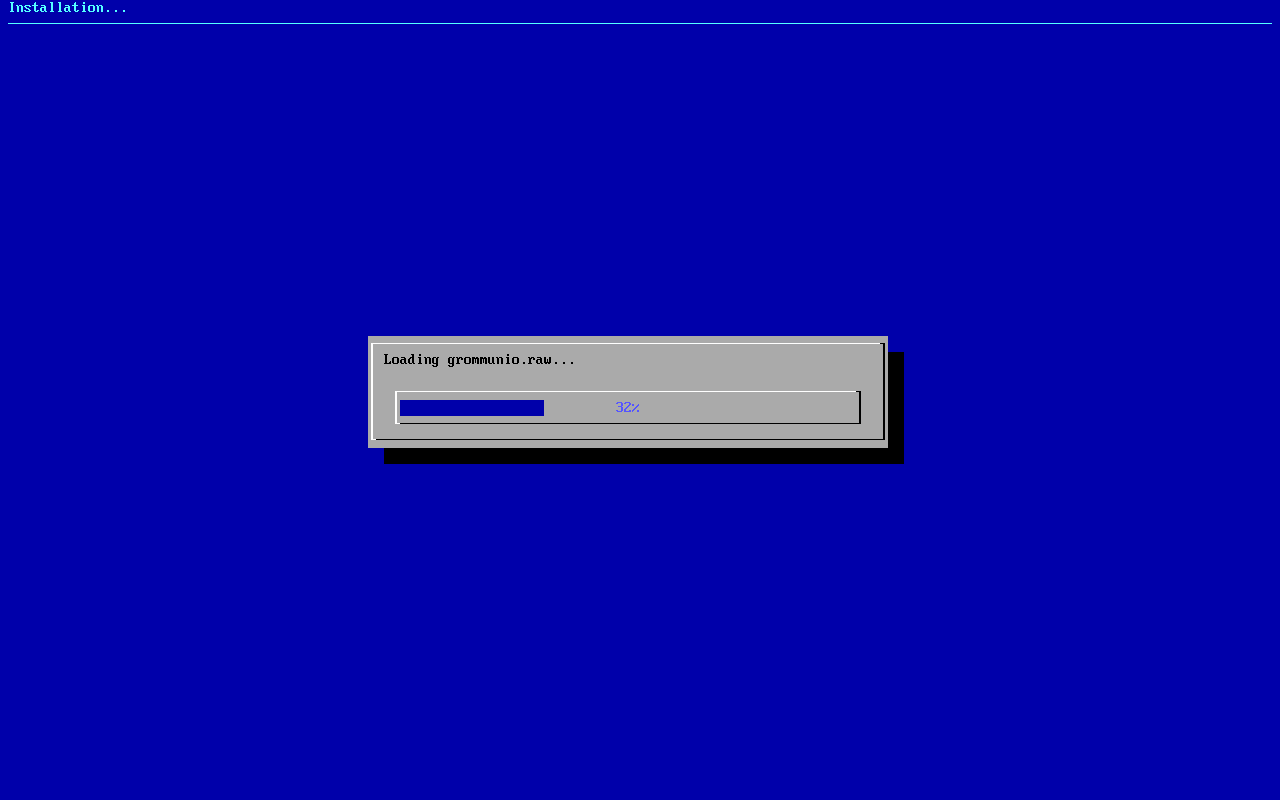
The installer then copies the appliance image to the disk and boots into the installed system. There are no further questions to answer: partitioning, bootloader and base configuration are part of the image.
grommunio Appliance configuration with CUI/setup
Section titled “grommunio Appliance configuration with CUI/setup”The grommunio console user interface (grommunio-cui) runs on the first console (tty1) of the appliance. It allows the administrator to perform basic tasks to ready the appliance for the Admin UI (admin web interface) or admin CLI (admin command line interface), such as network configuration and time synchronization, and to start the grommunio setup wizard.
The CUI configures the system with standard systemd tools — localectl, hostnamectl, timedatectl, systemd-timesyncd — and edits the network configuration of whichever network backend is active (systemd-networkd on the appliance; NetworkManager or wicked on other systems). YaST is no longer used.
Status screen
Section titled “Status screen”After booting, the CUI shows a status screen. The upper half shows the version of the appliance, the CPU and the memory usage. The lower half lists tasks that are still open — on a freshly installed appliance, these are:
- System password is not set.
- grommunio-setup has not been run yet.
- nginx is not running.
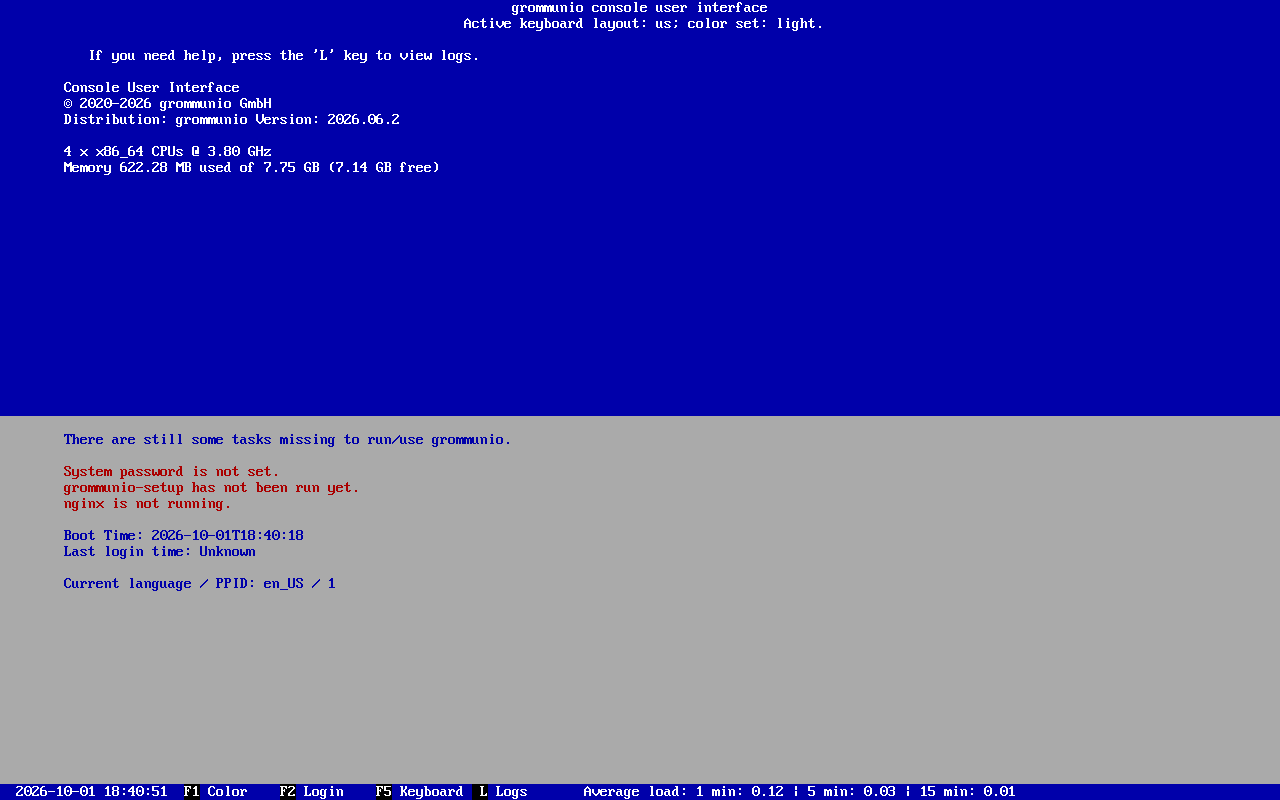
Once the appliance has been configured, the lower half shows the URLs at which the Admin UI can be reached instead.
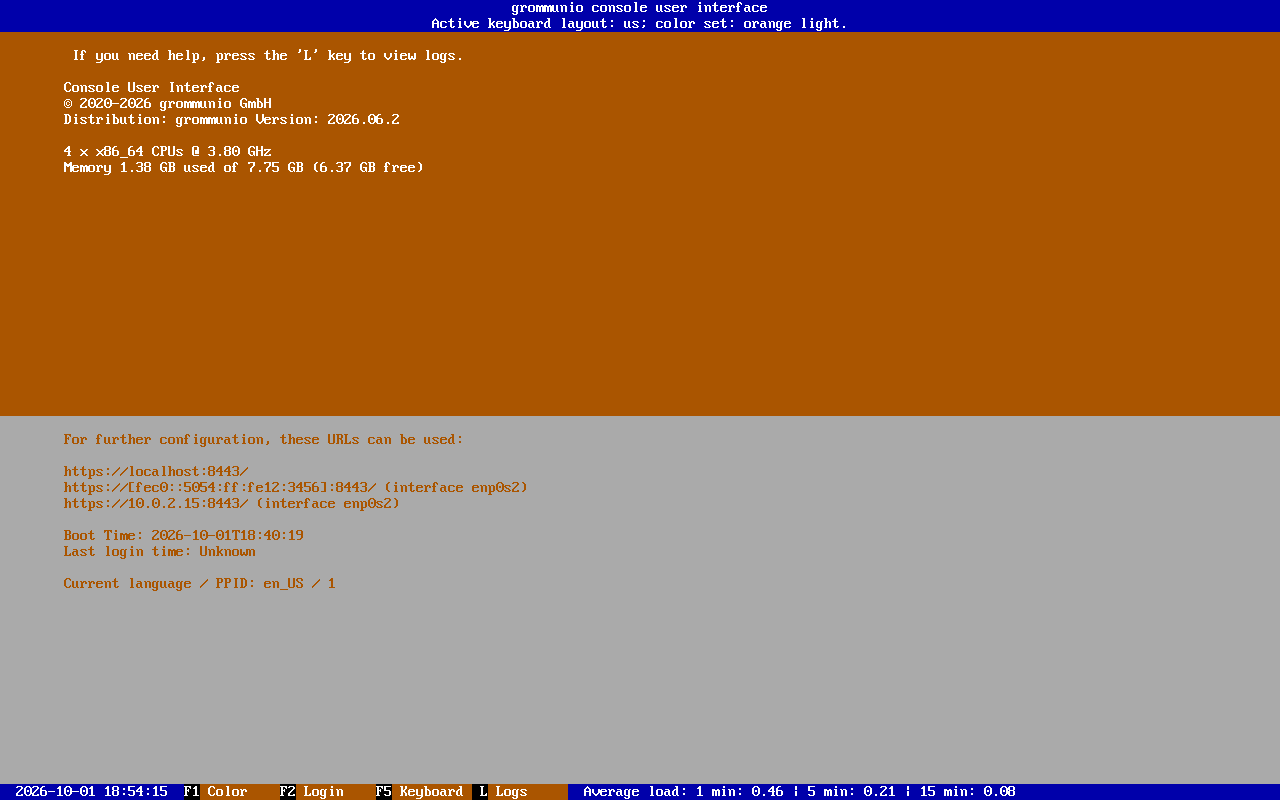
The header shows the active keyboard layout and color set. The bottom bar shows the current time, the system load and the following hotkeys:
F1: Switch the color setF2: Login to unlock the main menuF5: Select the keyboard layoutL: Open the log viewer
Log viewer
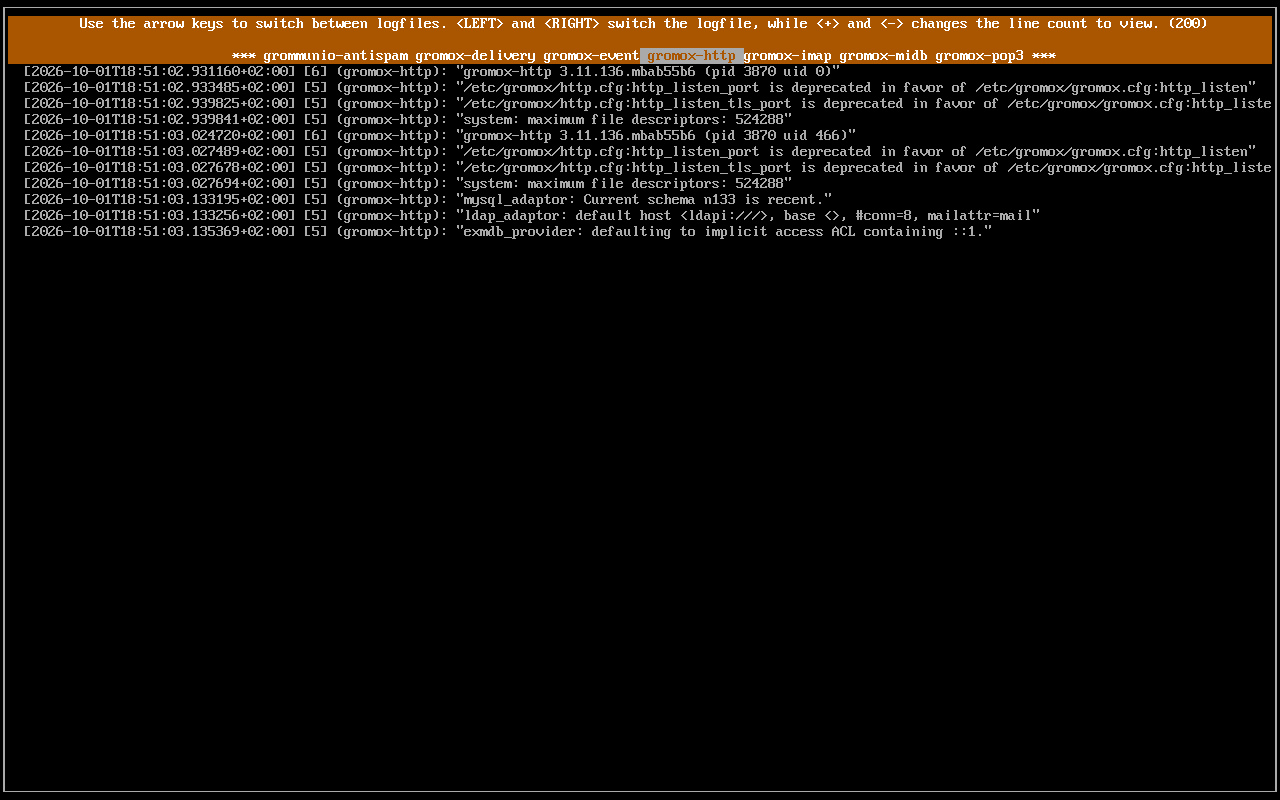
Section titled “Log viewer”The log viewer (L) shows the journal of the grommunio services. Use the LEFT and RIGHT arrow keys to switch between services (gromox-http, gromox-imap, gromox-delivery, grommunio-antispam, …) and +/- to change the number of lines shown. ESC returns to the status screen.
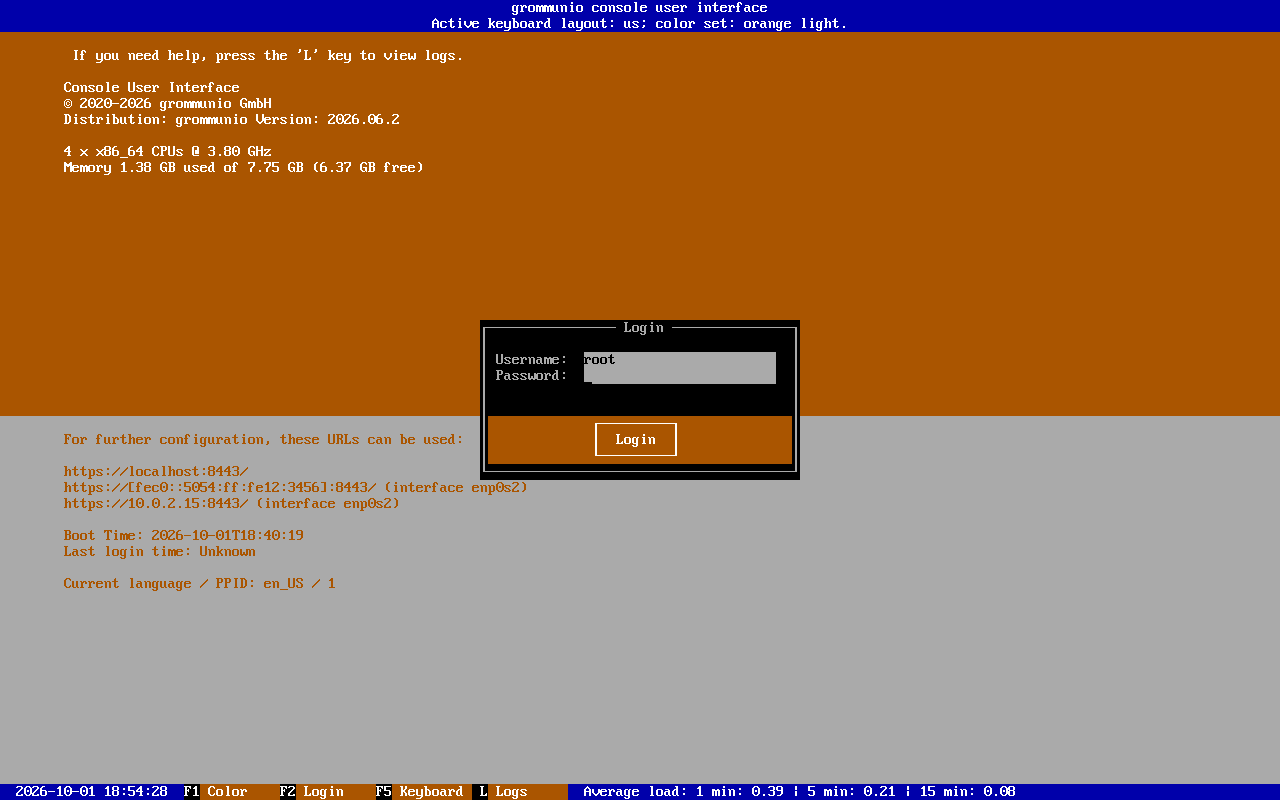
To enter the main menu, press F2.
As long as no root password has been set, F2 opens the main menu directly. Once a root password is set, the CUI asks for the credentials of the system superuser (root).
Main menu
Section titled “Main menu”The main menu provides the following functions:
- Language configuration
- Keyboard configuration
- Change system password
- Network interface configuration
- Change hostname
- Timezone configuration
- timesyncd configuration
- Select software repositories
- Update the system
- grommunio setup wizard
- Change admin-web password
- Terminal
- Reboot
- Shutdown
Navigate with the arrow keys and confirm with ENTER. Inside dialogs, TAB moves between fields and buttons and ESC cancels the dialog. The right half of the screen describes the currently selected entry.
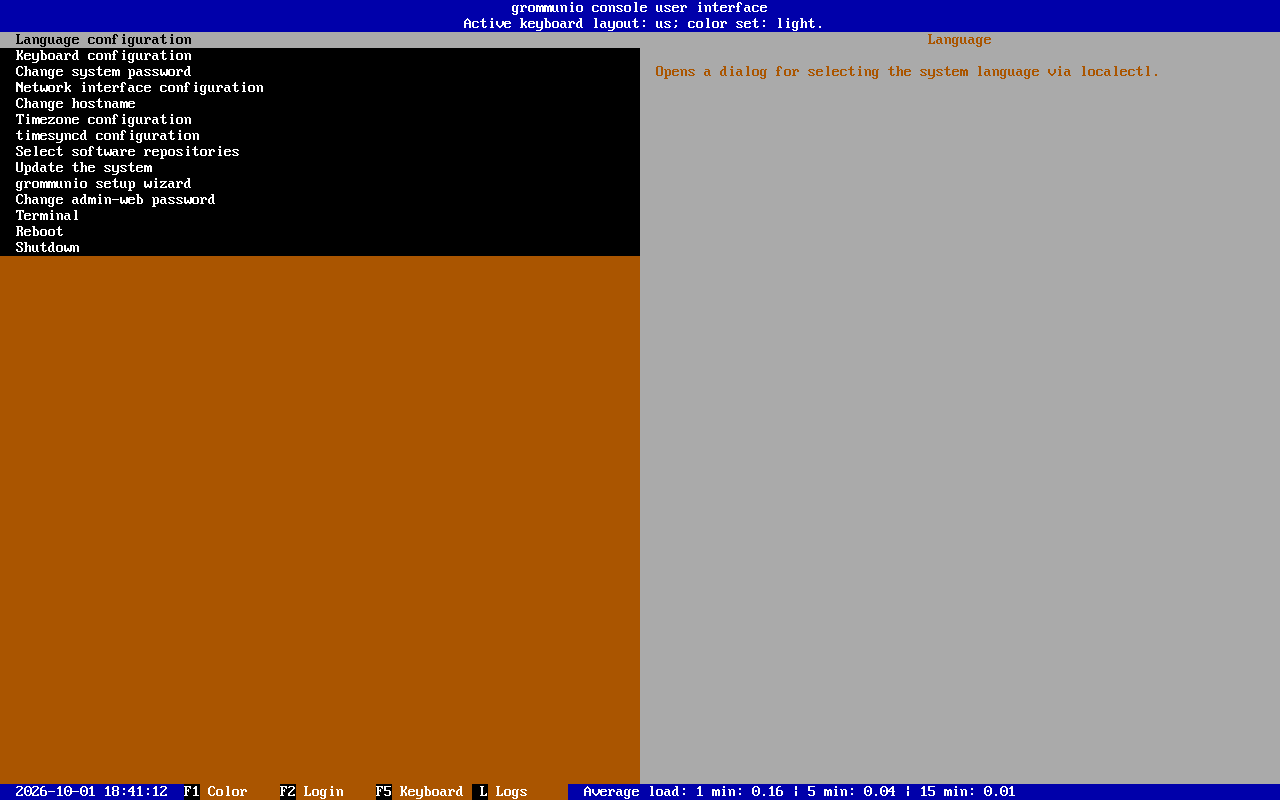
For a new appliance, work through the menu from top to bottom: set the root password, configure the network, the hostname and the time, then start the grommunio setup wizard.
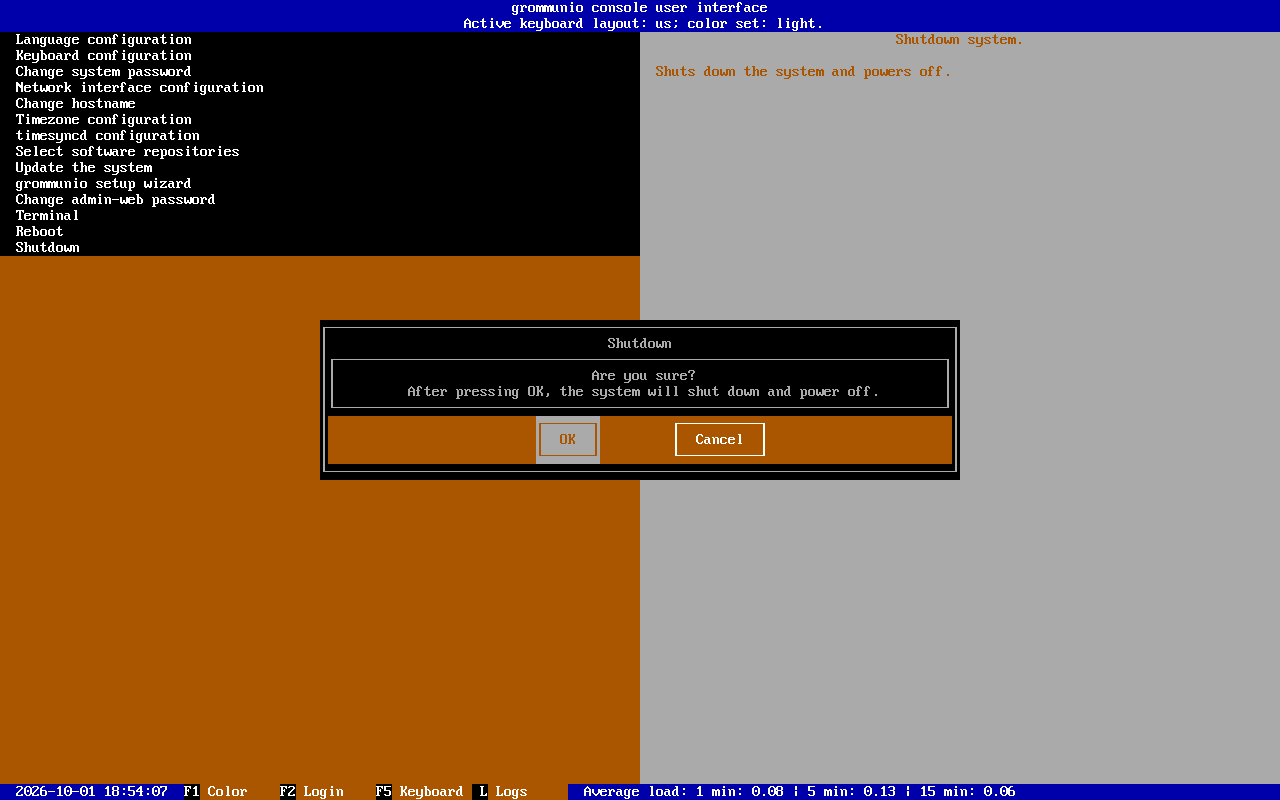
Language configuration
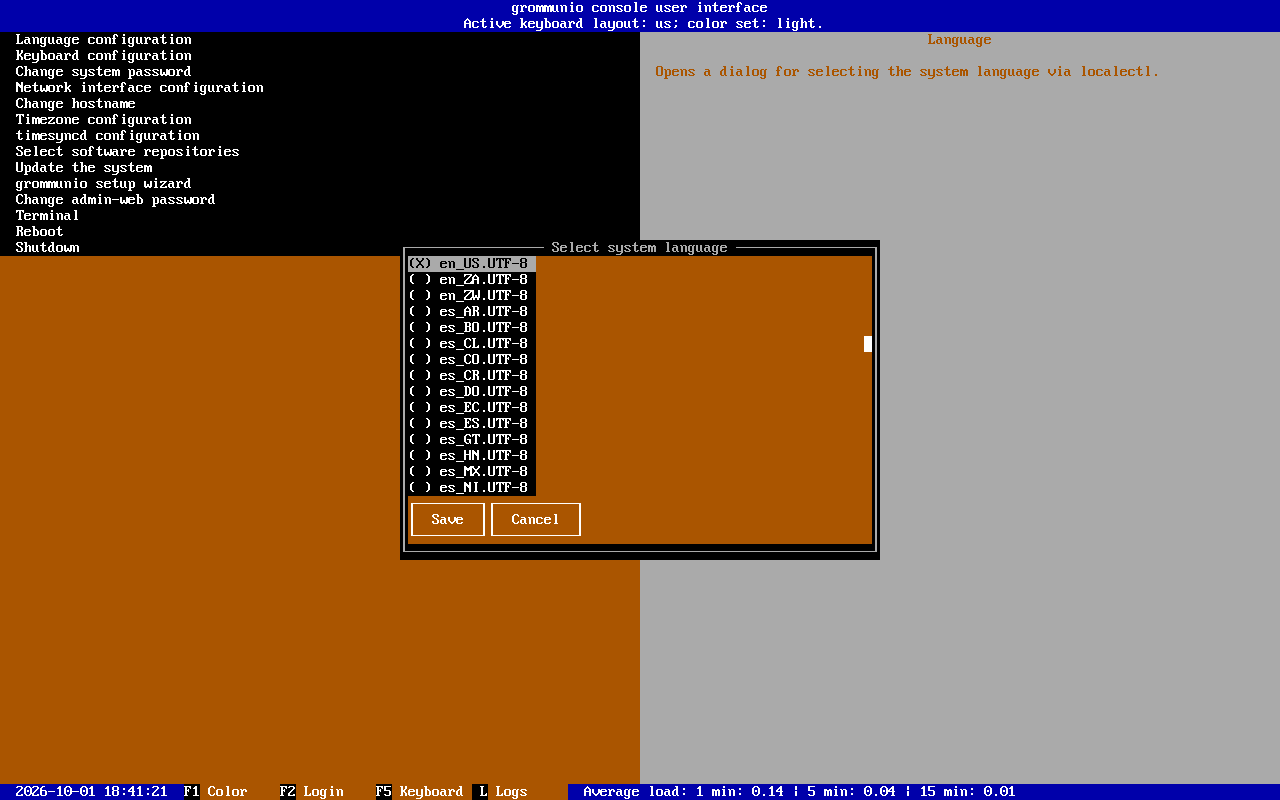
Section titled “Language configuration”Selects the system language (locale) via localectl. This changes the language of the CUI and of system messages; it does not affect the language of grommunio Web, which users select themselves.
Keyboard configuration
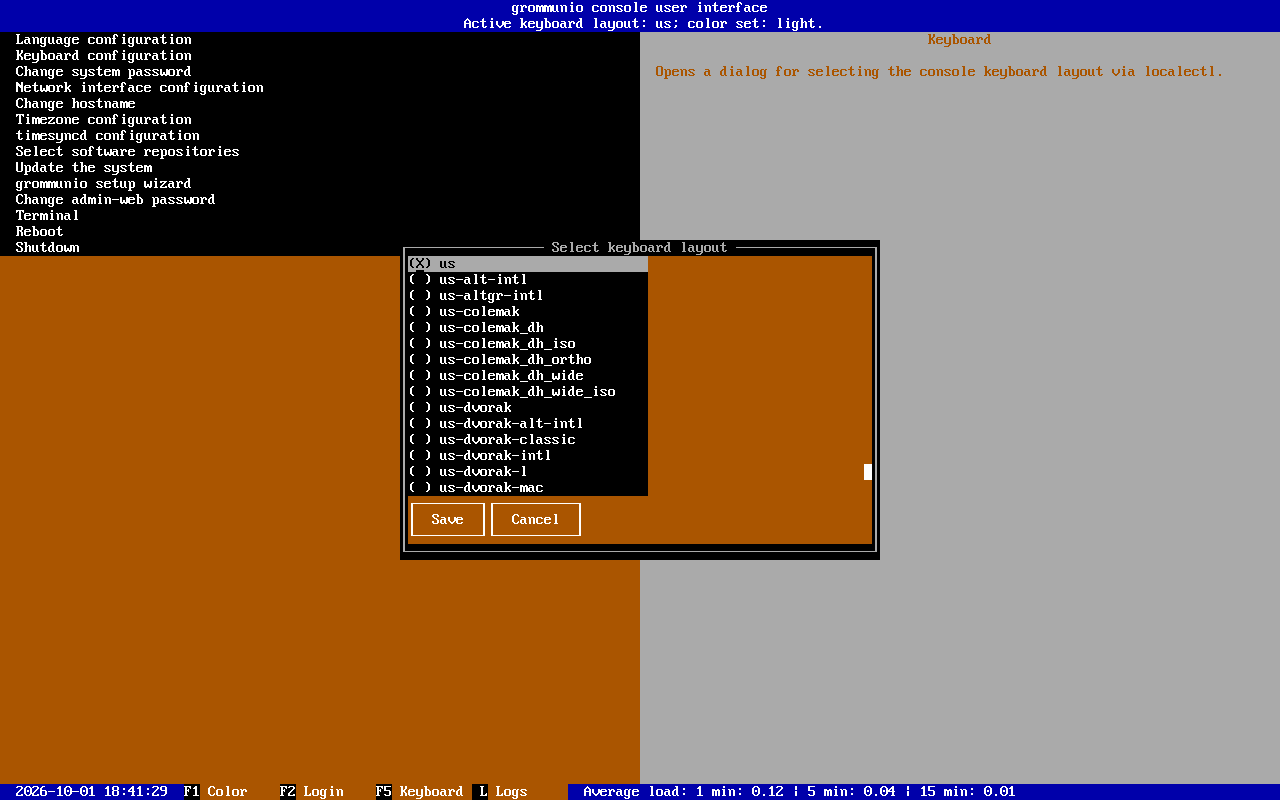
Section titled “Keyboard configuration”Selects the console keyboard layout via localectl. The layout is used on the console of the appliance, for example when typing passwords in the CUI. F5 opens the same dialog from any screen, without logging in first — useful when the console layout does not match your keyboard while typing the root password.
Change system password
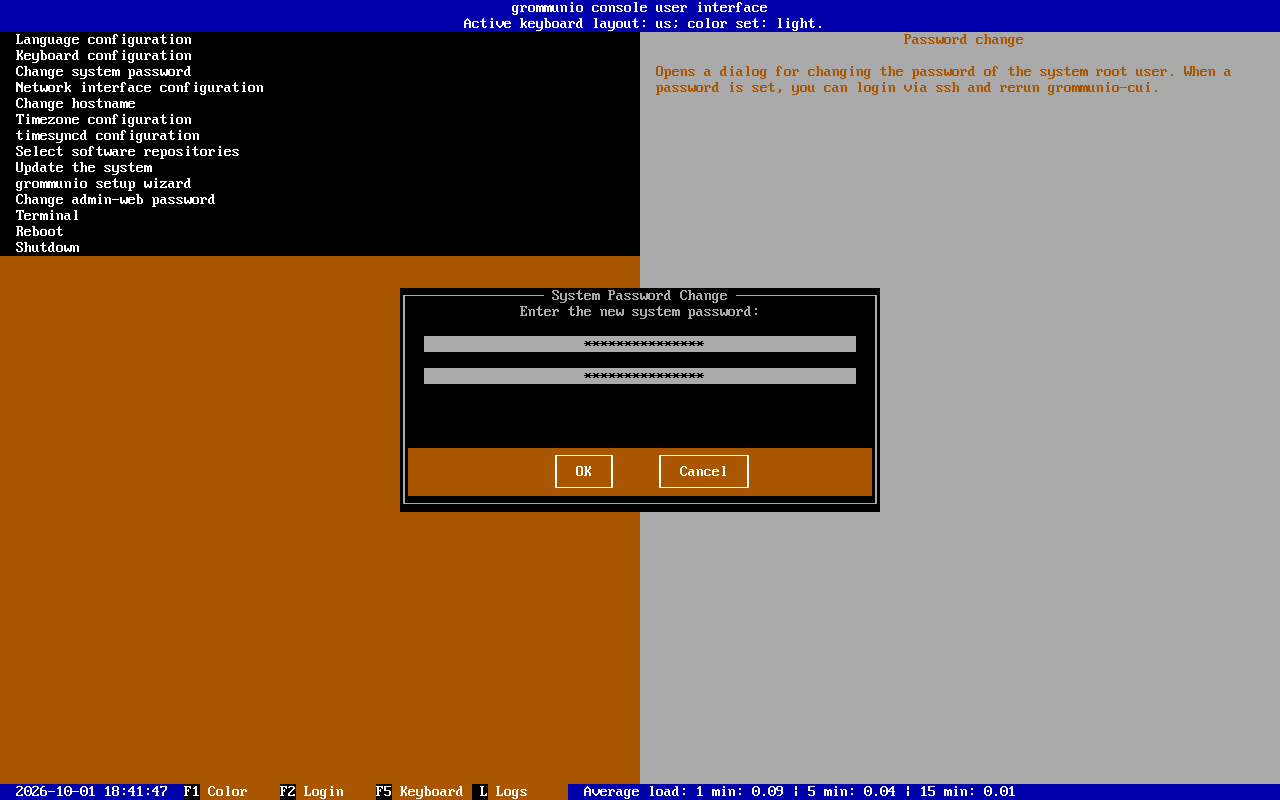
Section titled “Change system password”Sets the password of the system superuser (root). Do this directly after installation. Use a secure password; we recommend a passphrase of four words or more. After the password has been set, you can log in via SSH and run grommunio-cui or grommunio-setup from there.
Network interface configuration
Section titled “Network interface configuration”Lists the network interfaces of the appliance with their current addresses, together with the active network backend (networkd on the appliance). Select an interface and choose Edit to configure it, or choose Create new bond device to combine several interfaces into a bond.
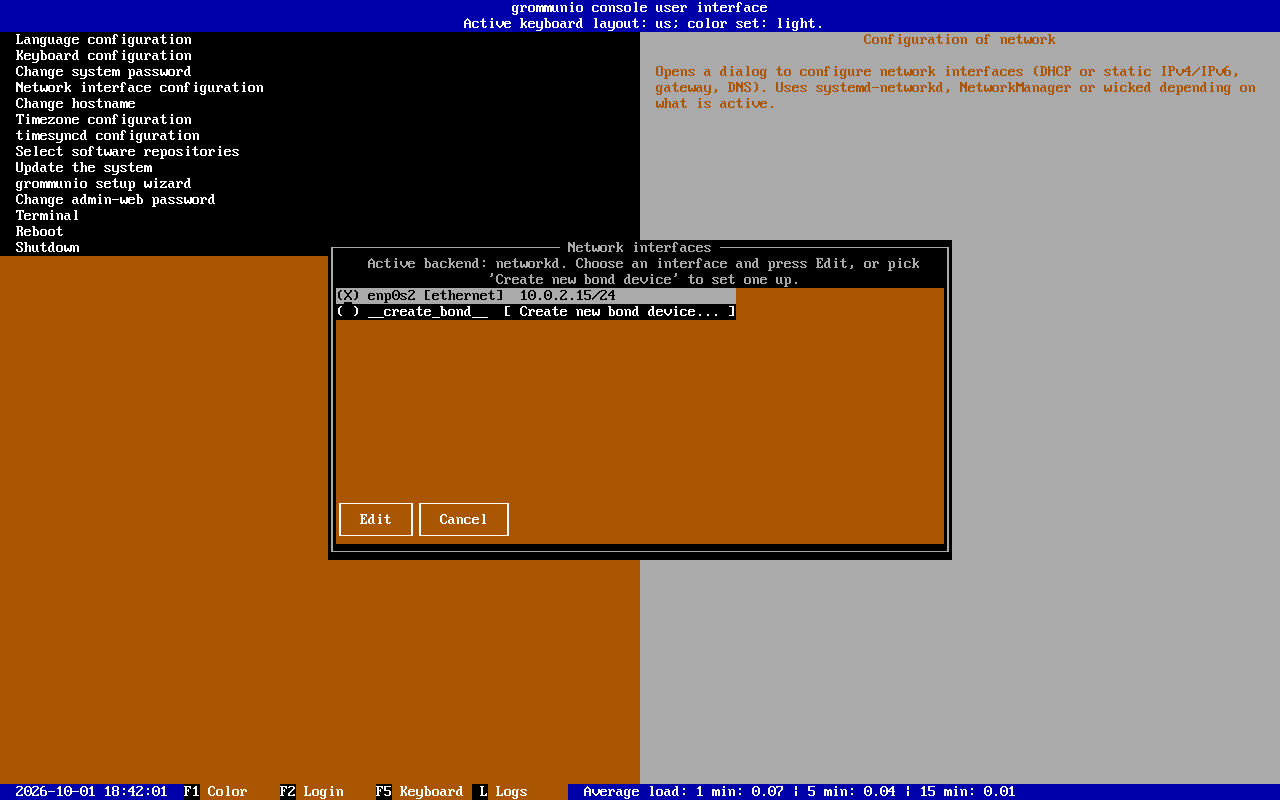
The interface dialog configures:
- DHCPv4 / DHCPv6 — automatic configuration of addresses, gateway and DNS servers
- Addresses — static addresses in CIDR notation (
192.0.2.10/24,2001:db8::10/64), one per line - Default gw v4 / v6 — the default gateways
- Static routes — additional routes, one per line, in the form
<destination> via <gateway> - DNS servers — the name servers, one per line
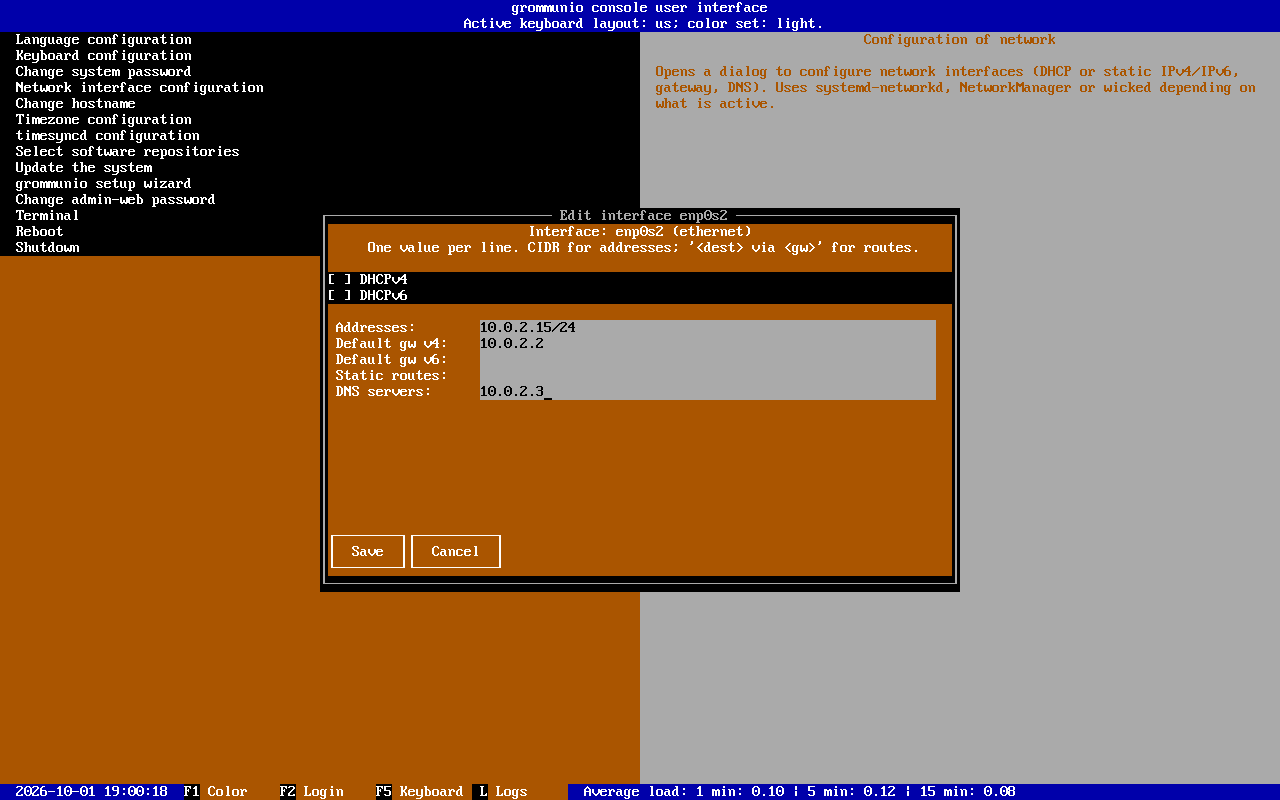
On a freshly installed appliance, every Ethernet interface is configured for DHCP by a generic systemd-networkd profile; the dialog then shows the addresses currently in use, with both DHCP boxes unticked. For production use, configure a static address, the default gateway and the DNS servers. Saving the dialog writes an interface-specific profile, /etc/systemd/network/50-grommunio-<interface>.network, which takes precedence over the generic one, and applies it immediately.
The appliance does not run a local DNS resolver service. The DNS servers entered in this dialog are written to /etc/resolv.conf by the CUI. Name servers supplied by DHCP are not picked up, so always fill in DNS servers, also when using DHCP for the addresses.
Change hostname
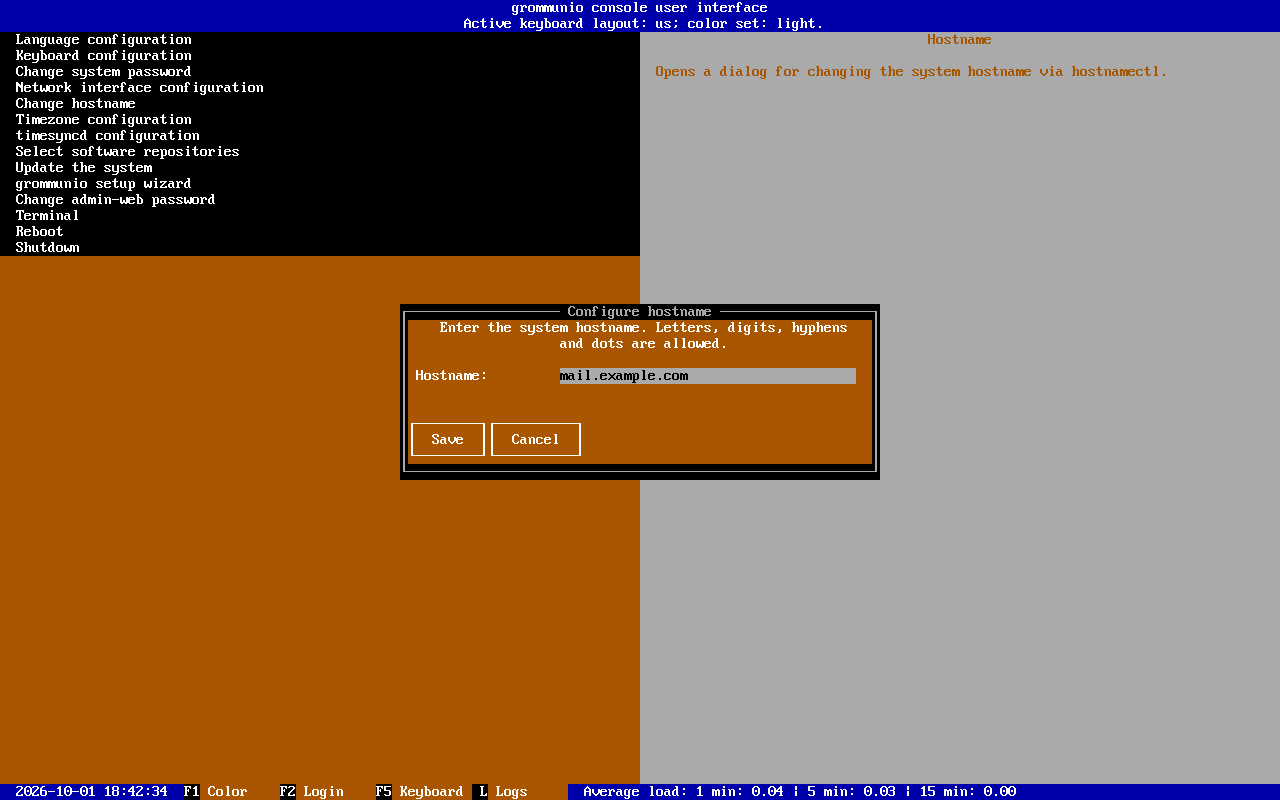
Section titled “Change hostname”Sets the system hostname via hostnamectl (/etc/hostname). Enter the fully qualified domain name (FQDN) of the appliance, for example mail.example.com.
Timezone configuration
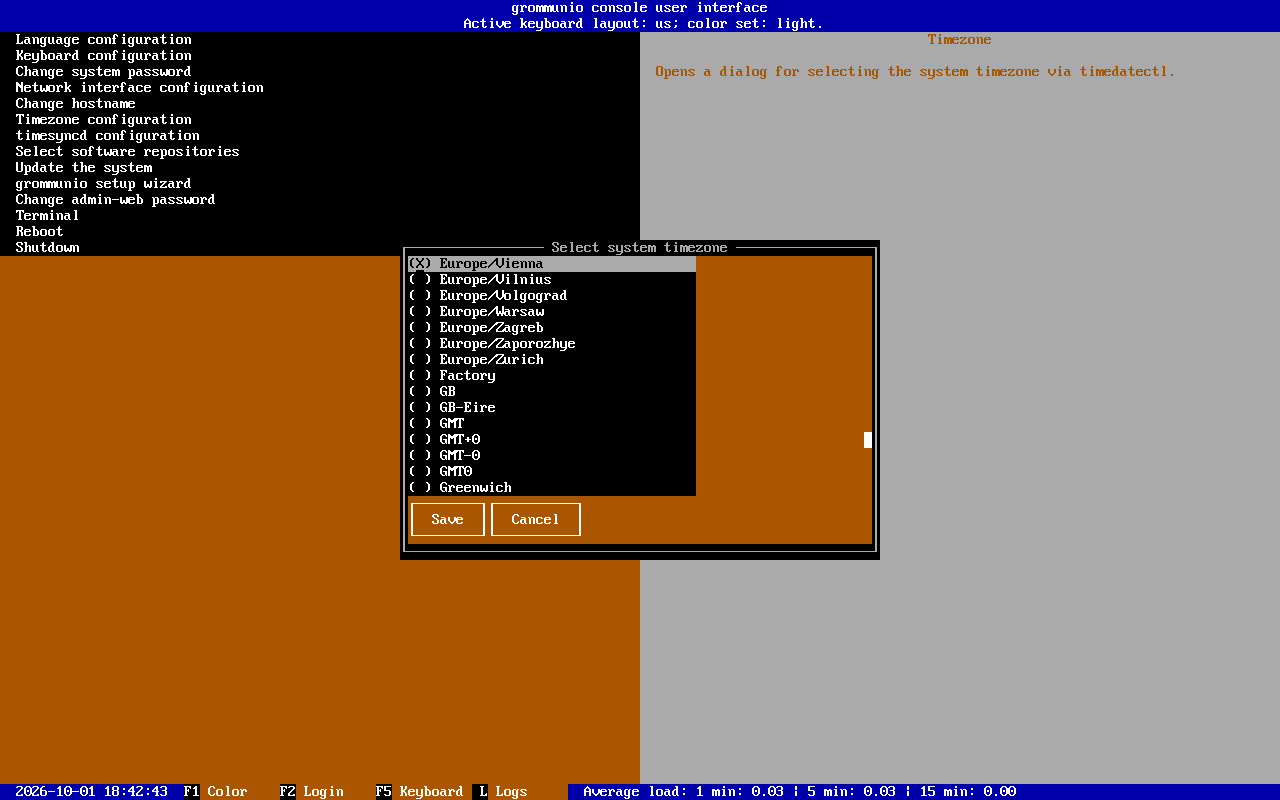
Section titled “Timezone configuration”Sets the timezone via timedatectl. The timezone is used in server logs, etc. It has no practical impact on e-mails, because mail user agents such as grommunio Web translate timestamps to the timezone of the particular device the program is running on anyway. The hardware clock is kept in UTC, which is the recommended, timezone-agnostic behavior for services.
timesyncd configuration
Section titled “timesyncd configuration”Configures systemd-timesyncd, the lightweight NTP client of the appliance, and enables network time synchronization. Enter the NTP servers to use, separated by spaces, in the NTP field; the servers in FallbackNTP are used when none of the primary servers can be reached. Use the time servers of your network, if available.
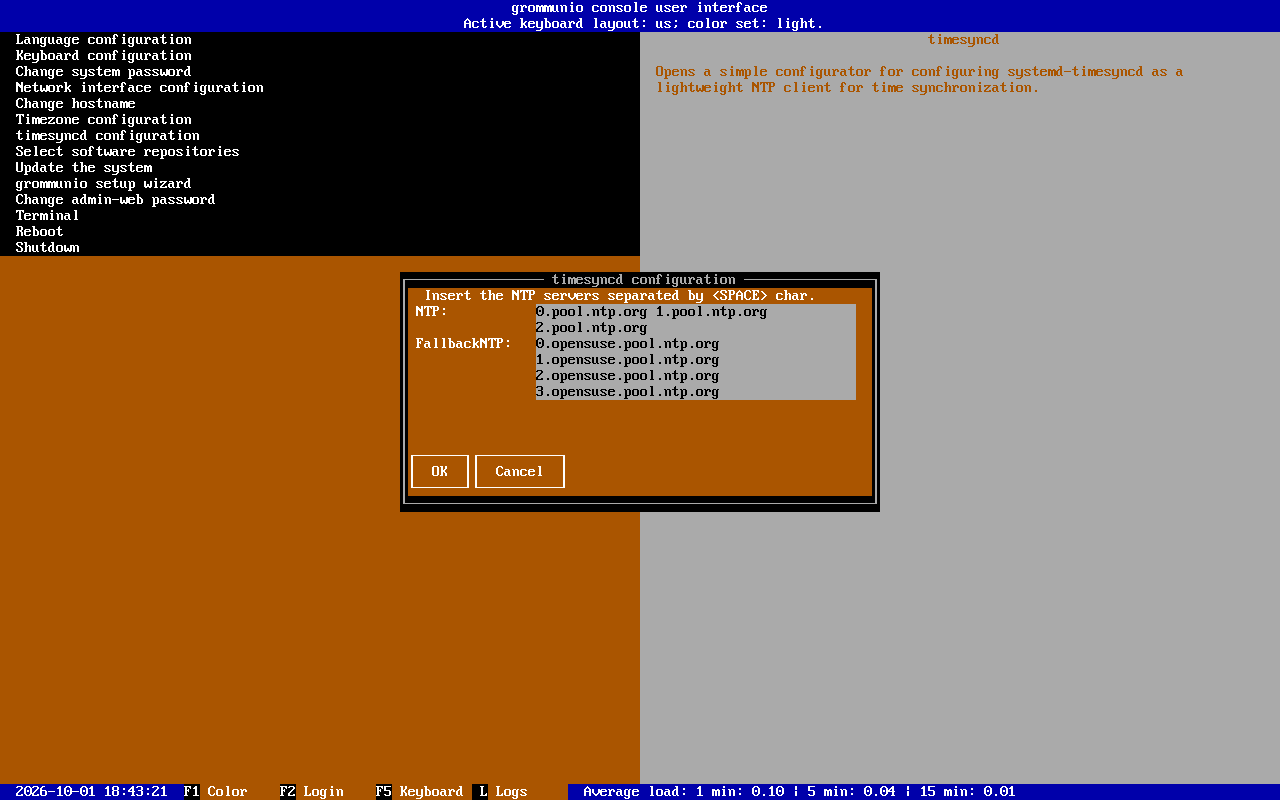
Use timedatectl timesync-status in the Terminal to check which server the appliance synchronizes with.
After these basic setup steps, your grommunio Appliance should:
- be able to connect to the Internet (availability of updates, etc.)
- have a valid hostname that resolves to the appliance
- have a valid timezone set
- have a valid timeserver configured, with the system time appropriately synchronized
Select software repositories
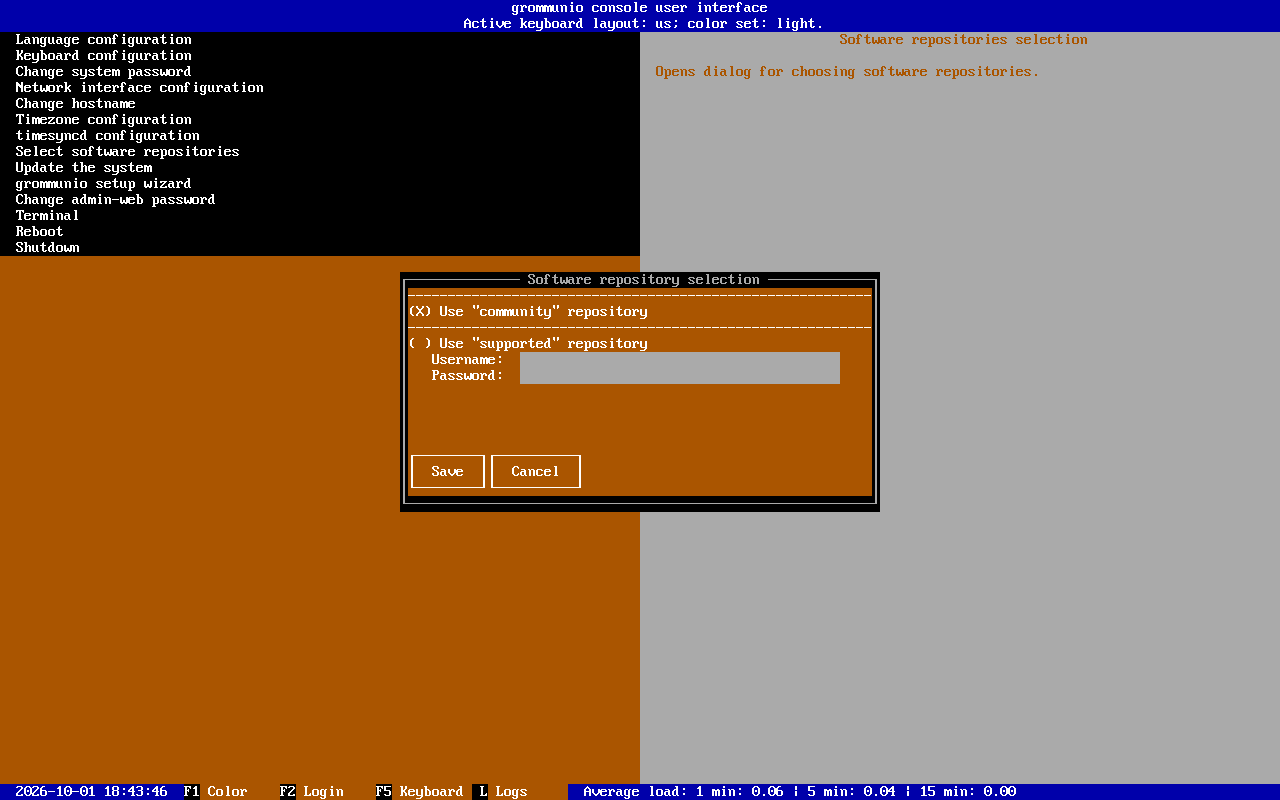
Section titled “Select software repositories”Switches the grommunio package repository between the community repository and the supported (subscription) repository. For the supported repository, enter the subscription username and password. The grommunio setup wizard asks for the same information, so this dialog is mostly useful to change the repository later, for example after purchasing a subscription.
Update the system
Section titled “Update the system”Runs the system package manager (zypper) to refresh the repositories and install available updates. The output is shown in the lower half of the screen; press ENTER to return to the menu when it is done. For other ways to update the appliance, see Updating grommunio.
grommunio setup wizard
Section titled “grommunio setup wizard”With the previous basic setup steps completed, run the grommunio setup wizard to complete the configuration based on your needs.
The menu entry grommunio setup wizard starts the grommunio-setup program, which walks you through the initial setup of grommunio. grommunio-setup can also be run from an SSH session.
Navigation within grommunio-setup:
TABmoves between the elements of a dialogARROW-UP/ARROW-DOWNmove within forms and menus;SPACEtoggles checkboxesj/kscroll longer dialogs (such as the final summary)ESCabortsgrommunio-setupat any stage
grommunio-setup supplies defaults for most dialogs, including randomly generated passwords; all of them are recorded in the setup log /var/log/grommunio-setup.log.
Welcome screen
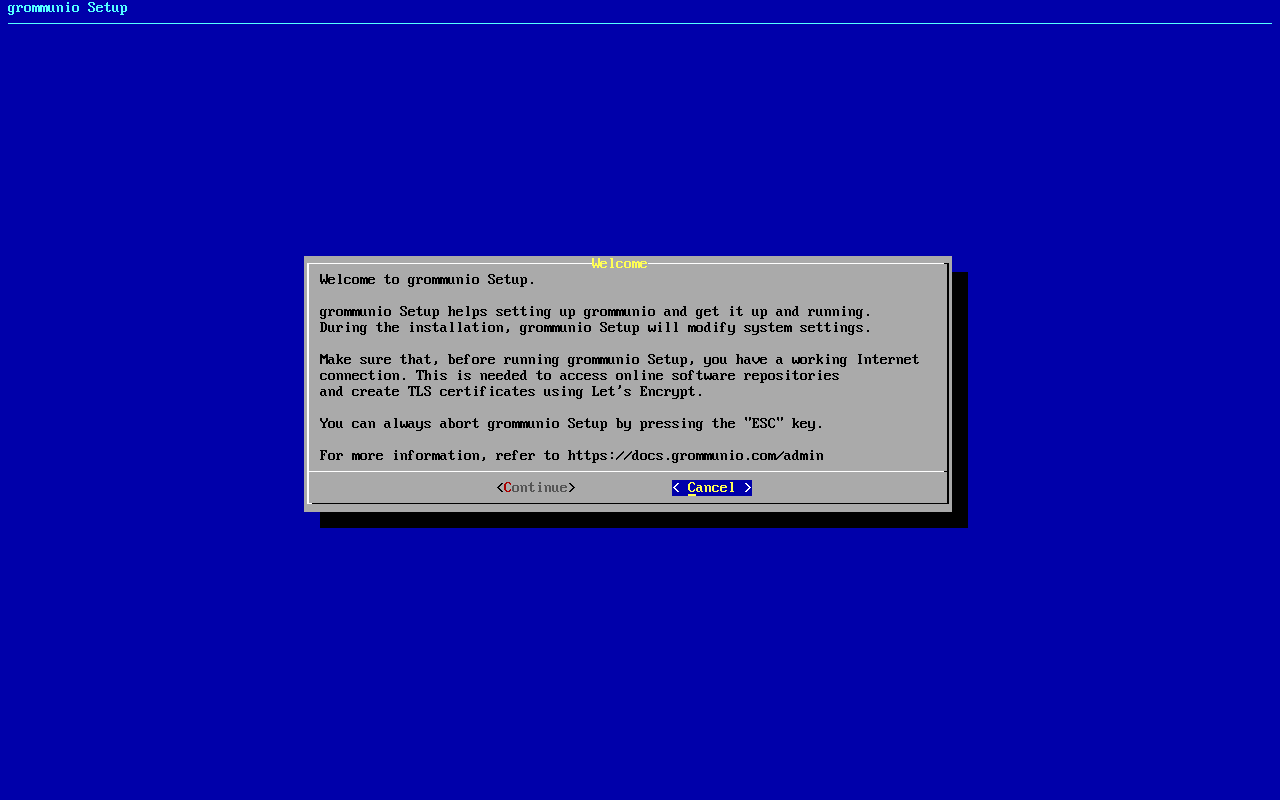
Section titled “Welcome screen”Starting grommunio-setup presents you with a welcome screen. Select Continue to proceed; the default button is Cancel.
Feature selection
Section titled “Feature selection”Choose the features (roles) to install and configure. core — the groupware itself with grommunio Web, Admin UI, Sync, DAV and Antispam — is always installed. The optional roles are:
| Role | Installs |
|---|---|
| chat | grommunio Chat |
| meet | grommunio Meet (video conferencing) |
| files | grommunio Files (file sync and share) |
| office | grommunio Office (online document editing, for use with Files) |
| archive | grommunio Archive (mail archiving) |
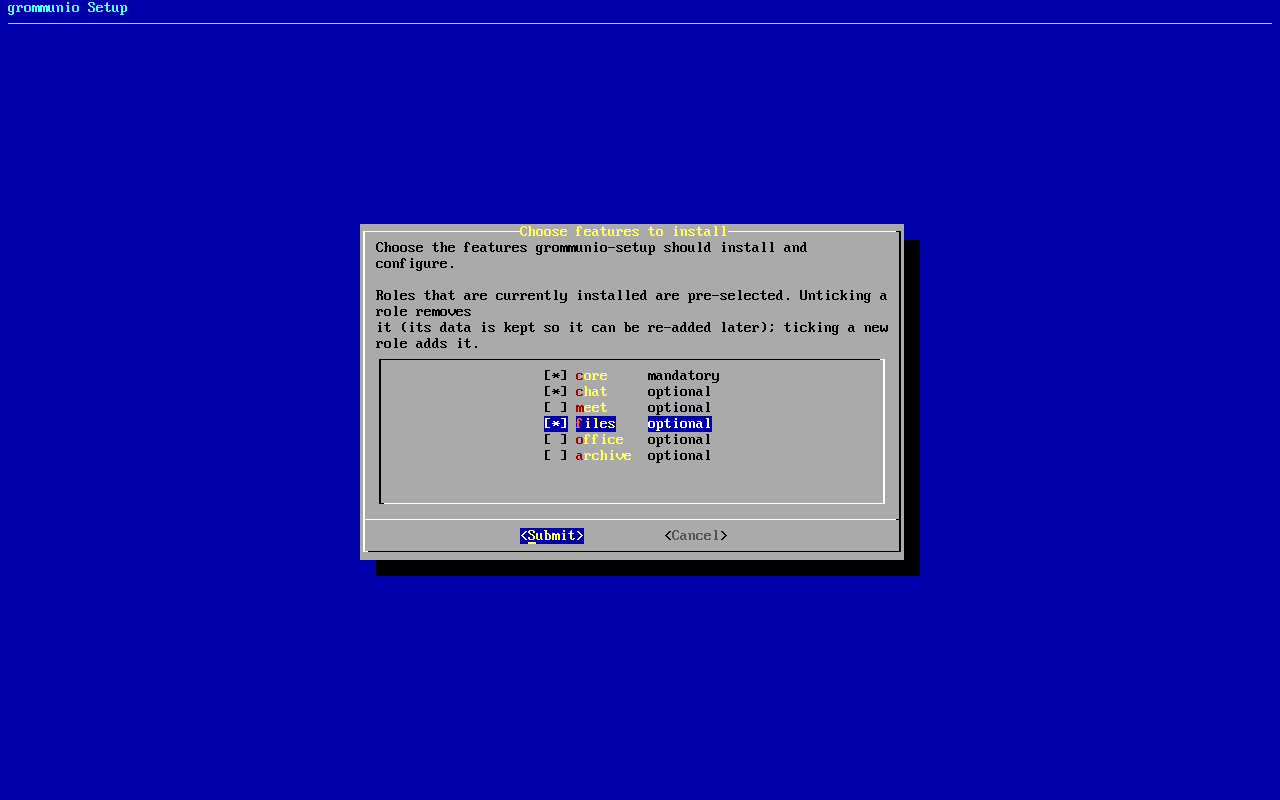
Roles can also be added or removed later by running grommunio-setup again (see Running grommunio-setup again).
Repository setup
Section titled “Repository setup”grommunio-setup requests your subscription details. These subscription details are included in your purchase of the product. If left empty, grommunio-setup configures the community repositories.
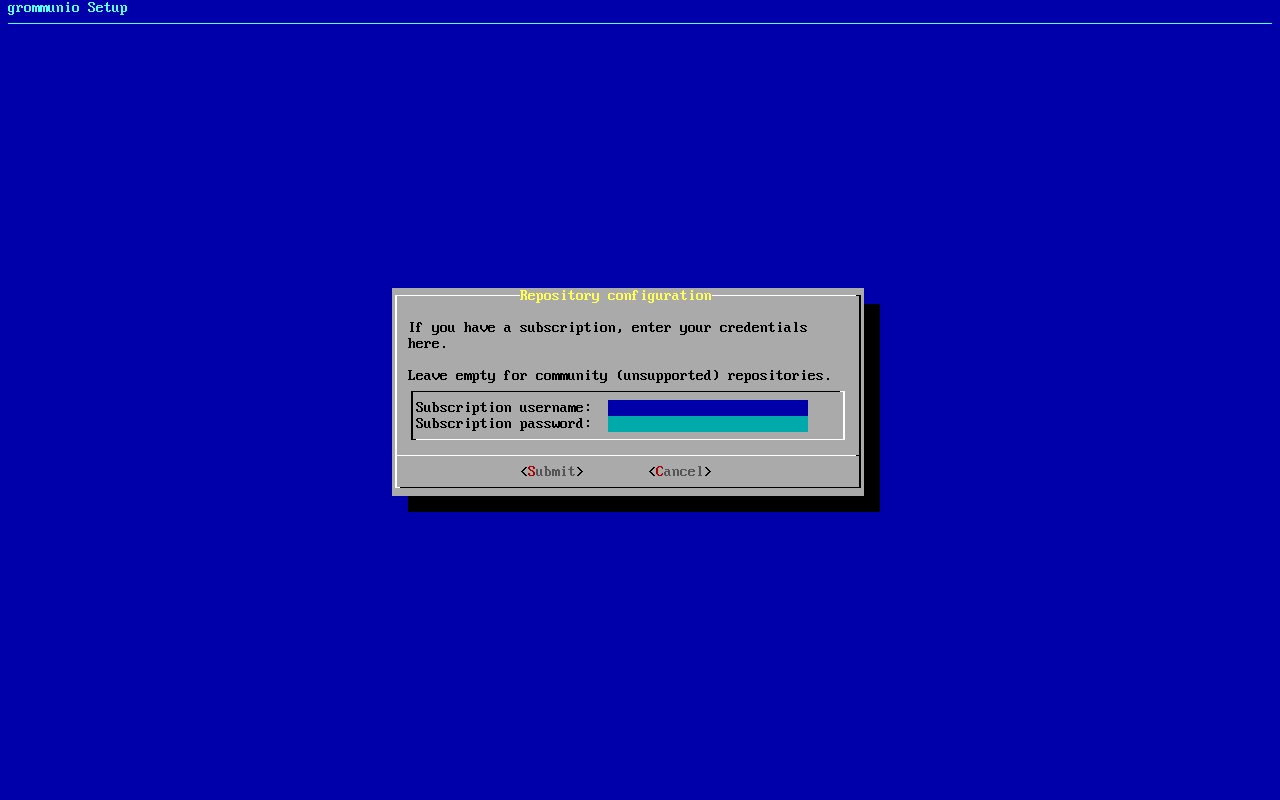
After this step, grommunio-setup configures the repository and installs or updates all packages required for the selected roles. The progress is shown on screen.
Database variant
Section titled “Database variant”Specify which database to use. Most installations use the local database, where the MariaDB database is initialized and prepared automatically. For larger and/or special setups, e.g. clusters, multi-node and distributed setups, it might be recommended to connect to an already existing database instead.
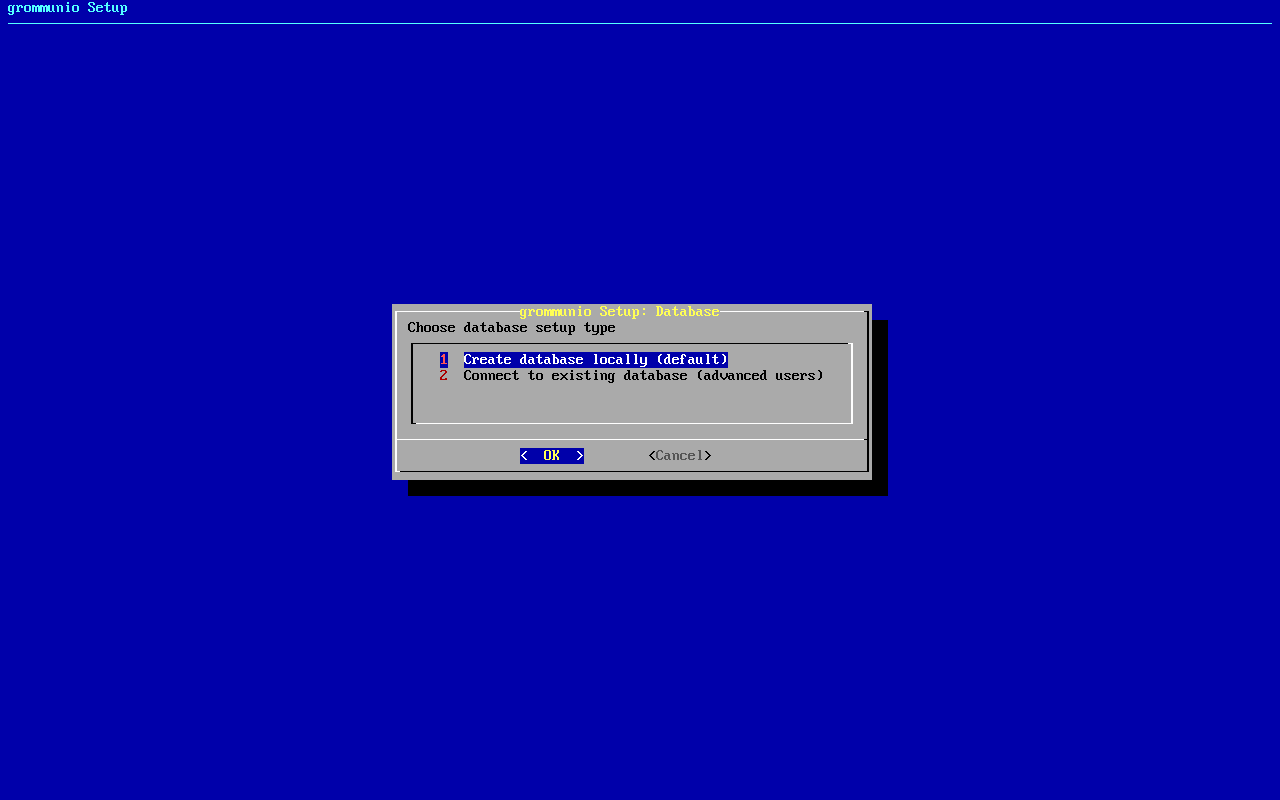
Database settings
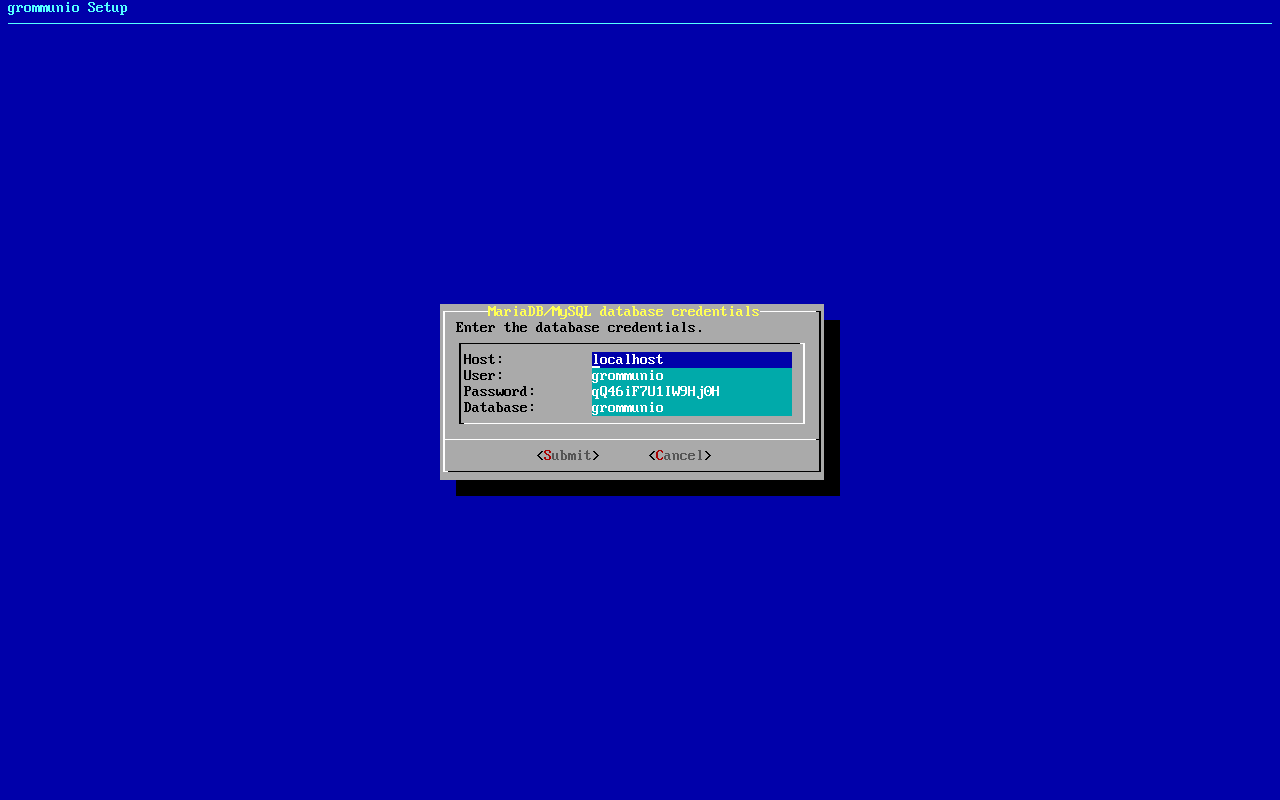
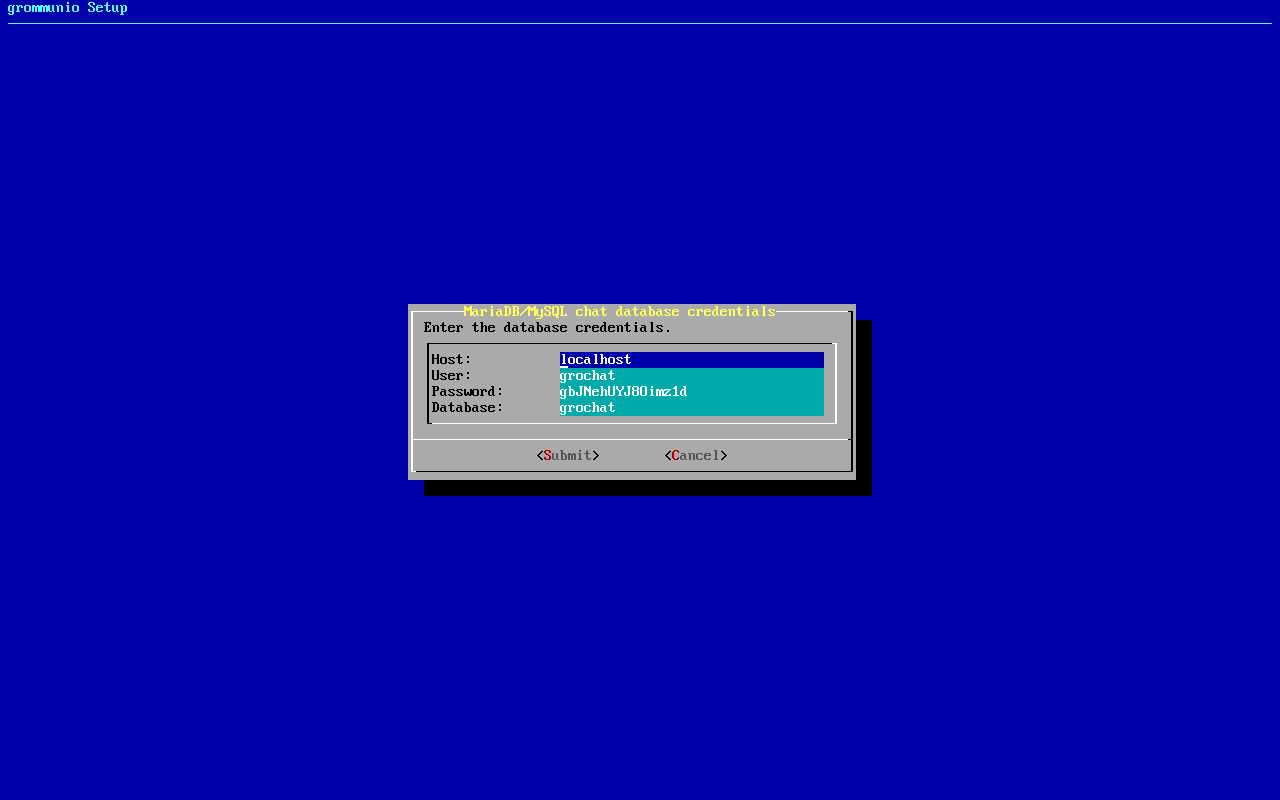
Section titled “Database settings”With the choice of "local database", the next step shows the values used to initialize the database: host, user, password and database name. For standard setups, it is recommended to go with the default values. The password is generated randomly, which protects your installation from unauthorized access. With "existing database", enter the credentials of the database to connect to; grommunio-setup verifies the connection before continuing.
Administration user
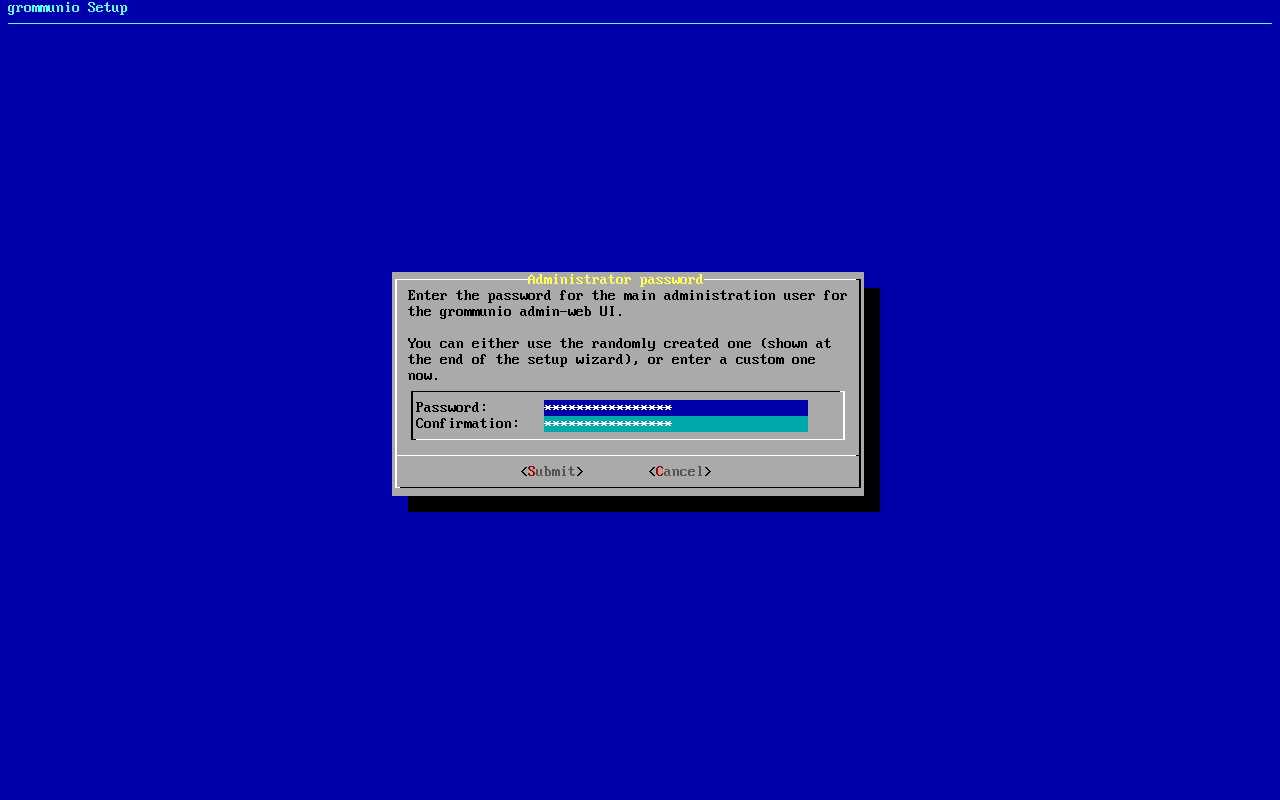
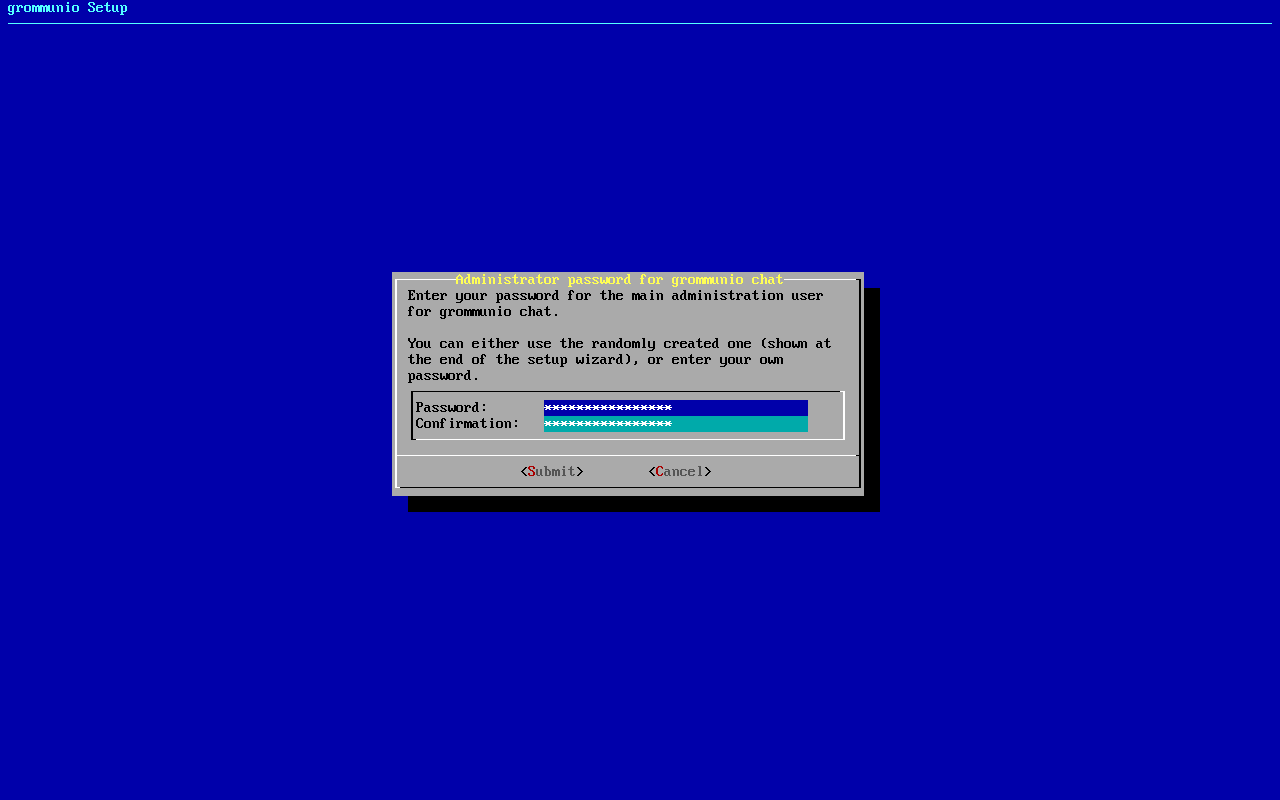
Section titled “Administration user”The next step requests the password of the default administrator (admin) for the grommunio Admin UI and Admin API. A randomly generated password is pre-filled; it is shown in the summary at the end of the setup. You can also enter a password of your own.
Fully Qualified Domain Name
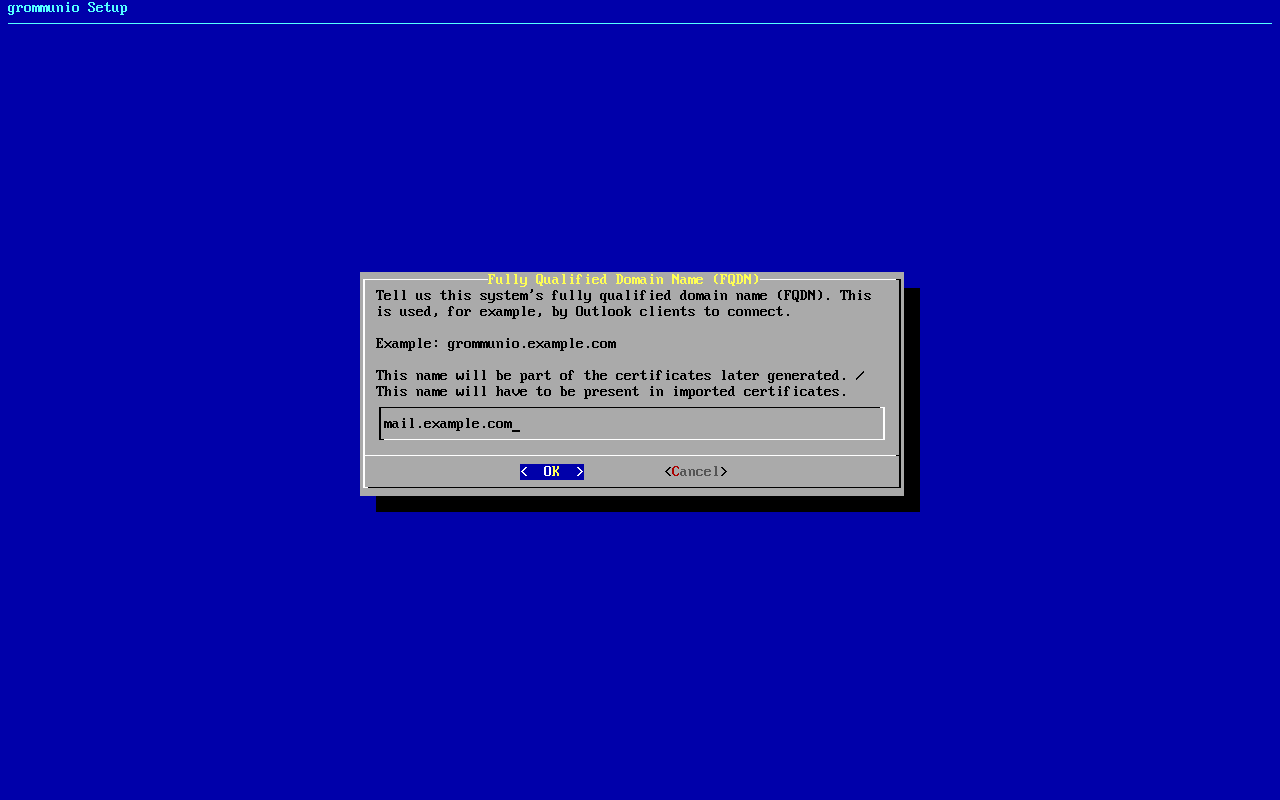
Section titled “Fully Qualified Domain Name”The next stage requests the fully qualified domain name (FQDN) of the system. The FQDN consists of the hostname, combined with the primary domain of the system, for example mail.example.com. It is the name clients such as Outlook connect to, and it is included in the certificates generated in a later step (or must be included in imported certificates).
grommunio-setup pre-fills the field with the result of hostname -f. If the field is empty, the hostname has not been set or does not resolve; see Change hostname.
Primary mail domain
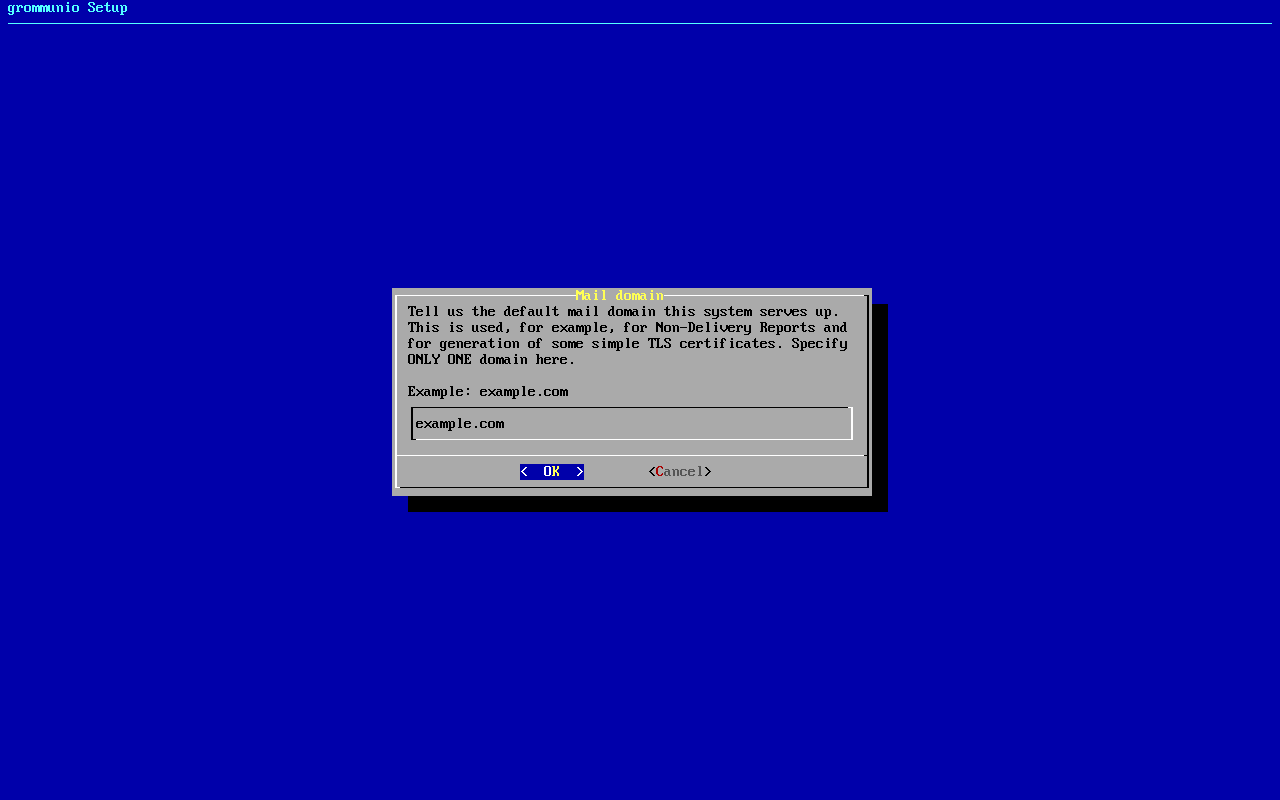
Section titled “Primary mail domain”Enter the primary mail domain, for example example.com. It is used as main system domain, for example for non-delivery reports, and for the names in generated certificates. Specify only one domain here; further domains are added later in the Admin UI.
Relayhost configuration
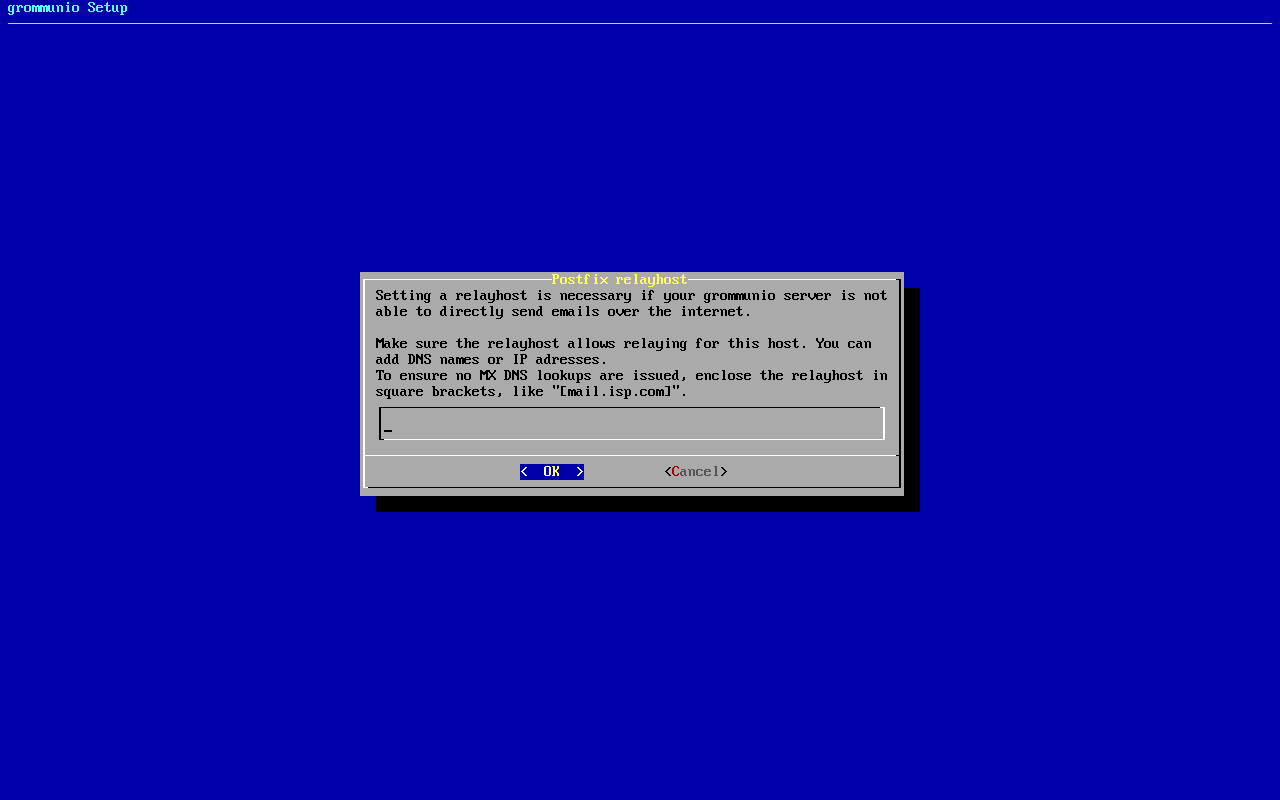
Section titled “Relayhost configuration”If the installation is not to be directly sending e-mails (by resolving the recipients' MTAs directly), a relayhost is recommended to be set. This step allows the configuration of a relayhost which for example can be used for integration with existing firewalls or mail security appliances. If the configured target should be used directly (by requesting the IP address through DNS A records instead of the associated MX records), the relayhost should be enclosed with square brackets, like "[mail.isp.com]". Leave the field empty to deliver mail directly.
TLS configuration
Section titled “TLS configuration”The next step provides a menu with a choice of the preferred TLS setup:
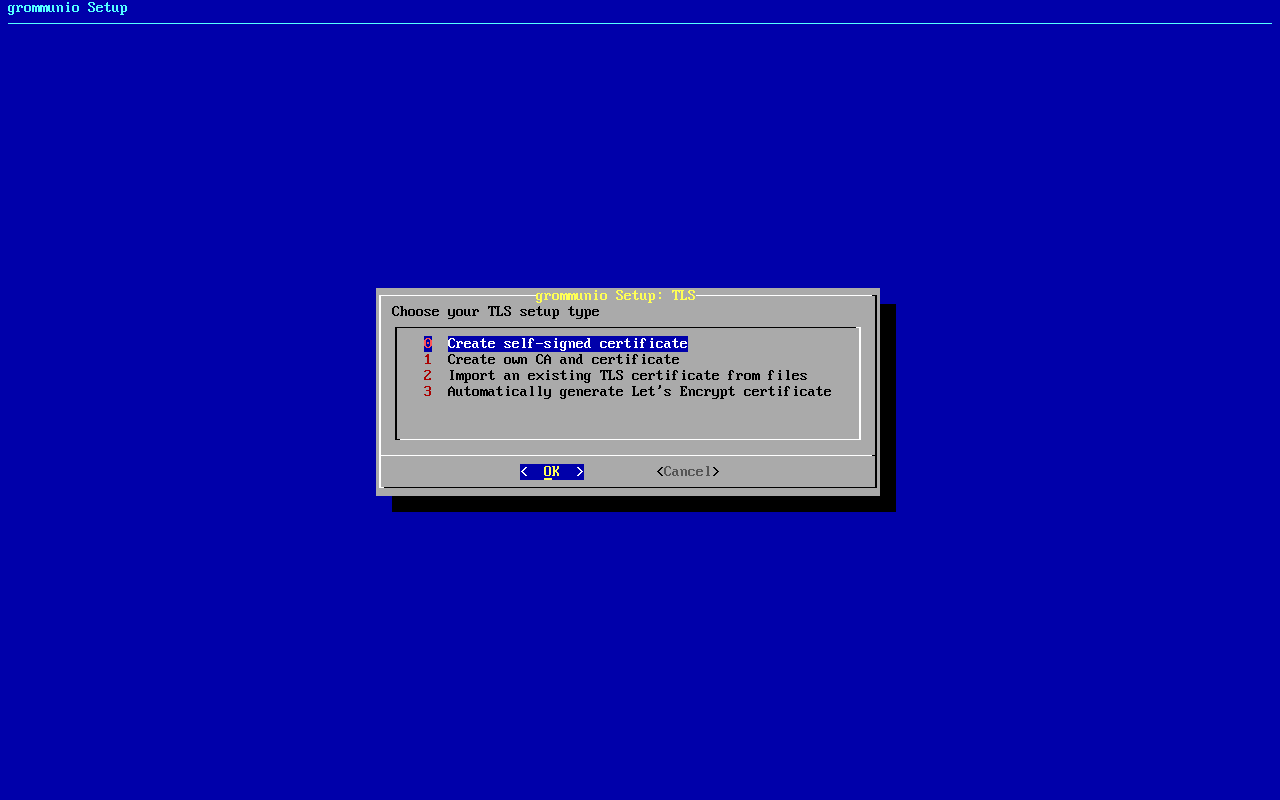
0: Create self-signed certificate
Creating your own self-signed certificate is the simplest option and requires no further input. The certificate will though show up as untrusted at first connect and needs to be trusted before continuing. This behavior is normal and is because any client that connects has no possibility to validate if the certificate has a valid source. grommunio does not recommend this option for production environments, as this option requires any client to first trust the certificate in use. This option is the best for validation and demo installations of grommunio.
1: Create own CA and certificate
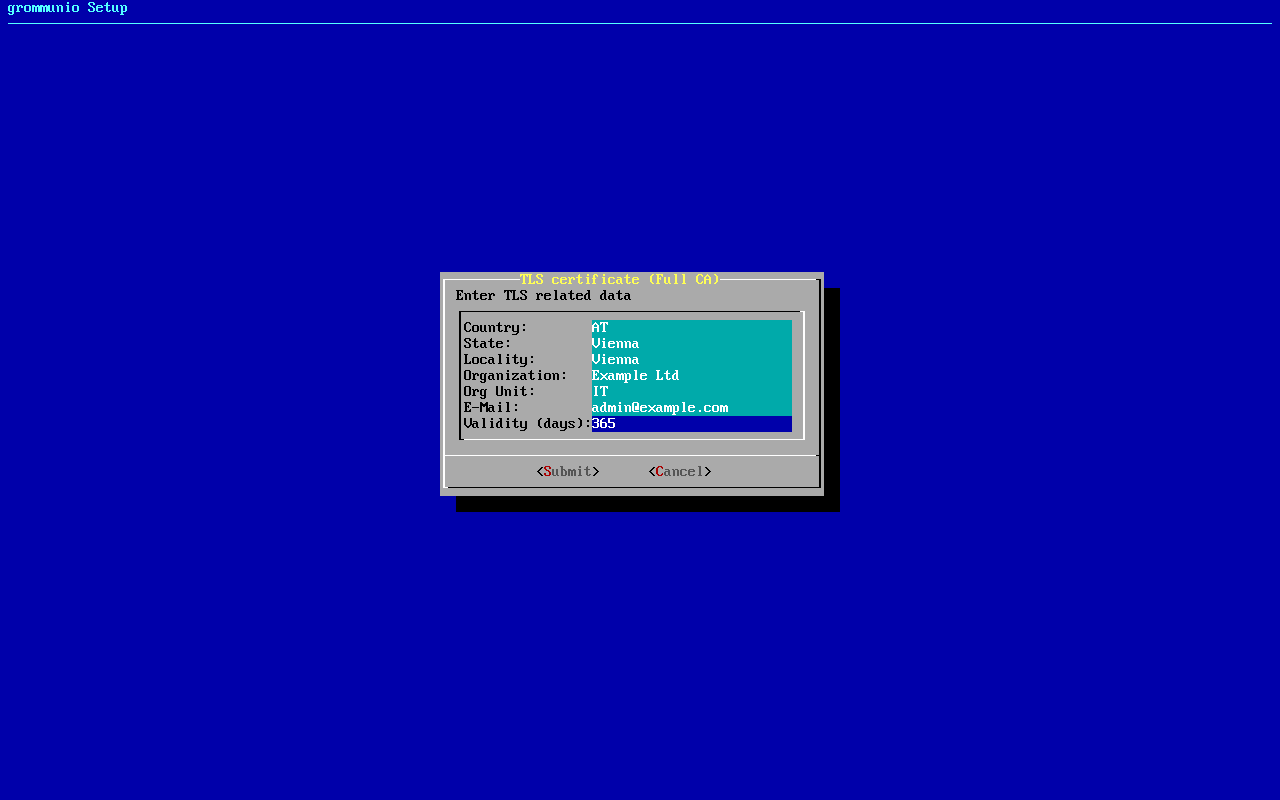
Creating your own certificate authority is an extended option which allows you to create certificates with an own certificate authority. This way, you can (manually) create further certificates under the umbrella of an own central authority with multiple server certificates to be signed by the same certificate authority. Clients only need to trust the CA certificate once; it can be downloaded from
https://<FQDN>:8443/rootCA.crtafter the setup. This option is the best for validation and demo installation of larger installations of grommunio with multiple instances.grommunio-setup asks for the certificate subject (country, state, locality, organization, organizational unit, e-mail address) and the validity period. The default validity is only 30 days; set a longer period, for example 365 days.
2: Import an existing TLS certificate from files
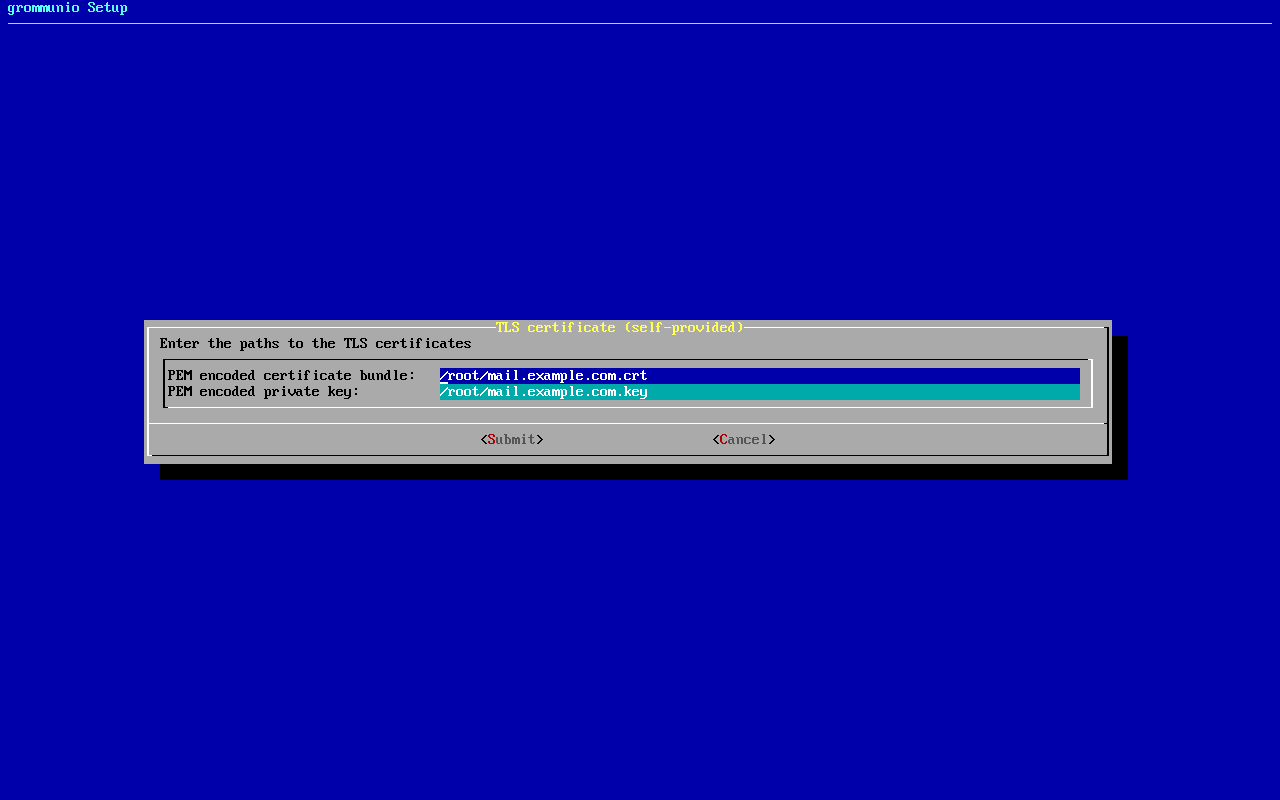
Importing your own certificate allows any type of external certificate pair (PEM-encoded) to be used with your grommunio installation. Enter the path of the certificate bundle (server certificate followed by the intermediate certificates) and of the private key; copy both files to the appliance beforehand, for example with
scp. It is recommended to either use SAN certificates with multiple domains or a wildcard certificate. With your choice of your own TLS certificates, you have the highest flexibility to either use a trusted CA or a publicly signed certificate by an officially trusted certification authority.
3: Automatically generate Let's Encrypt certificate
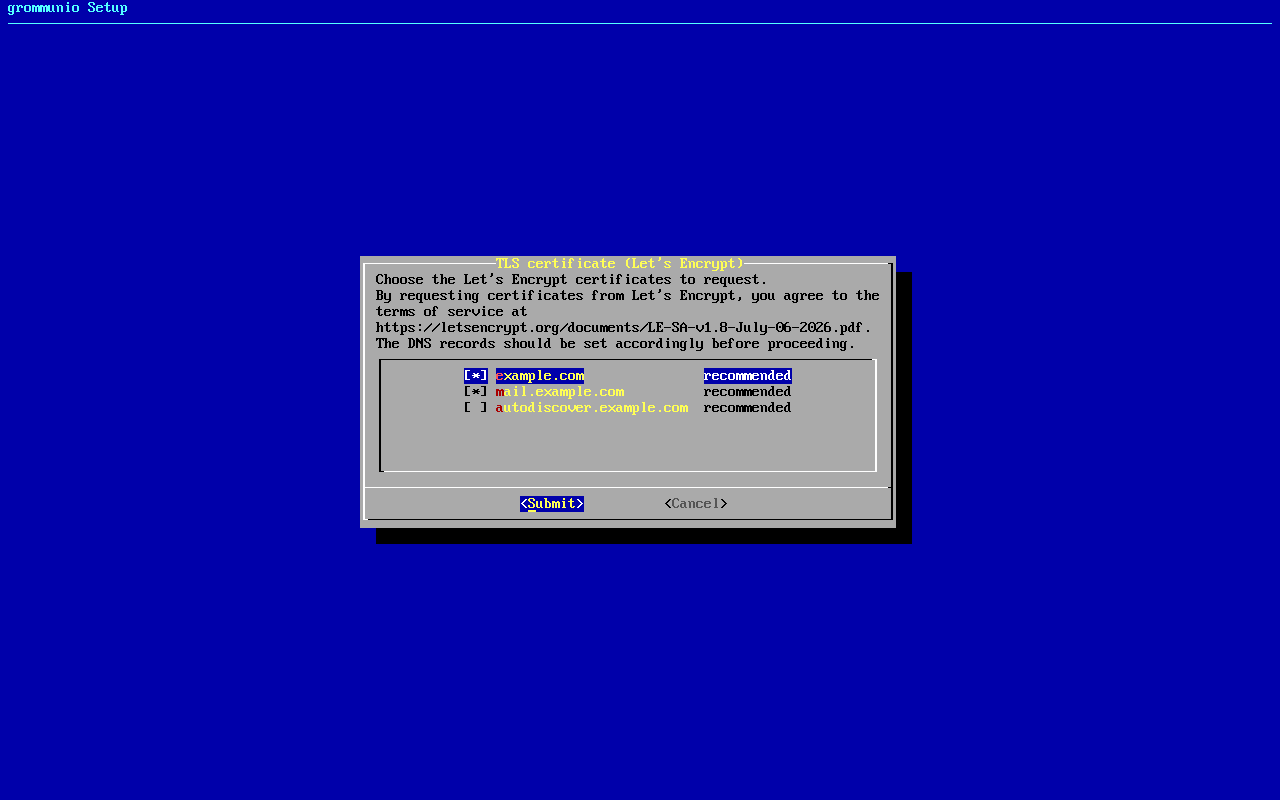
Using this option allows the automatic certificate generation process with the Let's Encrypt certificate authority. Using Let's Encrypt certificates is free of charge, however the terms of service by Let's Encrypt apply, which are referenced during installation. Let's Encrypt verifies all requested domain names by creating a challenge on the appliance. For this to work, port 80 (HTTP) needs to be accessible from the Internet during this step of verification (and any subsequent automated renewal) with all the domains pointing to the appliance. This option is recommended for any simple installation and allows the most seamless installation experience if prepared correctly.
grommunio-setup offers the names to include in the certificate. Make sure to tick
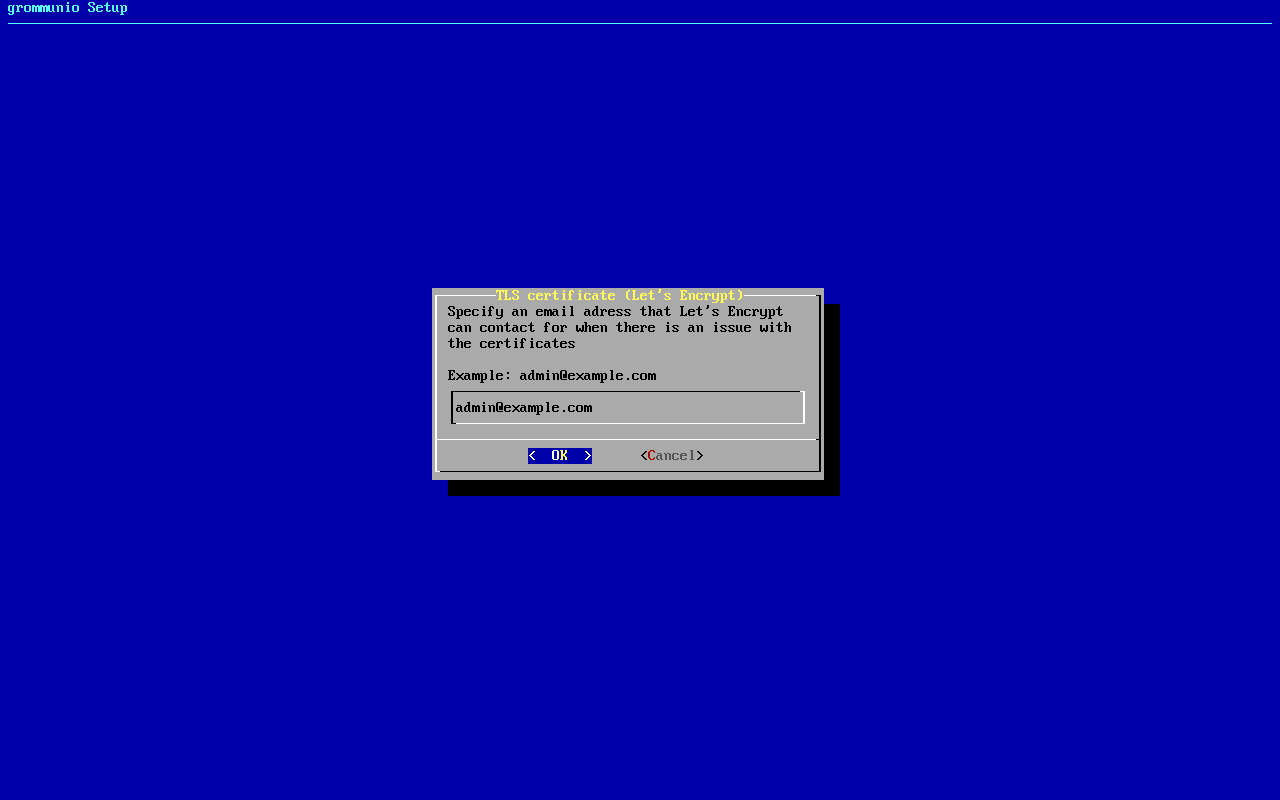
autodiscover.<domain>as well if you have created that DNS record, so that AutoDiscover works without certificate warnings. Finally, enter an e-mail address at which Let's Encrypt can contact you about your certificates.
3.a: Generation of certificates with Let's Encrypt for Multi-Domains
For adding more domains to your Let's Encrypt certificate you can use the following command:
certbot certonly -n --standalone --agree-tos \--preferred-challenges http \--cert-name="<domain1>" \-d "<domain1>" \-d "<domain2>" \-d "<domain3>" \-d "<domain4>" \-d "<domain5>" \--pre-hook "service nginx stop" \--deploy-hook /usr/share/grommunio-setup/grommunio-certbot-renew-hook \--post-hook "service nginx start"While --cert-name="<domain1>" stands for the original domain and -d "<domain2>" to -d "<domain5>" are the multi domains to add to the LE certificate. The -m "[email protected]" is your email address while the --pre-hook "service nginx stop" stops nginx before the certificate modification, the --deploy-hook /usr/share/grommunio-setup/grommunio-certbot-renew-hook makes the changes and the --post-hook "service nginx start" starts nginx after the modification.
Any certificates so generated are placed in /etc/grommunio-common/ssl and are automatically referenced by any services of the appliance, including the Admin UI on port 8443.
Optional roles
Section titled “Optional roles”For each optional role selected in the feature selection, grommunio-setup asks for its database credentials (where the role uses a database) and, where the role has its own administration account (Chat, Files, Archive), for the password of that account. As with the core database, randomly generated defaults are pre-filled.
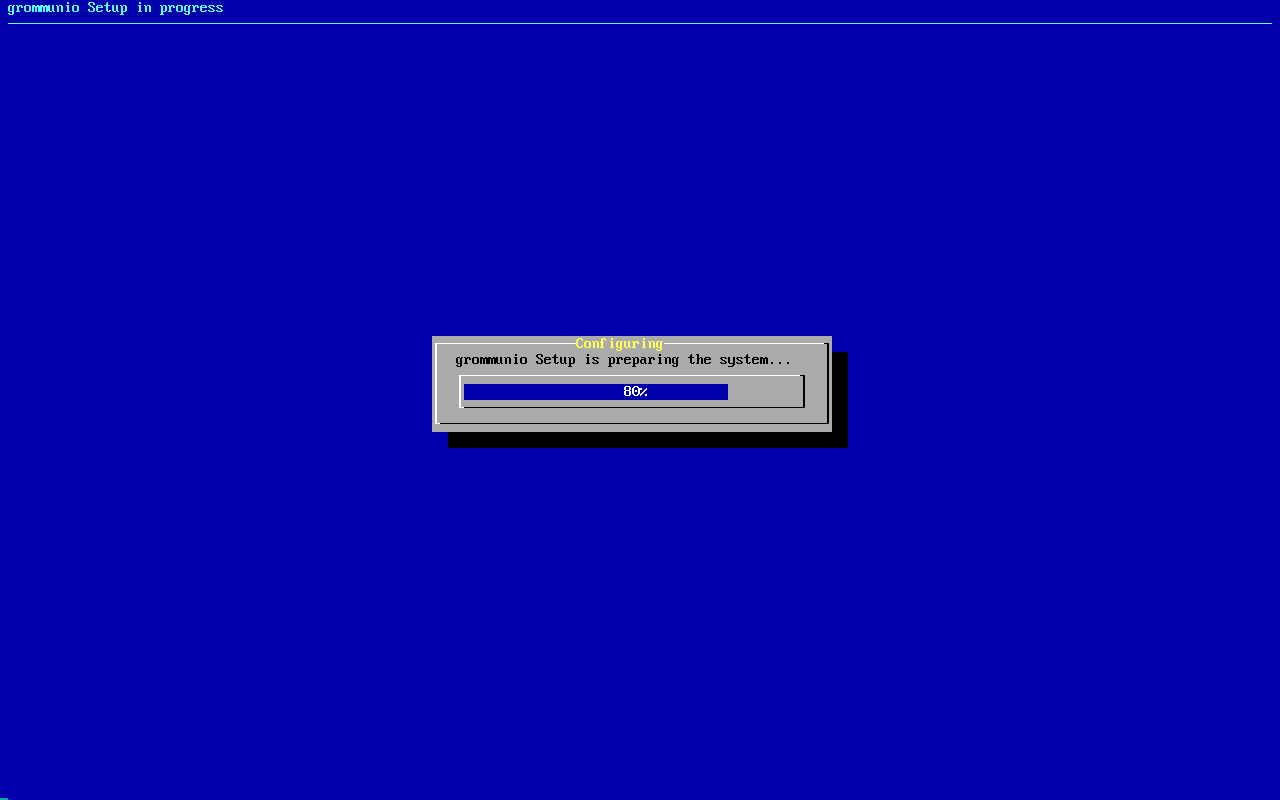
After the last question, grommunio-setup configures the databases, services, web server, firewall and the selected roles. If grommunio Auth (Keycloak) is installed, newly added roles are connected to single sign-on as well.
Setup finalization
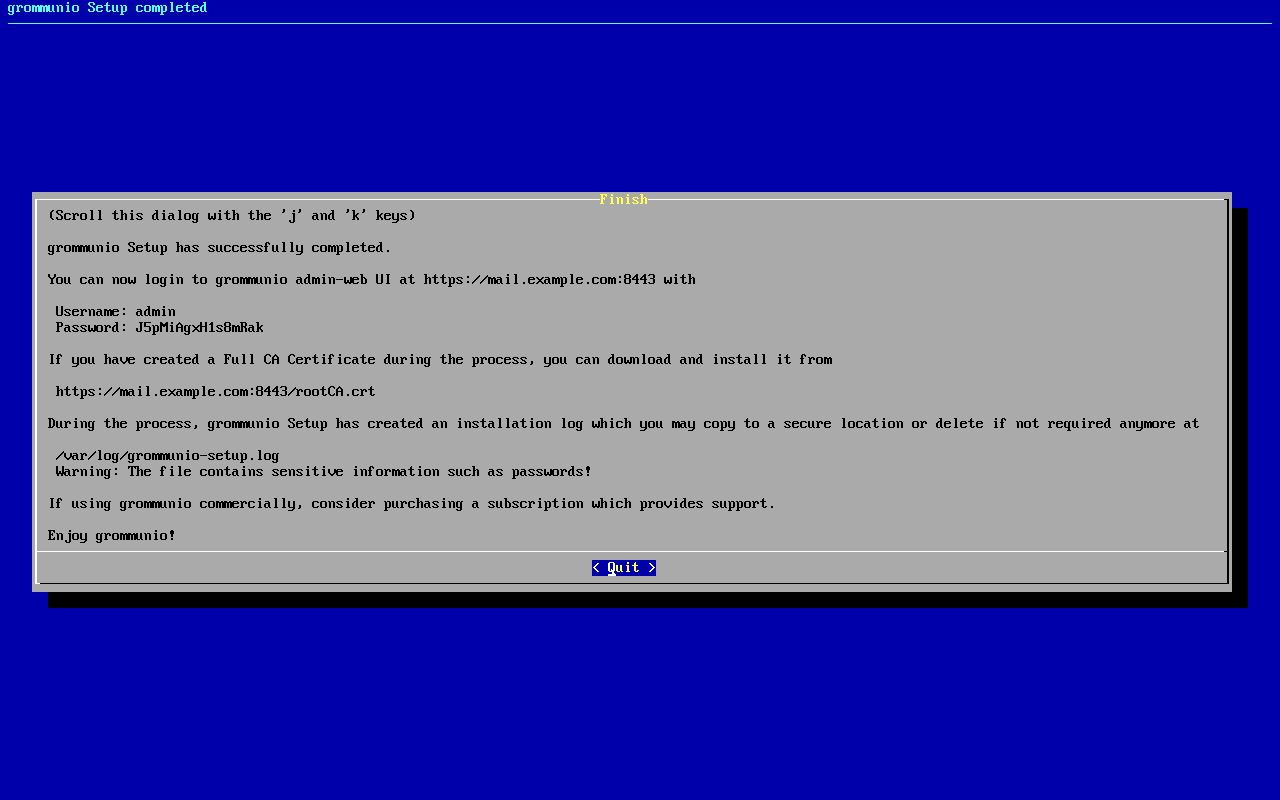
Section titled “Setup finalization”After all steps of grommunio-setup have been completed, the final dialog shows the summarized information of the installation as reference: the address of the Admin UI, the admin credentials and, if an own CA was created, the download address of the CA certificate.
Continue with Verify the installation and the post-installation checklist.
Running grommunio-setup again
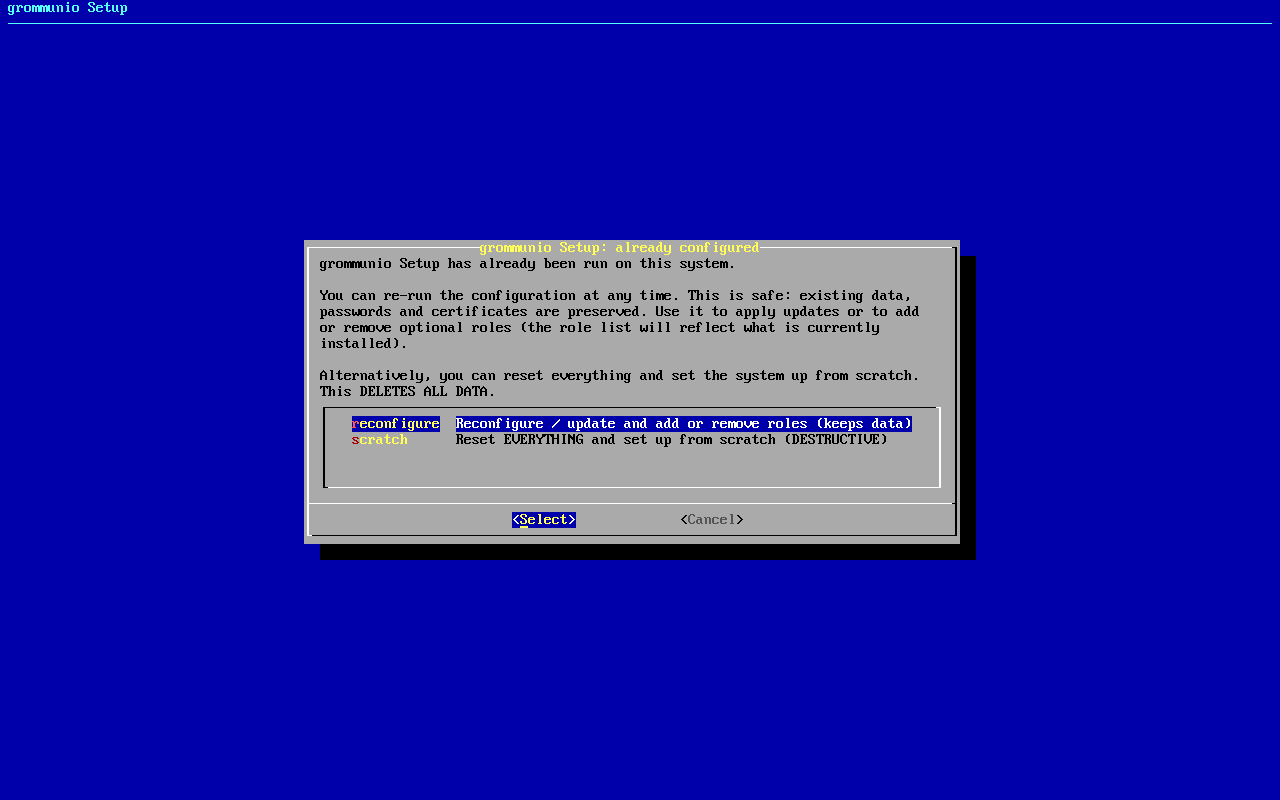
Section titled “Running grommunio-setup again”grommunio-setup can be executed more than once. When it detects a completed previous run, it offers two choices:
- reconfigure — keeps the existing installation, its data, passwords and certificates. Only the selection of optional roles (Chat, Meet, Files, Office, Archive) is reconciled: the feature selection reflects the roles currently installed, newly selected roles are installed and configured, deselected roles are removed with their data preserved for a later re-add.
- scratch — resets the entire installation. grommunio-setup asks you to type
removealldatato confirm, then deletes all databases, mailboxes and certificates and runs a fresh setup.
Change admin-web password
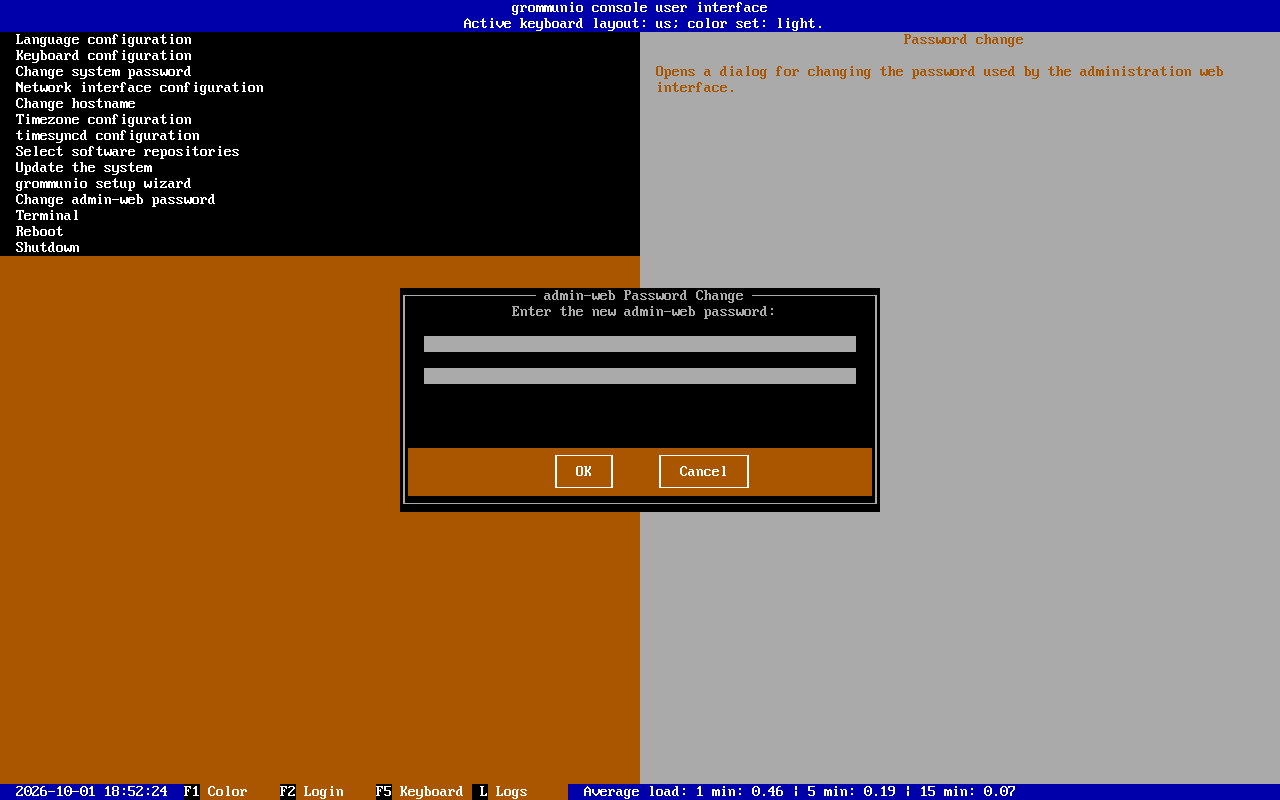
Section titled “Change admin-web password”The menu entry Change admin-web password changes the password of the main administration user (admin) of the Admin UI. This can also be done anytime from a shell by executing grommunio-admin passwd (use --password-stdin to pass the password non-interactively without it showing up in the process list).
Terminal
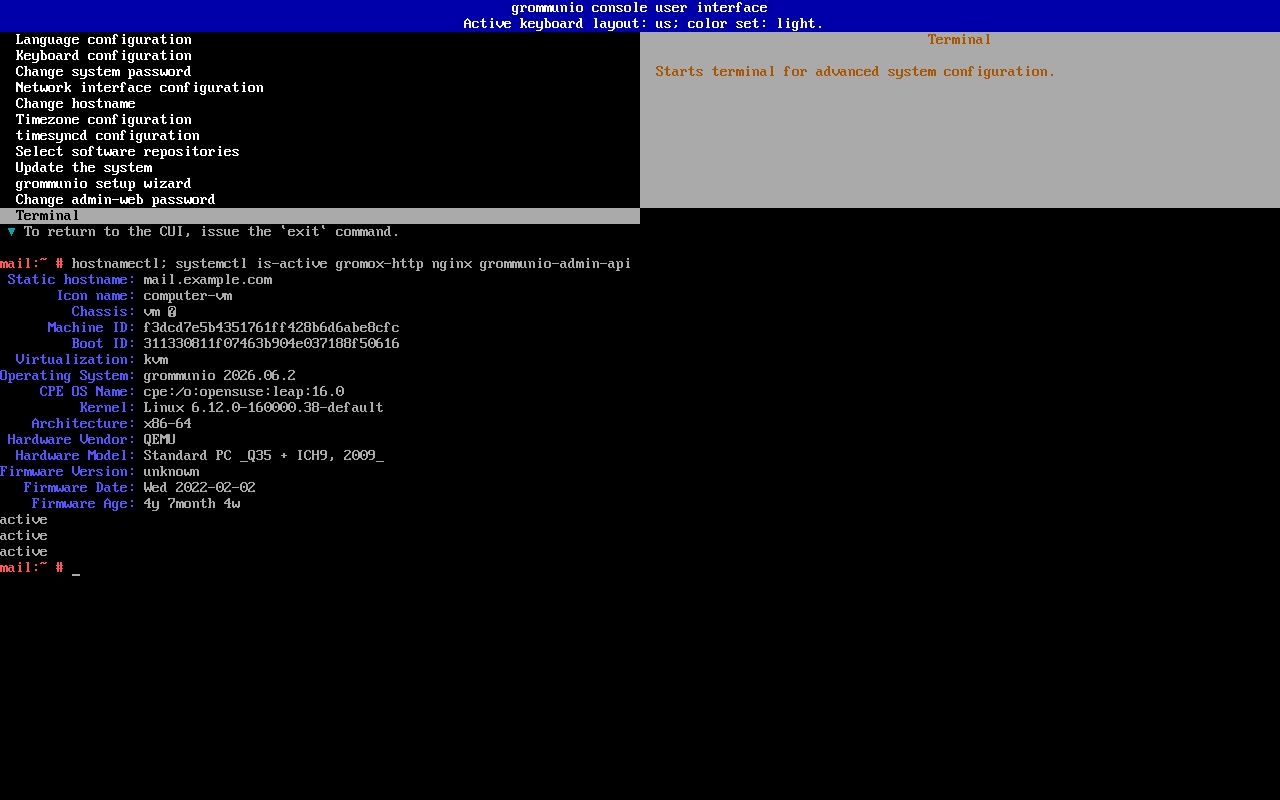
Section titled “Terminal”The option Terminal opens a root shell inside the CUI. Issue the exit command to return to the CUI. This option should be used with care and only by experienced administrators.
Reboot
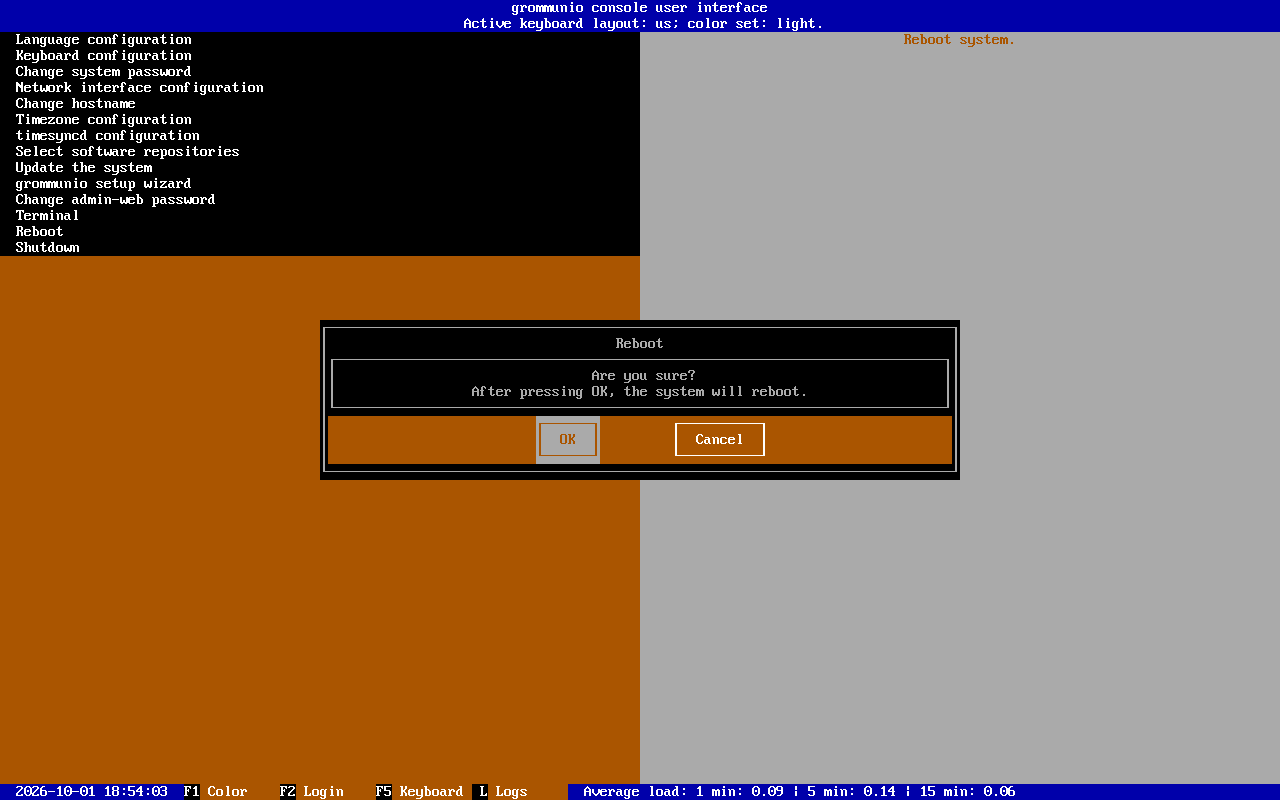
Section titled “Reboot”The option Reboot reboots the entire grommunio Appliance after a confirmation. Note that during the reboot the services provided will not be available.
Shutdown
Section titled “Shutdown”The option Shutdown shuts down and powers off the entire grommunio Appliance after a confirmation. Note that until the Appliance has been started again, the services will not be available.