

Kerberos single sign-on (SPNEGO)
With Kerberos single sign-on, domain-joined Windows clients — Outlook in particular — authenticate to grommunio transparently, without a password prompt. Gromox's HTTP service accepts Kerberos tickets via SPNEGO ("Negotiate"), validated against an Active Directory KDC using a dedicated service account, its Service Principal Names (SPNs) and an exported keytab.
Before you start
Section titled “Before you start”- An Active Directory domain with a reachable domain controller (the KDC).
- A grommunio server whose HTTP service will accept Kerberos tickets for an
HTTP/…SPN. - Administrative access to the DC (to create the account, register SPNs and export a keytab).
1. Synchronize time
Section titled “1. Synchronize time”Kerberos does not tolerate a clock skew of more than 5 minutes. Synchronize
the grommunio server and the domain controller against the same time source
(e.g. with chronyd) before anything else.
2. Create the service account in Active Directory
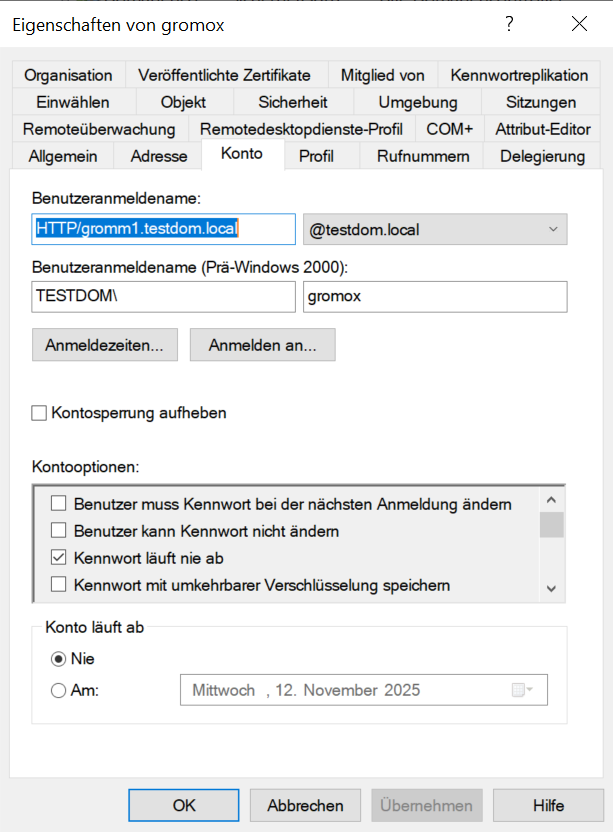
Section titled “2. Create the service account in Active Directory”On the domain controller, create a user account that represents the HTTP service
(here: gromox). On its Account tab, set the user logon name to the
service's SPN (HTTP/gromm1.testdom.local) in the domain realm, and enable
Password never expires.
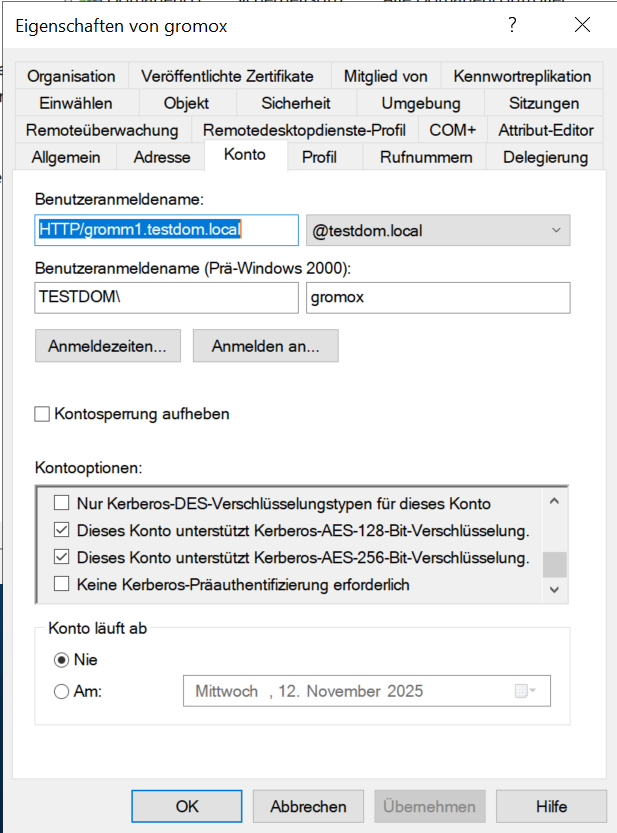
In Account options, enable both "This account supports Kerberos AES 128-bit encryption" and "…AES 256-bit encryption".
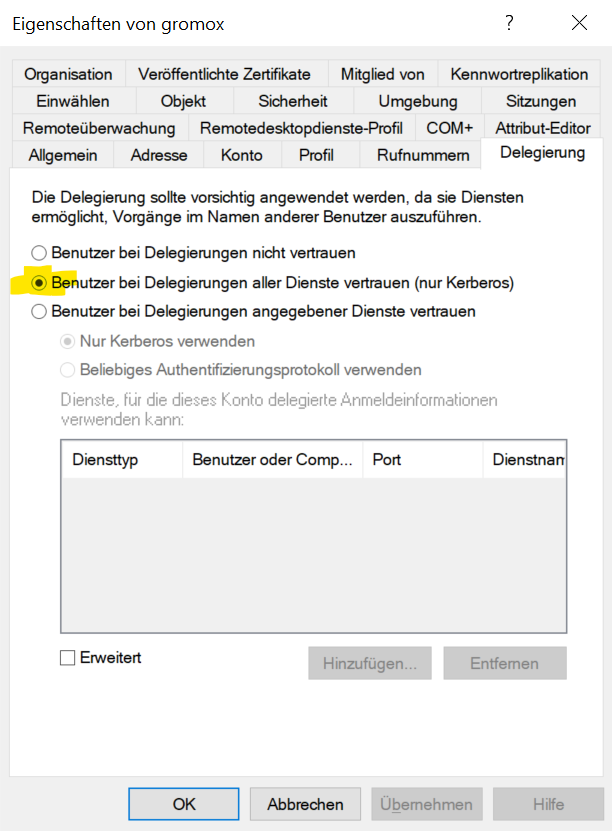
On the Delegation tab, select "Trust this user for delegation to any service (Kerberos only)".
3. Register the SPNs
Section titled “3. Register the SPNs”Still on the domain controller, register the service principal names against the
account. The HTTP/<host> and HTTP/autodiscover.<domain> SPNs are the
essential pieces:
setspn -S HTTP/gromm1.testdom.local@TESTDOM.LOCAL gromoxsetspn -S HTTP/autodiscover.testdom.local gromoxVerify (and, if needed, remove) the registered SPNs:
setspn -L gromox # list the account's SPNssetspn -D <SPN> gromox # delete an SPN
4. Export the keytab
Section titled “4. Export the keytab”Export a Kerberos keytab that maps the SPN to the service account, using AES256-SHA1:
ktpass.exe -princ HTTP/gromm1.testdom.local@TESTDOM.LOCAL ^ -mapUser gromox@TESTDOM.LOCAL -pass <PASSWORD> ^ -ptype KRB5_NT_PRINCIPAL -crypto AES256-SHA1 -out C:\Temp\krb5.keytab5. Copy the keytab to the grommunio server
Section titled “5. Copy the keytab to the grommunio server”Transfer krb5.keytab to the grommunio server as /etc/krb5.keytab (e.g. with
WinSCP or scp). Give it restrictive permissions — it contains the service
account's key material:
chown root:root /etc/krb5.keytabchmod 600 /etc/krb5.keytab6. Configure Kerberos on the server
Section titled “6. Configure Kerberos on the server”Edit /etc/krb5.conf:
[libdefaults]    default_realm = TESTDOM.LOCAL    default_tgs_enctypes = aes256-sha1 aes128-sha1    default_tkt_enctypes = aes256-sha1 aes128-sha1
[realms]    TESTDOM.LOCAL = {        kdc = dc1.TESTDOM.LOCAL        admin_server = dc1.TESTDOM.LOCAL        default_domain = TESTDOM.LOCAL    }
[domain_realm]    .testdom.local = TESTDOM.LOCAL    testdom = TESTDOM.LOCAL
7. Enable SPNEGO in Gromox
Section titled “7. Enable SPNEGO in Gromox”Edit /etc/gromox/http.cfg and add:
http_auth_spnego=yes
## GSS provider — the built-in one is the default:#gss_program=internal-gss
## …alternatively, use the Squid GSS helper:gss_program=/usr/lib/squid/negotiate_kerberos_auth -s GSS_C_NO_NAME
## verbose logging while testing (remove afterwards):http_debug=2
Restart the HTTP service so the changes take effect:
systemctl restart gromox-http8. Test from a domain-joined client
Section titled “8. Test from a domain-joined client”- Log in to a domain-joined Windows PC.
- Create a new Outlook profile.
- Outlook may prompt for credentials once on first run — enter them but do not save the password.
- On subsequent starts, Outlook must not prompt for a password.
- Open the Outlook Connection Status (hold Ctrl and click the
Outlook tray icon → Connection Status). The Authn column should read
Nego*, confirming Kerberos/Negotiate.

Verification & troubleshooting
Section titled “Verification & troubleshooting”Inspect the keytab and its key version number — the KVNO must match the grommunio server logs:
klist -k /etc/krb5.keytab # list principals + KVNOklist -e -k /etc/krb5.keytab # include encryption types# e.g. 51 HTTP/[email protected] (aes256-cts-hmac-sha1-96)Exercise the Squid GSS helper directly:
# Print a Negotiate token for the local host/usr/lib/squid/negotiate_kerberos_auth_test $(hostname -f)
# Validate a token against the service principal; paste the token when prompted# → OK token=… [email protected] group=…Get a verbose Kerberos trace for a test login:
On a Windows client, you can map an additional realm to a KDC if required:
ksetup /addkdc EXAMPLE.TEST kdc.example.test- The setup works fine with multiple domain controllers — just make sure DNS resolves the KDC(s) correctly.
- The two SPNs —
HTTP/<host>andHTTP/autodiscover.<domain>— are the critical piece; most failures come down to a missing or mistyped SPN, a clock skew over 5 minutes, or a KVNO/enctype mismatch between the keytab and the DC. - See also the authentication overview for how Gromox fits Kerberos alongside its other authentication backends.