

Microsoft Exchange
PFF (cf. summary from the Forensics Wiki) is a format exportable from Outlook and Exchange. Outlook makes use of this format for different scenarios, and calls them different names (.pst, .ost), but it is just one file type.
- .pst files can be generated with Outlook interactively
- .ost files can be taken from C:Users...
- .pst files can be also generated from an Exchange Server's PowerShell in a mostly unattended fashion
Outlook interactive export
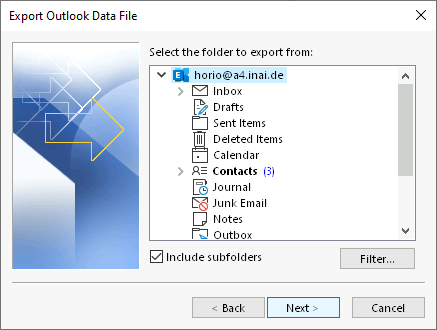
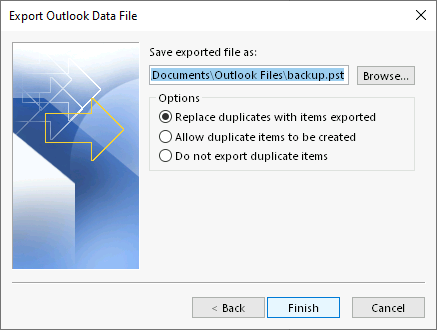
Section titled “Outlook interactive export”Once the Outlook main window is open, go to “File”, “Open & Export”, “Import/Export”:
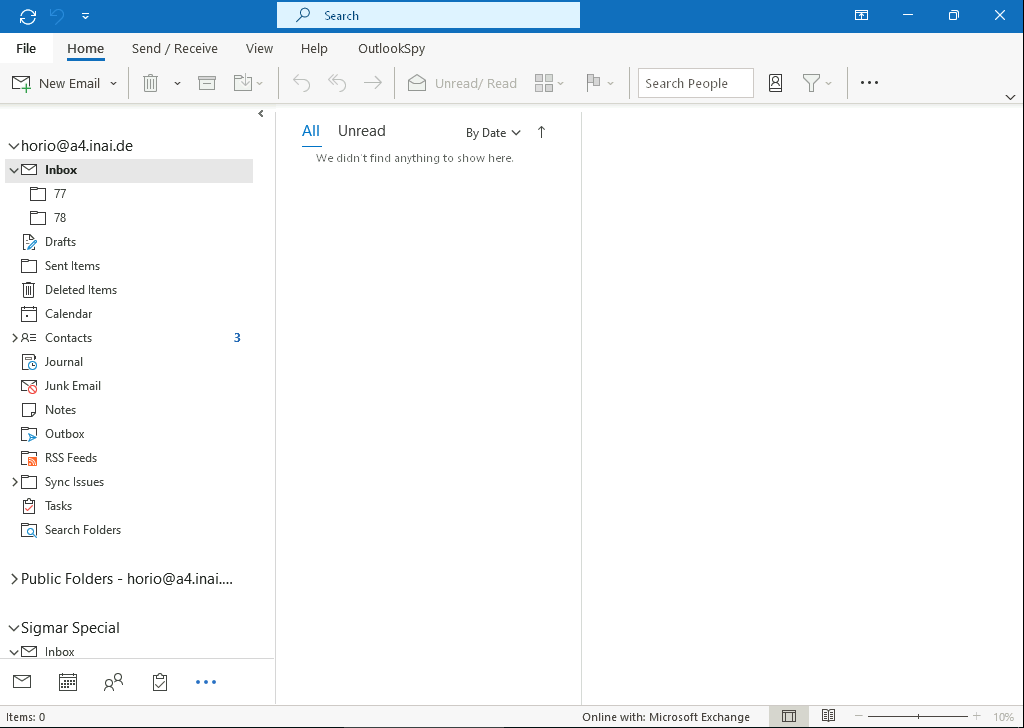
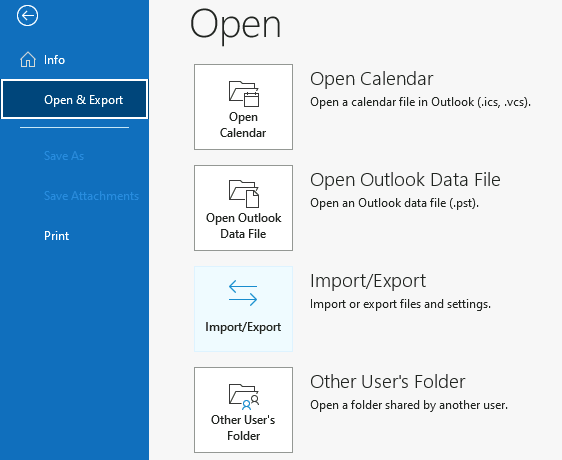
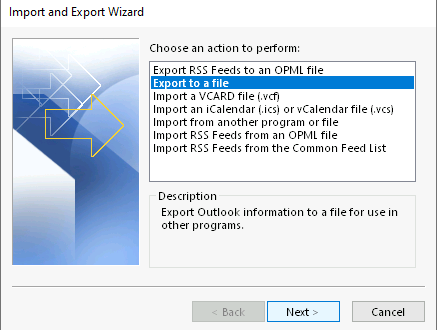
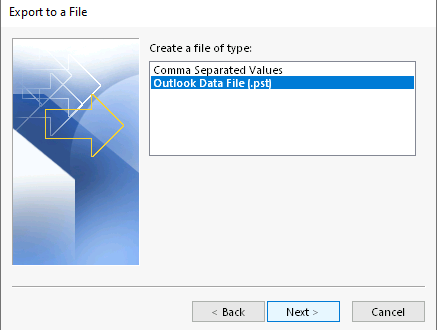
Then follow the usual dialog chain.
gromox-pff2mt import
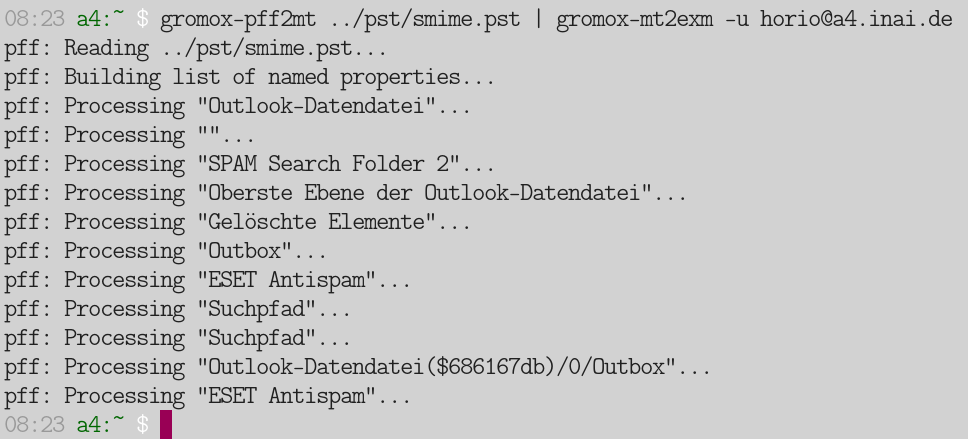
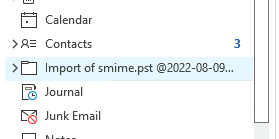
Section titled “gromox-pff2mt import”On the grommunio system, PFF files can be imported on the command-line with gromox-pff2mt and gromox-mt2exm. These are two commands meant to be chained together by way of a pipe; tend to the linked manual pages to read about the invocation syntax.
Automated bulk migration with exchange2grommunio.ps1
Section titled “Automated bulk migration with exchange2grommunio.ps1”For migrating many mailboxes, grommunio ships a PowerShell script —
exchange2grommunio.ps1 —
that automates the whole flow end to end. For each Exchange mailbox it exports a
.pst, makes it available to the grommunio server over a shared folder, and
imports it there via SSH — optionally creating the grommunio mailboxes as well.
How it works
Section titled “How it works”For every selected mailbox the script:
- Exports the mailbox to a
.pstwithNew-MailboxExportRequestonto a shared folder that the Exchange subsystem can write to. - Reaches the grommunio server over SSH (using
plink.exe), where the same folder is mounted (mount.cifs), and imports the.pst. - Optionally deletes the
.pstafterwards to save space, and records the result.
Successful imports are written to exchange2grommunio.done and failures to
exchange2grommunio.failed, so a run can be resumed or retried.
Prerequisites
Section titled “Prerequisites”- grommunio is attached to the same LDAP/AD as Exchange, so users resolve on both sides (test LDAP before importing).
- The script is run from an elevated Exchange Management Shell (Windows Server 2012 R2 or newer, PowerShell 2.0+; 3.0+ is recommended so Linux command output is captured in the logs).
plink.exe(from PuTTY) sits in the same directory as the script; optionallypageant.exefor SSH public-key authentication.- A shared folder (UNC path) that the Exchange subsystem can write to and
that the grommunio server can mount (
cifs-utilsinstalled), with enough space for the.pstfiles. - SSH access to the grommunio server, with its host key already accepted by
plink.exe.
Key settings
Section titled “Key settings”All settings live at the top of the script (or a separate configuration file). The most important ones:
| Variable | Purpose |
|---|---|
$GrommunioServer | FQDN of the target grommunio server |
$WinSharedFolder / $LinuxSharedFolder | The shared .pst folder, as seen from Windows (UNC) and from Linux (mount point) |
$LinuxUser | Shell user on the grommunio side (e.g. root) |
$LinuxUserPWD / $LinuxUserSSHKey / $UsePageant | SSH auth: password, private key (.ppk), or key via Pageant |
$WindowsUser / $WindowsPassword | Windows account used to mount the share on Linux |
$AutoMount | Mount the Windows share on the grommunio server automatically |
$DeletePST | Delete each .pst after a successful import |
$MailboxLanguage | Language for newly created mailboxes (see /usr/share/grommunio-admin-api/res/storelangs.json) |
$Organization | -o <id> when created mailboxes have aliases across domains |
$MigrationPriority | New-MailboxExportRequest priority (Normal is usually faster than High) |
$LogFile | Summary log; per-mailbox export/import logs go to <share>\logs\ |
Selecting which mailboxes to migrate
Section titled “Selecting which mailboxes to migrate”- Allow-list: set
$ImportMboxes(an array of addresses) or, if it is empty, the script reads addresses from theexchange2grommunio.importfile on the share. Leaving both empty migrates all mailboxes. - Deny-list:
$IgnoreMboxes/ theexchange2grommunio.ignorefile exclude mailboxes (always honored).
Creating mailboxes during migration
Section titled “Creating mailboxes during migration”Two switches decide whether the script also provisions the grommunio mailboxes (this requires a working LDAP configuration):
$CreateGrommunioMailbox | $OnlyCreateGrommunioMailbox | Behaviour |
|---|---|---|
$false | $false | Migrate into existing mailboxes, one by one |
$true | $false | Create then migrate each mailbox in turn |
$true | $true | Two-pass: create all mailboxes first, then run again with both set to $false to migrate the data |
The two-pass mode is recommended for large migrations: users can start working in grommunio immediately with empty mailboxes (new mail arrives normally) while the historical data is imported in the background.
Running it
Section titled “Running it”Launch the script from the elevated Exchange Management Shell:
.\exchange2grommunio.ps1- For an unattended run, set
$WaitAfterImport = $falseand$StopOnError = $falseso it does not block waiting for the administrator on an error. - To stop gracefully, create the stop-marker file (
exchange2grommunio.STOP) on the share — the script finishes the current mailbox and then exits.
The underlying import on the grommunio side uses the same tooling as the manual path (gromox-pff2mt → gromox-mt2exm), so the import notes above apply equally.