

AI Assistant
The AI Assistant helps you get through your mail faster. It summarizes long mails and whole threads, translates foreign-language mail, suggests the next steps (a meeting, a task, a reply) and polishes the texts you write.
The assistant in the reading pane
Section titled “The assistant in the reading pane”Select a mail and click the AI Assistant button (✦) at the top right of the reading pane. The arrow next to it opens the menu:
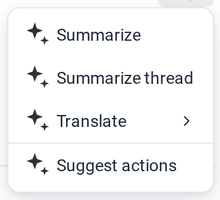
| Entry | What it does |
|---|---|
| Summarize | summarizes the selected mail in a few sentences, with the action items for you. |
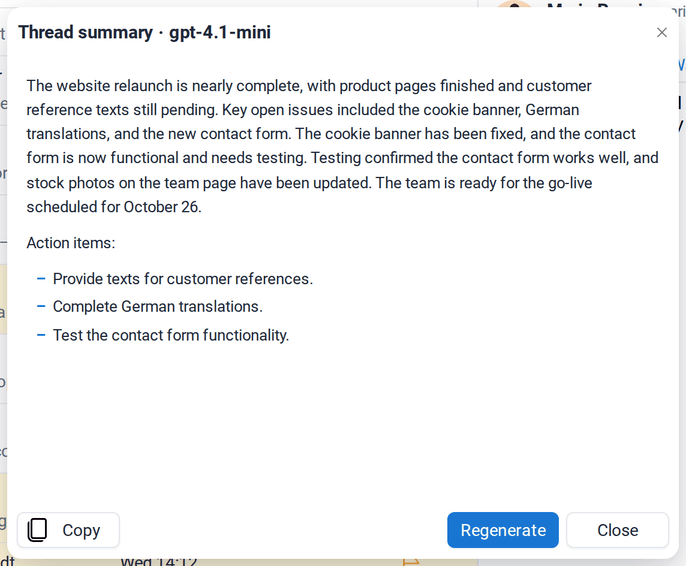
| Summarize thread | summarizes all mails of the conversation, from the first to the latest. |
| Translate ▸ | translates the mail into your language or into English, German, French, Spanish, Italian, Dutch, Portuguese, Polish, Chinese or Japanese. |
| Suggest actions | proposes the next steps: a meeting, a task, a new contact or a reply. |
You can also right-click a mail in the list and choose Summarize with AI or Translate with AI.
Summaries
Section titled “Summaries”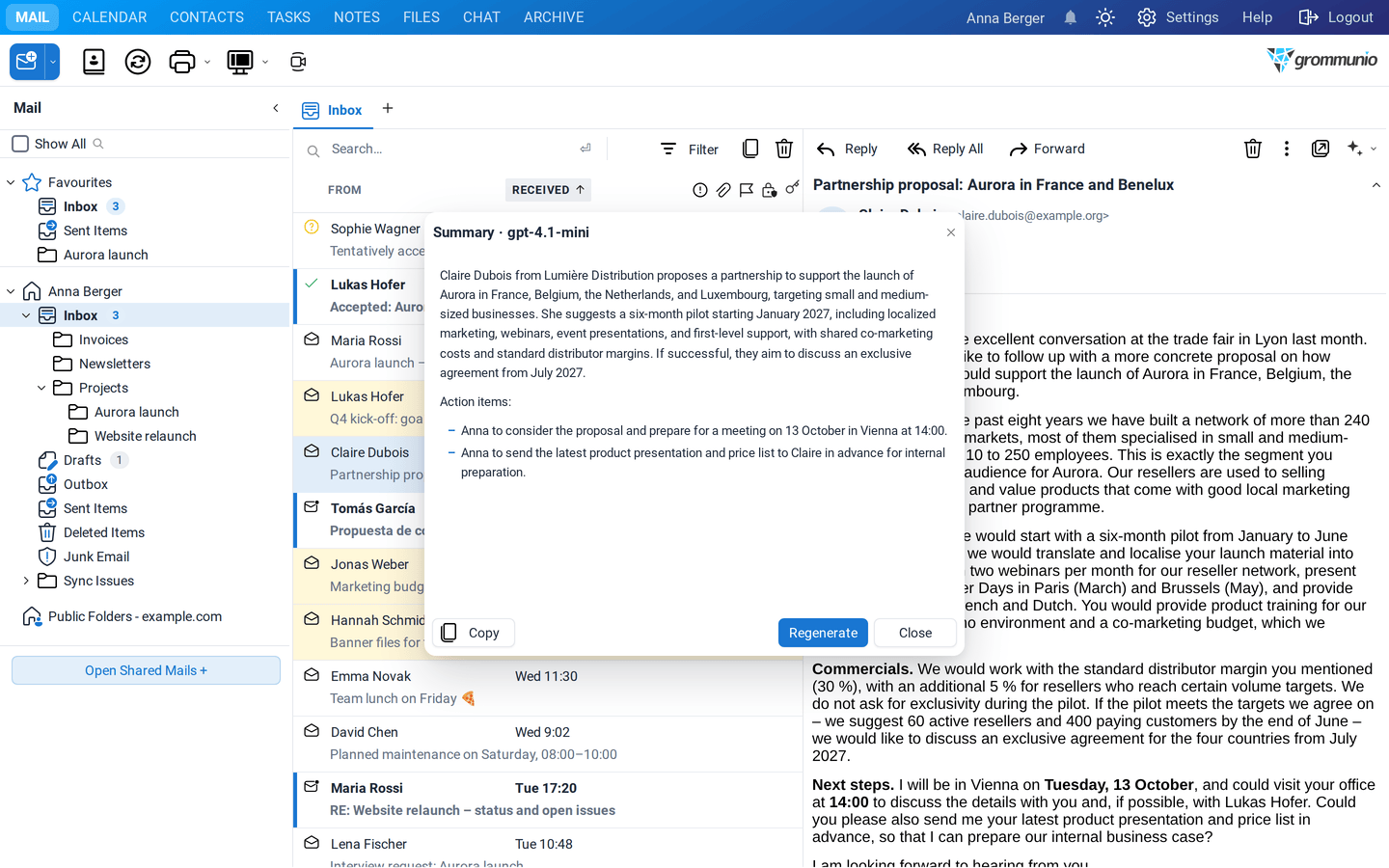
The answer appears while it is being written. Below it you find:
- Copy to copy the text, for example into a note or a reply,
- Regenerate to get a new version,
- Close.
The length of the summaries (brief, standard or detailed) is set in Settings › AI Assistant.
Translations
Section titled “Translations”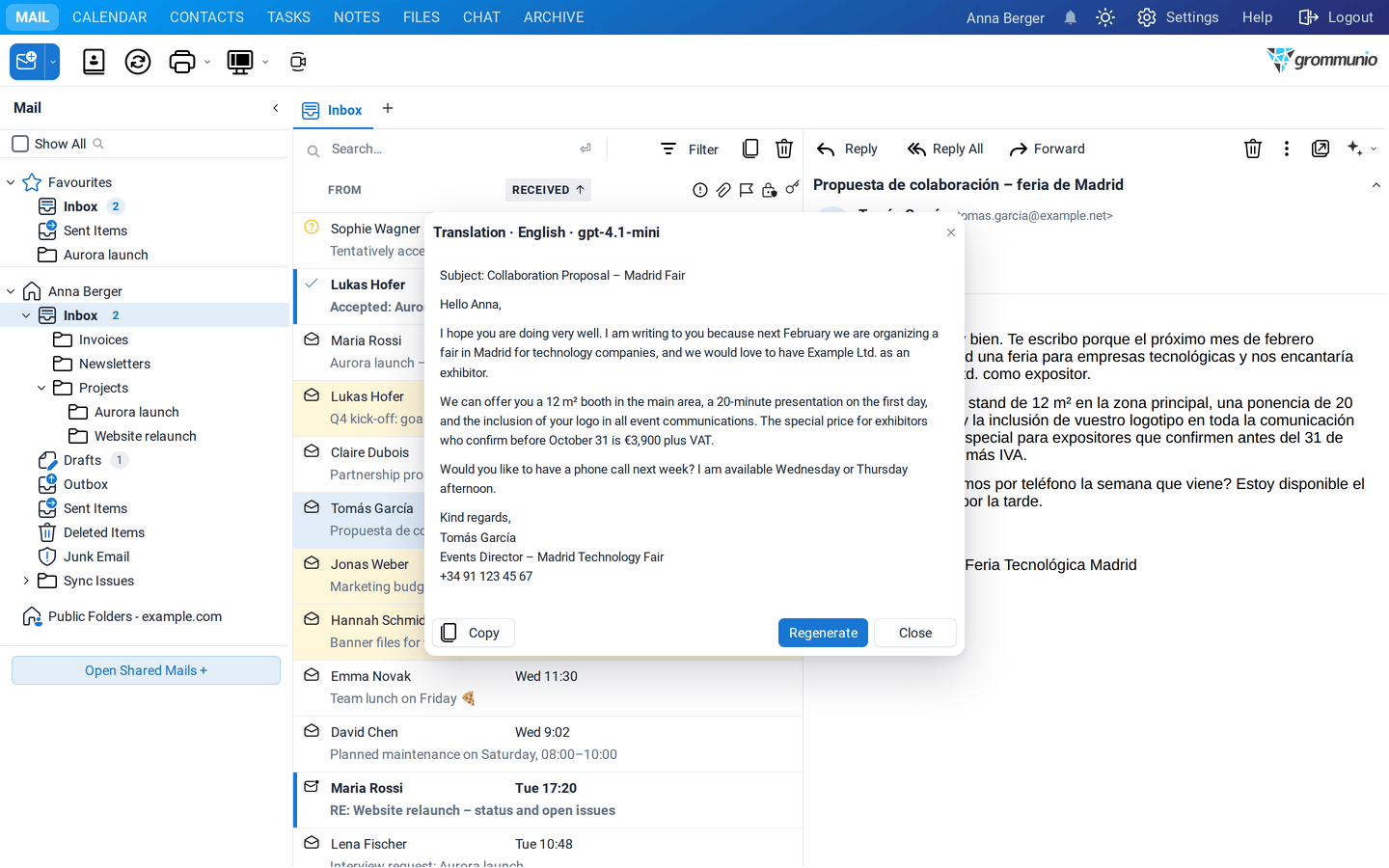
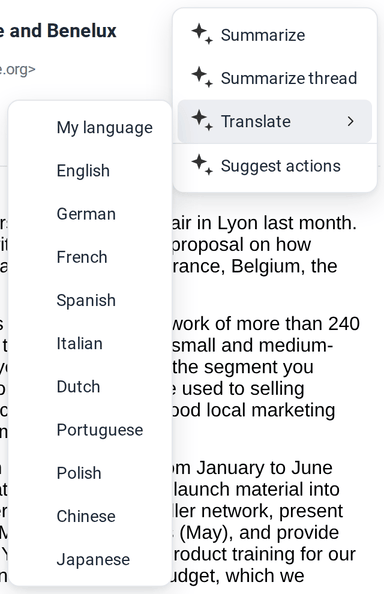
My language translates into the language set under Settings › AI Assistant, which by default follows your interface language. The original mail is not changed.
Suggested actions
Section titled “Suggested actions”Suggest actions reads the mail and proposes what to do next. Each suggestion is a button:
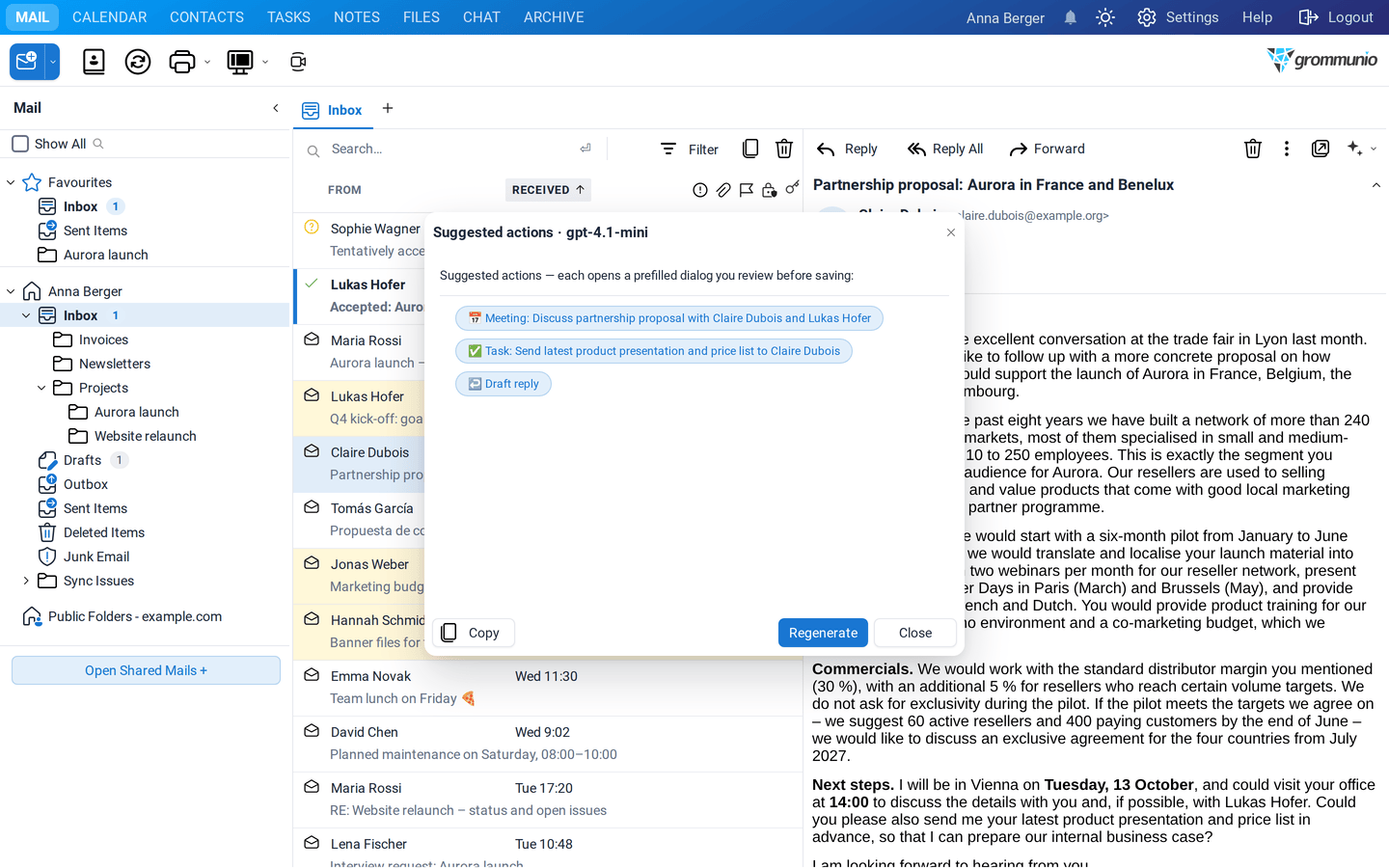
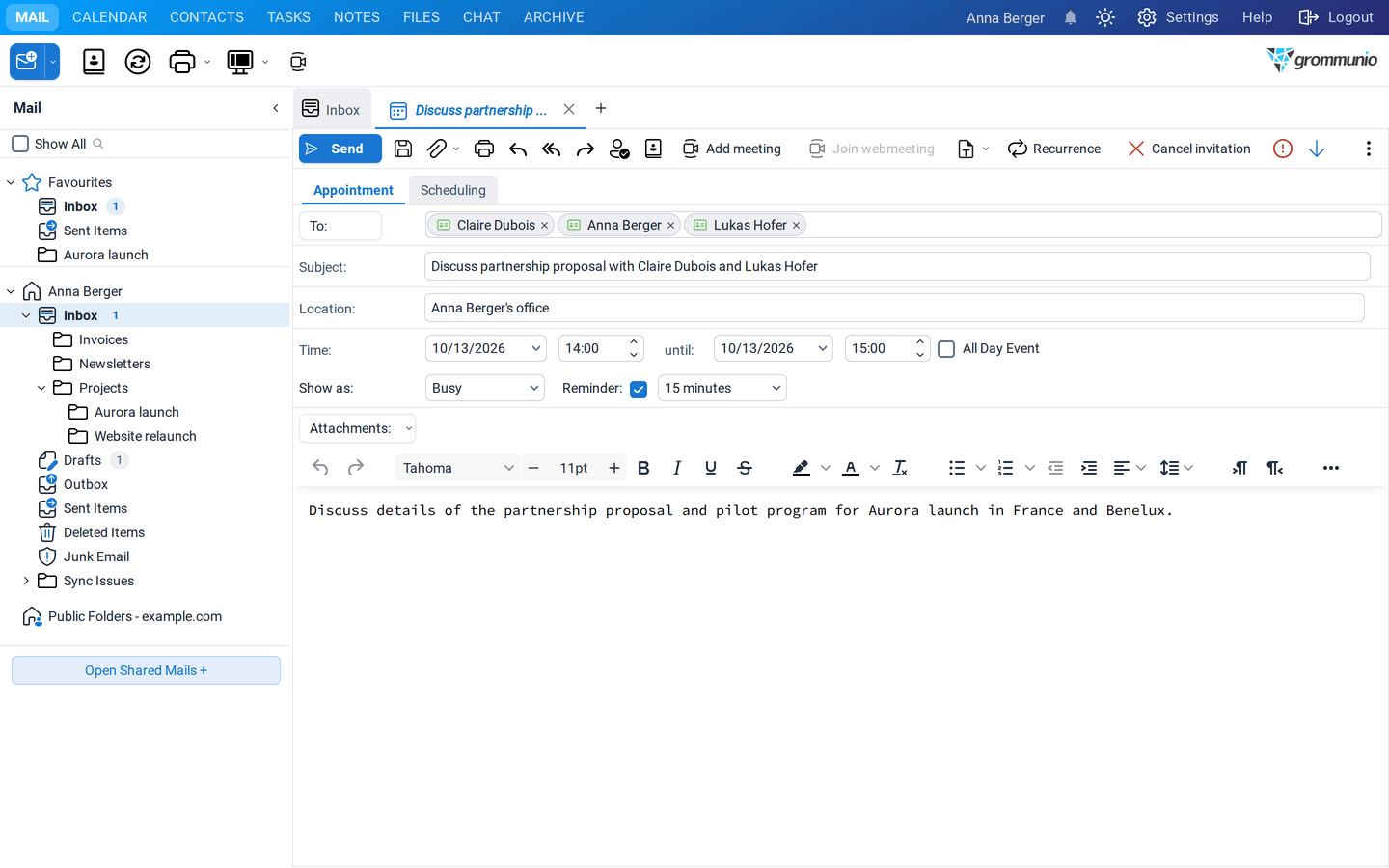
- 📅 Meeting opens a new meeting request with subject, date, time, location and attendees filled in from the mail.
- ✅ Task opens a new task with subject, notes and due date.
- 👤 Add contact opens a new contact with the name and e-mail address of the sender.
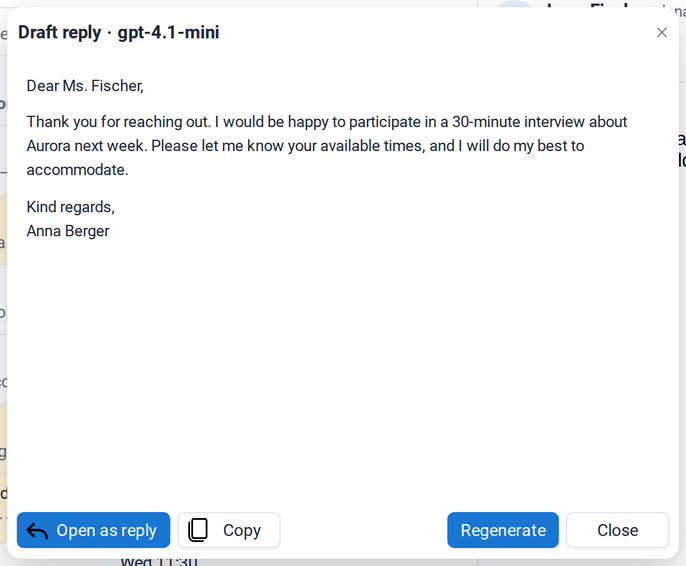
- ↩️ Draft reply writes an answer for you.
Drafting a reply
Section titled “Drafting a reply”Draft reply shows the proposed answer first. Click Open as reply to turn it into a normal reply with the original mail quoted below; then edit it and send it.
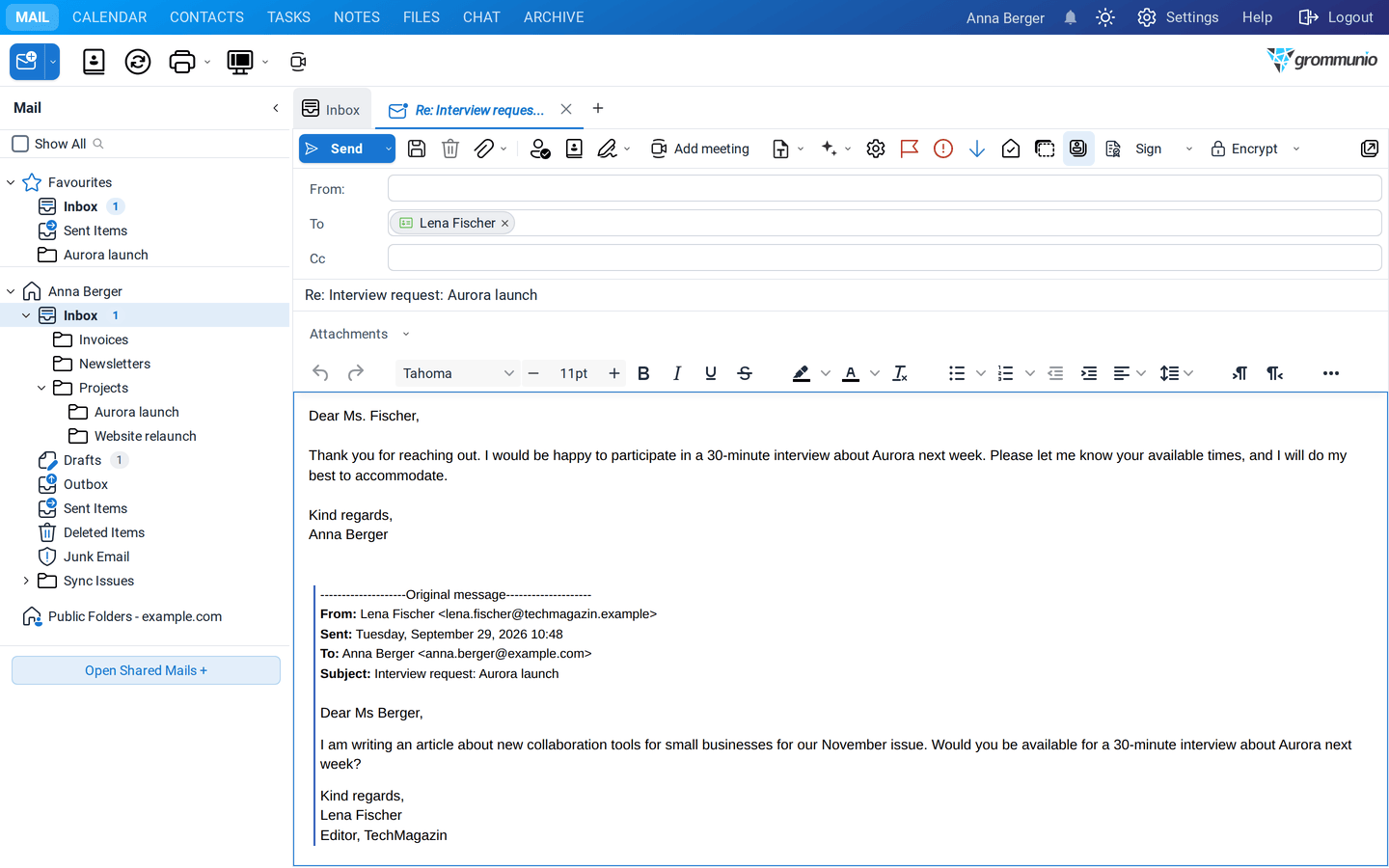
Writing with the AI
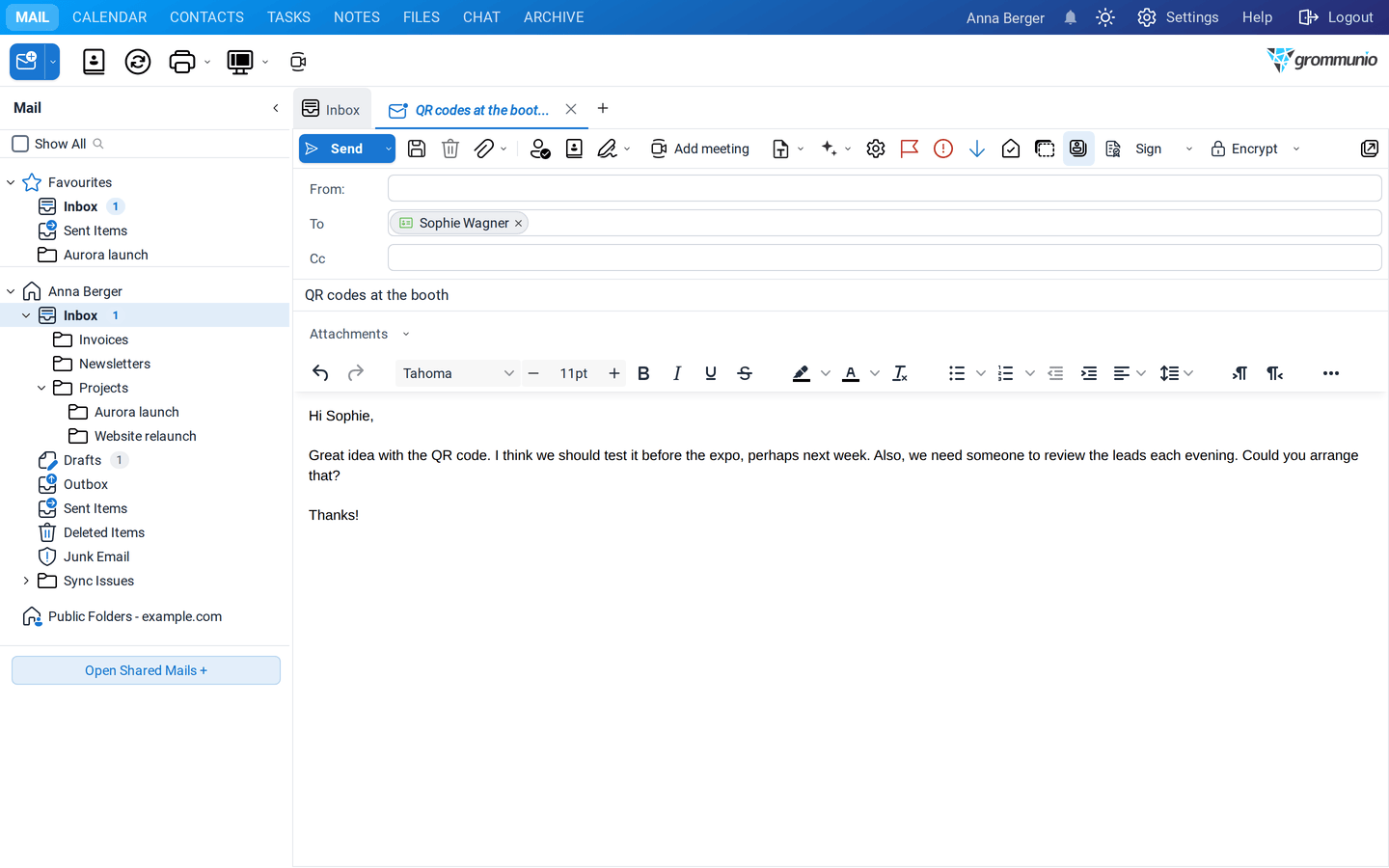
Section titled “Writing with the AI”When you write a mail, the AI writing assistant button (✦) in the toolbar works on the text you have written:
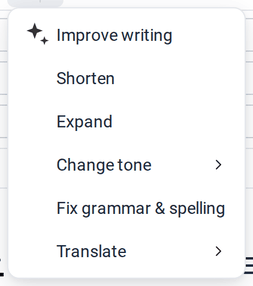
- Improve writing: makes your text clearer and more fluent.
- Shorten / Expand: makes it shorter or more detailed.
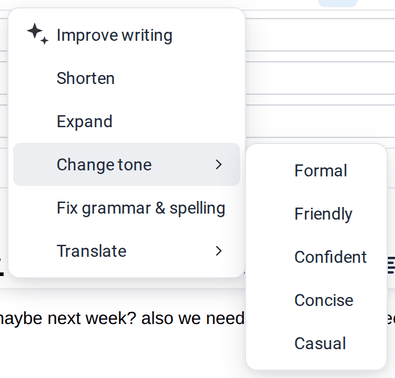
- Change tone ▸ Formal, Friendly, Confident, Concise or Casual.
- Fix grammar & spelling: corrects mistakes without rewriting.
- Translate ▸ into one of the supported languages.
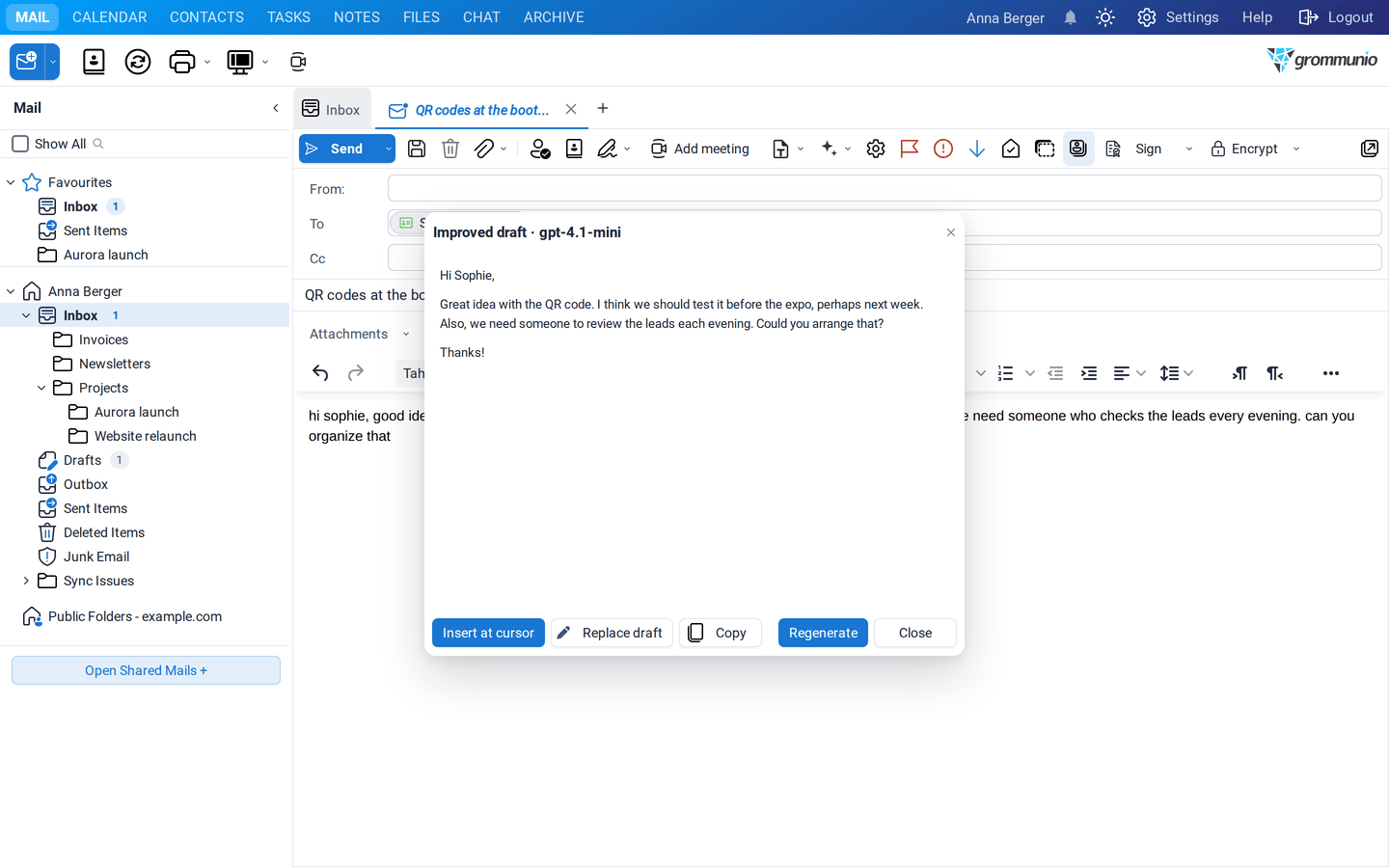
The result appears in a window. Choose Insert at cursor to add it where your cursor is, or Replace draft to replace your text:
Settings
Section titled “Settings”Under Settings › AI Assistant you can adjust the assistant to your needs:
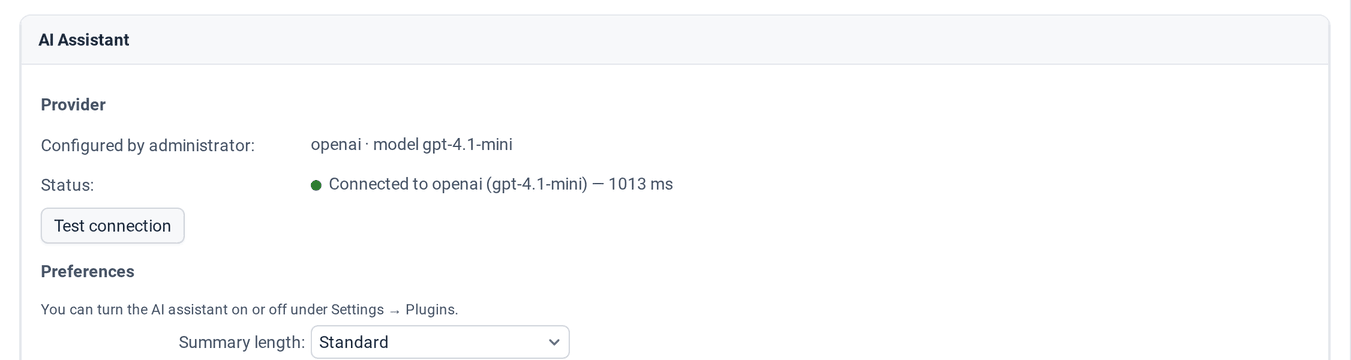
- Provider: which service and model your administrator configured. Test connection checks that it works and shows the response time.
- Summary length: Brief, Standard or Detailed.
- Translate into: the language for My language (automatic by default).
- Writing tone: the default tone of the writing assistant.
- Stream responses as they are generated: shows the answer while it is being written.
- Features and Smart actions: switch individual features off, for example the draft replies.
Options your administrator switched off are greyed out with the hint Disabled by administrator.