

More Plugins
Plugins add features to grommunio Web. Your administrator decides which plugins are installed and which are switched on for you; you can switch optional plugins on and off yourself under Settings › Plugins:
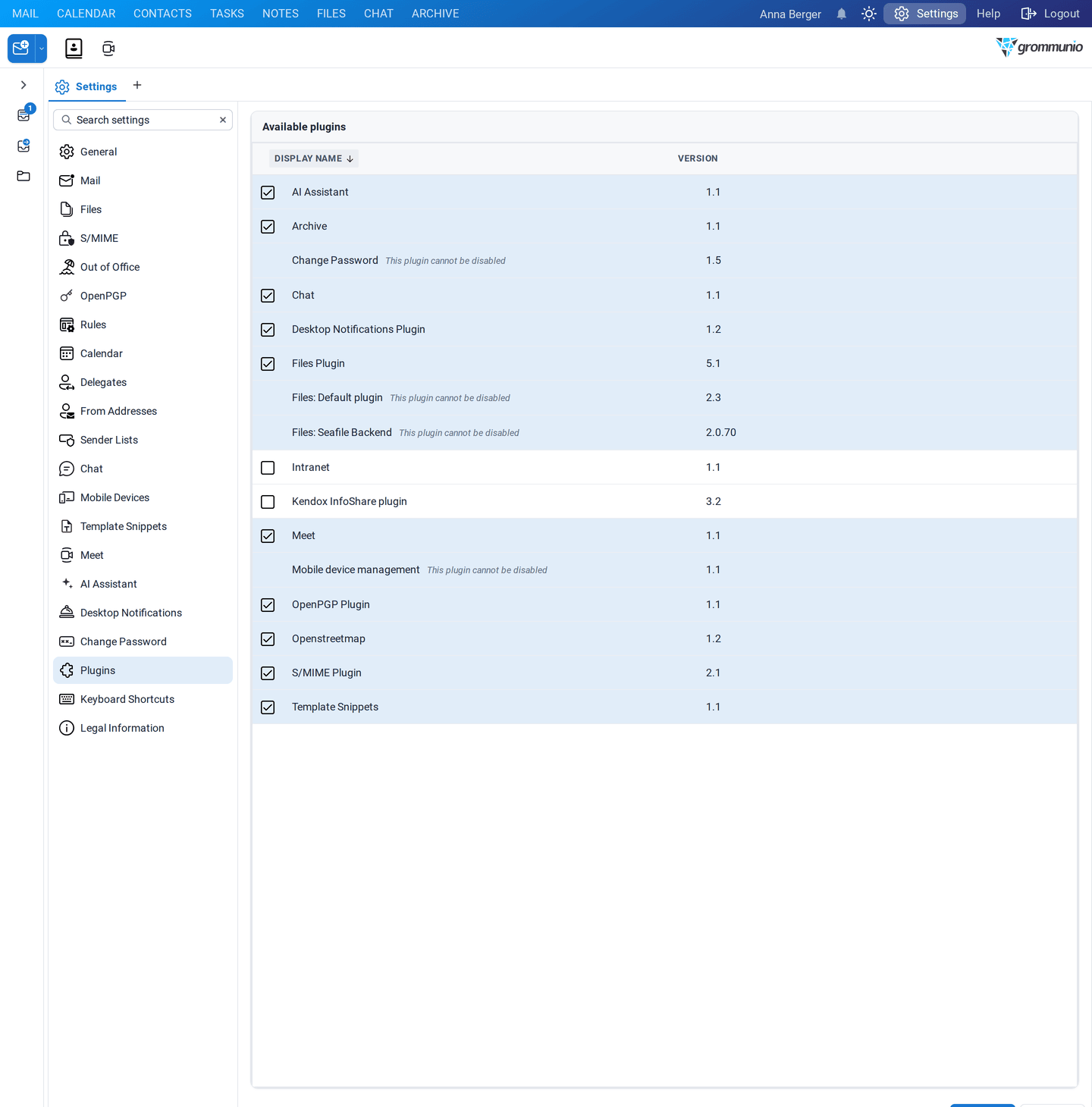
Tick or untick a plugin and click Apply. grommunio Web reloads to load or unload it. Plugins marked This plugin cannot be disabled are always on.
Overview
Section titled “Overview”| Plugin | What it adds | Read more |
|---|---|---|
| AI Assistant | summaries, translations, suggested actions and writing help | AI Assistant |
| Archive | the Archive tab to search grommunio Archive | Archive |
| Change Password | the Change Password settings page (always on) | Settings |
| Chat | the Chat tab with grommunio Chat | Chat |
| Desktop Notifications Plugin | notifications of your operating system for new mail and reminders | below |
| Files Plugin | the Files tab and files in mail | Files |
| Intranet | tabs for web pages of your organization | below |
| Kendox InfoShare plugin | archiving mails into Kendox InfoShare | below |
| Meet | video meetings with grommunio Meet | Meet |
| Mobile device management | the Mobile Devices settings page (always on) | Mobile Devices |
| OpenPGP Plugin | signing and encryption with OpenPGP | Signing & Encryption |
| Openstreetmap | the Map tab for contacts and address book entries | below |
| S/MIME Plugin | signing and encryption with S/MIME certificates | Signing & Encryption |
| Template Snippets | reusable text blocks | Template Snippets |
Desktop Notifications
Section titled “Desktop Notifications”With the Desktop Notifications Plugin, new mail and reminders are also announced by your operating system, even when the grommunio Web tab is in the background.
- Switch the plugin on under Settings › Plugins and reload.
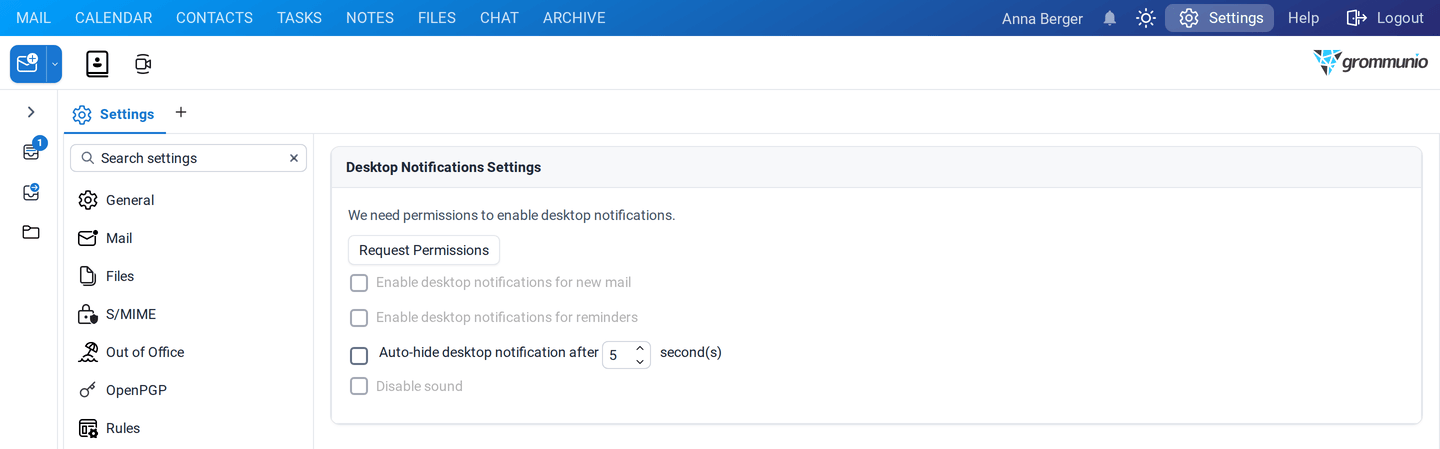
- Open Settings › Desktop Notifications and click Request Permissions. Allow notifications when your browser asks.
- Choose what you want to be notified about.
| Option | Description |
|---|---|
| Enable desktop notifications for new mail | a notification for every new mail |
| Enable desktop notifications for reminders | a notification for every due reminder |
| Auto-hide desktop notification after … second(s) | how long a notification stays visible |
| Disable sound | notifications without sound |
Desktop notifications work in Chrome, Edge and Firefox. Which folders trigger notifications is set under Settings › Mail › New Mail Notifications.
Intranet
Section titled “Intranet”The Intranet plugin adds tabs to the top bar that open web pages of your organization inside grommunio Web, for example the intranet, a wiki or a ticket system. Your administrator configures the names and addresses of the tabs:

Some web sites do not allow to be shown inside another application. They cannot be used as intranet tabs.
The Openstreetmap plugin adds a Map tab to contacts and to the details of address book entries. It shows the home, business and other addresses on an OpenStreetMap map; click a marker to see which address it is. See Contacts › Map.
To find the position of an address, it is sent to the geocoding service of OpenStreetMap.
Kendox InfoShare
Section titled “Kendox InfoShare”Organizations that use the document management system Kendox InfoShare can archive mails into it straight from grommunio Web:
- Right-click a mail and choose Archive to InfoShare....
- Choose what to archive:
- Everything - Store mail in original format,
- Email only - Store mail without attachments, or
- Separate - Store attachments separately, then select the attachments.
- Click Start archive and complete the archiving in the Kendox dialog that opens.
The limits for the number and size of attachments and the Kendox environment are set under Settings › Kendox InfoShare and by your administrator.