

Template Snippets
If you write the same text again and again, such as an acknowledgement, directions to your office or a product description, save it as a template. With the Template Snippets plugin you insert it with two clicks.
There are two kinds of templates:
- System Templates are provided by your organization for everybody, for example official wordings. You cannot change them.
- User Templates are your own.
Switching Template Snippets on
Section titled “Switching Template Snippets on”- Open Settings › Plugins.
- Tick Template Snippets and click Apply.
- Reload grommunio Web when asked.
Inserting a template
Section titled “Inserting a template”- Place the cursor where the text should go, in a mail, appointment, contact, task or note.
- Click the arrow next to Insert Template in the toolbar.
- Choose the template.
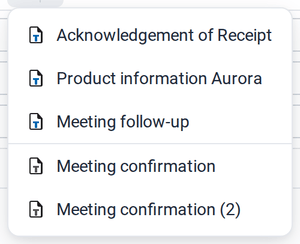
The menu lists the system templates first and then your own templates. The text is inserted at the cursor, formatted in HTML mails and as plain text in plain-text mails.
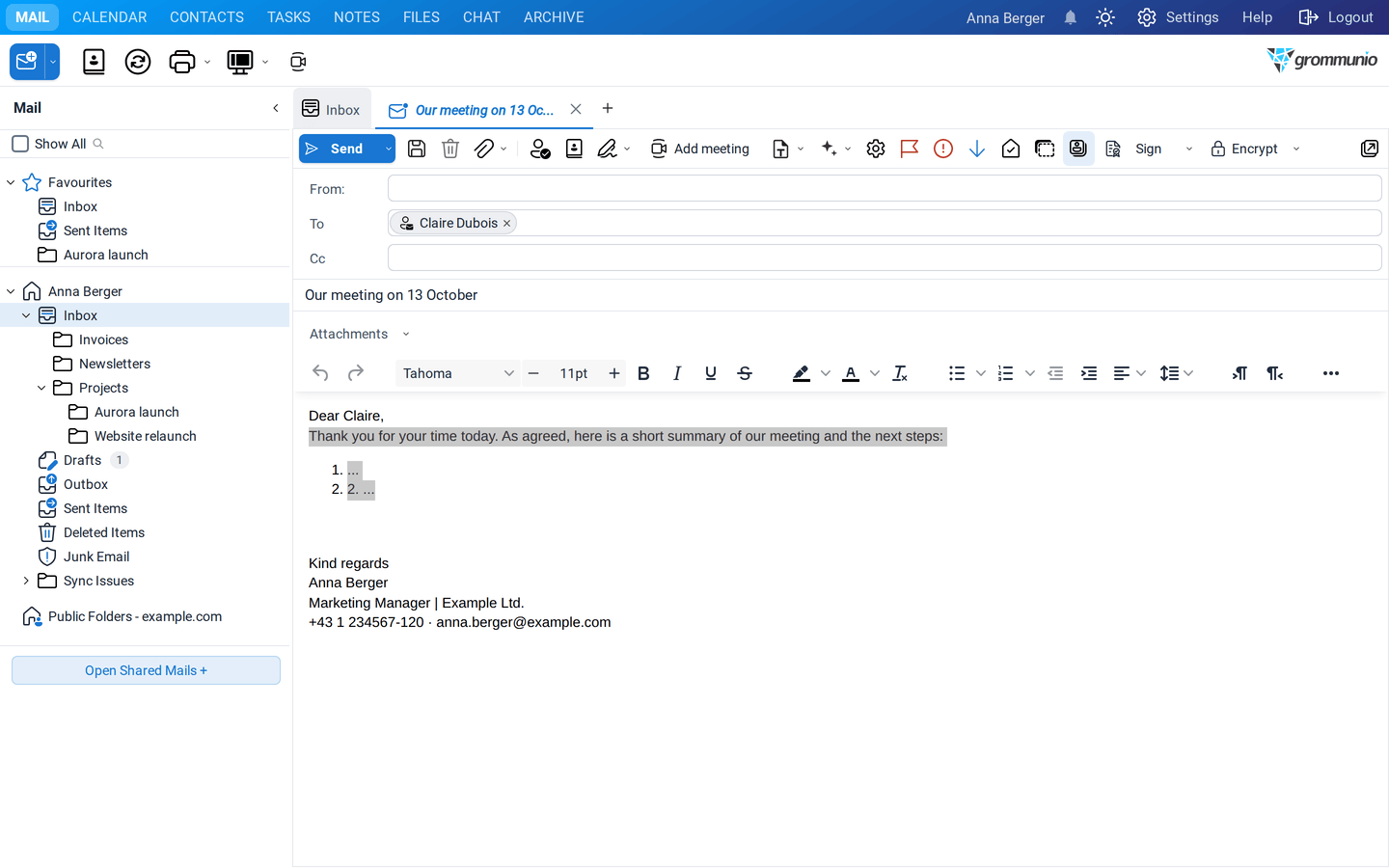
Creating your own templates
Section titled “Creating your own templates”- Open Settings › Template Snippets.
- Under User Templates, click New.
- Enter a name and write the text in HTML Content. You can use bold text, lists and links.
- Optionally click Convert HTML to Plain Text to create the plain-text version, or edit Plain Text Content yourself.
- Click Save Template and Apply.
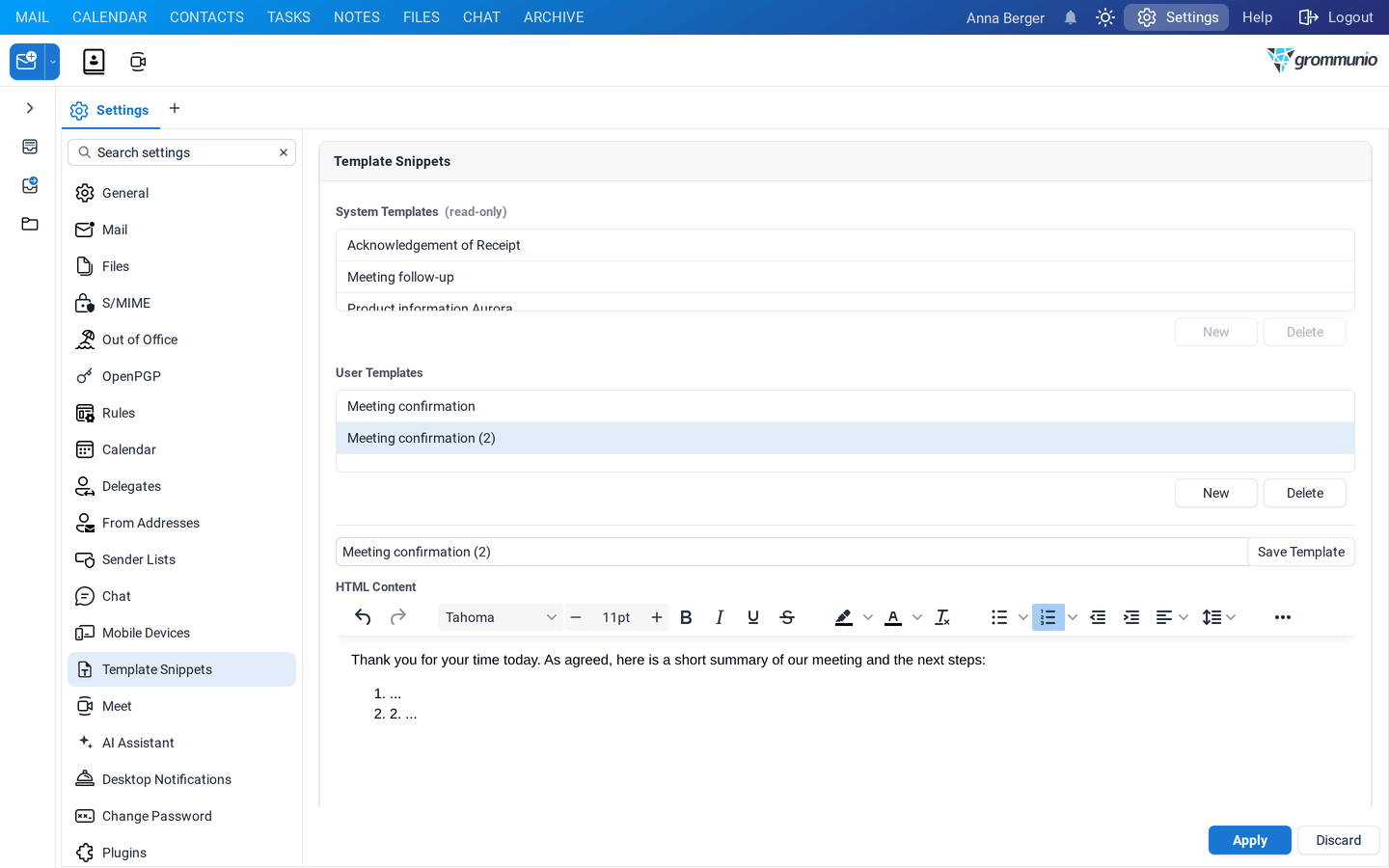
To change a template, select it, edit it and click Save Template again. Delete removes the selected template.